Charts and Graphics
NCReport has no single built-in "chart" object that covers every need. Instead, it offers several ways to put charts and other graphical content into a report:
-
Online chart images: an Image item with a URL source can display charts generated by a web chart service (see Online Chart Images).
-
Chart item: an optional, Highcharts-based chart item that renders a chart from report data through a web engine (see Chart Item (Highcharts Integration)).
-
Graph (Custom) item: content painted by your own C++ renderer class, the most flexible solution for charts (see Graph (Custom) Item).
-
Graphics View item: renders the contents of an existing
QGraphicsViewwidget of your application (see Graphics View Item).
Online Chart Images
Because the Image item can load images from a URL, any web service that returns a chart as a PNG or other image can be used to embed charts in a report. The image is downloaded by the built-in HTTP client when the item is loaded.
The chart parameters are encoded in the URL itself. The URL can be static (URL source type, resource="url"), or it can be read from a data source column (URL from data source source type, resource="urlfromds"), so the URL, and thus the chart, can be built from report data, for example by an SQL query.
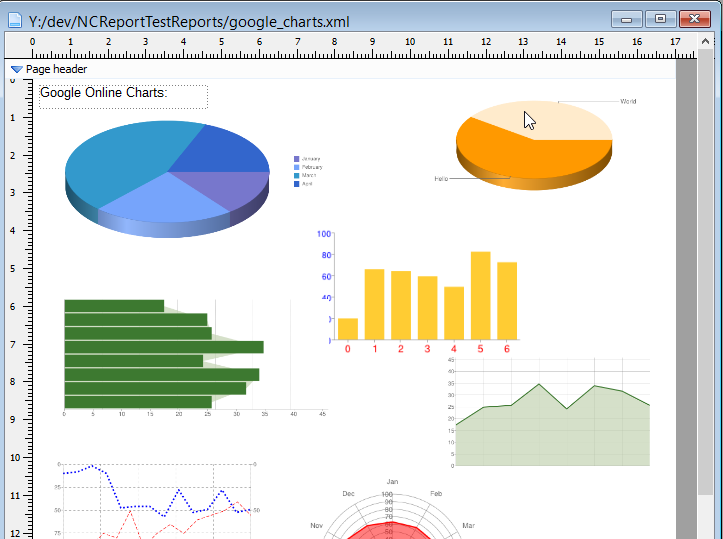
The demo reports google_charts.xml and google_charts2.xml show this technique with Google’s image chart URLs. A static online chart image looks like this:
<image id="1" zValue="1" resource="url" posX="96.630" posY="1.534" width="72.089" height="39.879"
aspectRatio="keep" format="bin">http://chart.apis.google.com/chart?chs=500x200&chd=t:60,40&cht=p3&chl=Hello|World</image>In google_charts2.xml the chart URL comes from a data source column:
<image id="0" zValue="0" resource="urlfromds" posX="0.000" posY="7.938" width="168.275" height="87.312"
aspectRatio="keep" transformMode="smooth" format="0">DataSource2.col0</image>|
Charts loaded this way depend on the availability of the remote service and require network access when the report runs. Remember to escape the |
For all other image options, see the Images chapter.
Chart Item (Highcharts Integration)
The Chart item (<chart> element, implemented by NCReportChartItem and NCReportHighChartsManager) renders charts with a JavaScript charting library running in a Qt web engine. The item fills an HTML template with data taken from report data sources, loads the result into an off-screen web page, and uses the SVG text produced by the page as the chart image.
|
The Chart item is an optional feature without official support. It is compiled only when the engine is built with the |
How it works
-
The item text contains a JavaScript snippet that defines a global
reportDataobject. -
Series data are filled in from the report data sources (see below), and the updated
reportDataobject is serialized back to script. -
The template file is copied to a result file (by default
chart.htmlin the system temporary directory). While copying, the content of the template’s<script id="report-data">element is replaced with the generatedreportDatascript; all other elements and scripts are copied unchanged. -
The result file is loaded into a
QWebEnginePage(orQWebPagewith WebKit). When loading has finished, the plain text content of the page is taken as the chart SVG. The template must therefore produce the chart’s SVG markup as the text of the page. -
The SVG is drawn into the item rectangle, keeping its aspect ratio. If the chart is not ready within 15 seconds, the item reports a "Timeout error when generating chart." error.
The template file name is stored in the template attribute. If the file does not exist at the given path, the engine looks for a file with the same name in the current directory, in the report’s template directory, in templates/ and ../templates/, and in the templates folder of the user’s home directory.
Feeding data into the chart
The reportData.resultSet object controls how data are loaded. There are two ways:
- Data source per series
-
Each element of
reportData.resultSet.seriesListmay have adatasourceproperty and acategorysourceproperty in the formdataSourceID.columnName. All records of the referenced column are loaded into the series'dataarray (as numbers) orcategoryarray (as strings). - Dedicated data source
-
If
reportData.resultSet.datasourcecontains a data source ID, the engine builds the wholeseriesListfrom that data source. The column names of the data source determine the structure:-
category,dataandseriescolumns: one series is created for each distinctseriesvalue; each record adds adatavalue and acategorylabel to its series. An optionalgroup(orgroupname) column sets the series'groupproperty. -
An additional
category_keycolumn: records are sorted by the category key, a first series namedcategoryholds the category labels, and missing data points are filled withnull. -
Any other column layout is treated as pivoted data: every data source column becomes a series named after the column, with one data point per record.
-
A minimal skeleton of the item’s reportData script, showing the properties read by the engine; the other properties of the object (chart options for the template, for example) are passed to the template unchanged:
var reportData = {
    resultSet: {
        seriesList: [
            { datasource: "salesDS.amount", categorysource: "salesDS.month" }
        ]
    }
};Graph (Custom) Item
The Graph item (also called Custom item, <graph> element) delegates painting to a C++ class that you implement and register in your application. Your class receives a QPainter, the target rectangle and the item’s data, and can draw anything: bar or line charts, gauges, diagrams, or other QPainter-drawn content.
This is the recommended way to produce charts that are fully under your control and that print in vector quality.
Item settings
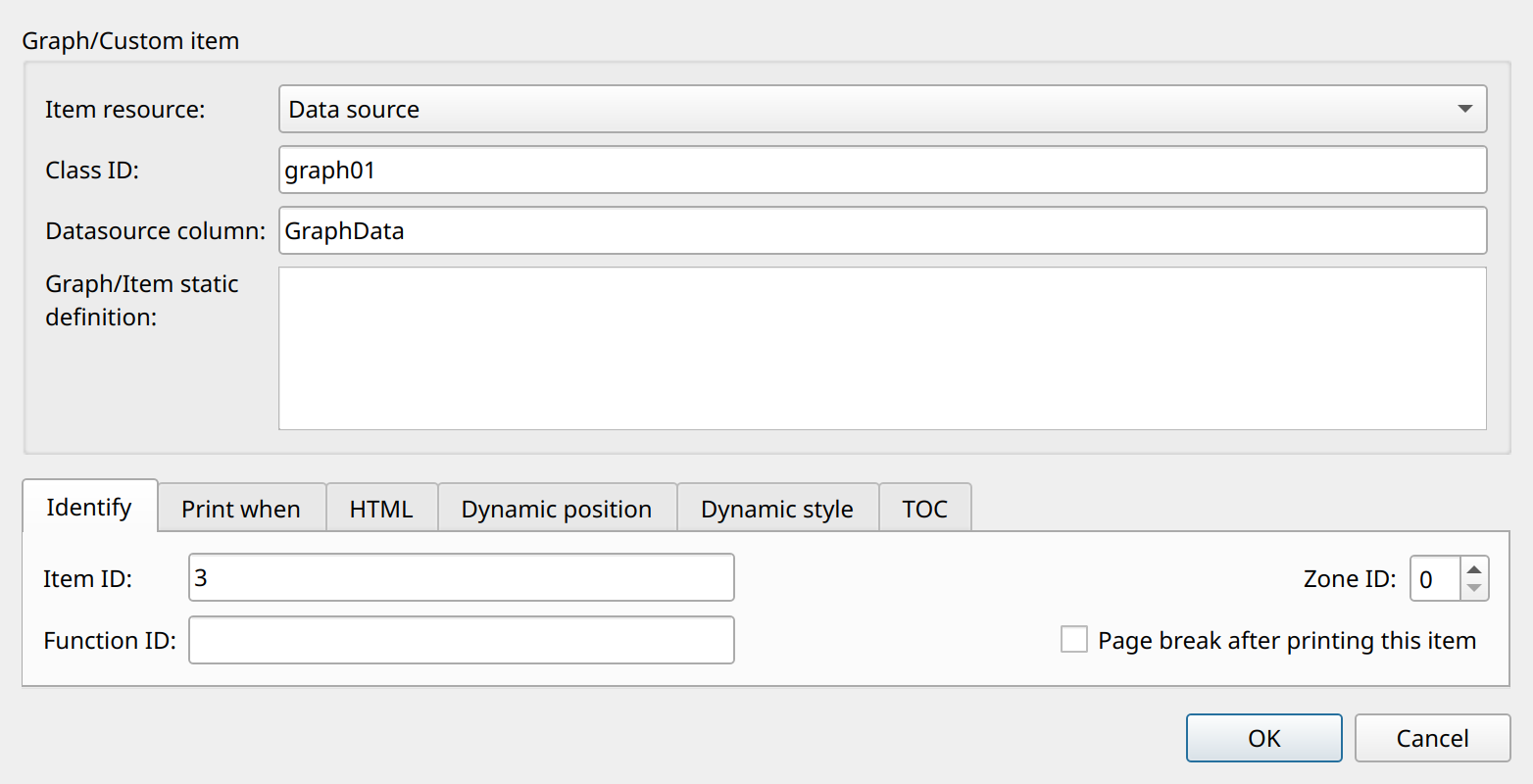
The Graph/Custom item properties dialog has the following fields:
- Item resource
-
Static or Data source.
- Class ID
-
The ID of the renderer class that paints the item (
classIDattribute). - Datasource column
-
With the Data source resource, the data source column whose value is passed to the renderer for every record.
- Graph/Item static definition
-
With the Static resource, a fixed text passed to the renderer.
The text passed to the renderer is the itemdata argument of the renderer’s paintItem() method. Its format is entirely up to you, for example a comma-separated list of values, as in the graph_demo.xml demo report:
<datasource id="data" type="txt" openRole="begin" source="static" columnDelimiter="tab" hasColumnHeader="true">ID	Description	GraphData
0	Graph 1.	95,63,84,96,20,34,50
1	Graph 2.	57,33,79,51,80</datasource>
...
<graph id="3" zValue="3" resource="datasource" classID="graph01"
       posX="0.000" posY="6.350" width="169.862" height="28.575">GraphData</graph>
Graph items can also store named parameters instead of a single definition text. In this mode the element has the hasParameters="true" attribute and <par> child elements; string parameter values that contain $ tokens are evaluated before each rendering. The renderer can read the parameters through its item() pointer.
Renderer classes
Renderers are subclasses of NCReportGraphRenderer. The class NCReportAbstractItemRendering, used in older examples, is an obsolete subclass kept for backward compatibility. The main virtual methods are:
paintItem(QPainter*, NCReportOutput*, const QRectF& rect, const QString& itemdata)-
Pure virtual. Paints the item content into
rect. paintEditorItem(QPainter*, const QRectF& rect, const QString& text)-
Paints the item in the Designer. If no renderer is registered for the item, the Designer shows a placeholder labelled
CUSTOM DRAWING (…). calculateSizeMM()/calculateHeightMM()-
Return the item size or height in millimeters when the item’s automatic height is enabled.
dataSourceID()-
Returns the ID of a report data source; the engine then makes that data source available to the renderer through
dataSource(). isValidLocation(int sectionType)-
Restricts the section types in which the item may be placed.
The renderer for an item is looked up first by the item’s numeric type ID (typeId attribute) and then by its class ID. Set the renderer’s ID with setId() (a string or an integer) and register it with NCReport::addGraphItemRenderer(); the older addItemRenderingClass() method is obsolete but still available:
NCReport *report = new NCReport(this);
MyChartRenderer *renderer = new MyChartRenderer();
renderer->setId("graph01");          // must match the item's Class ID
report->addGraphItemRenderer(renderer);
The renderer is called only for graphical outputs (printer, PDF, SVG, image and preview).
A complete renderer implementation is shown in the "Custom items in NCReport" section of the NCReport API chapter; the GraphDemo, SqlGraphDemo and CustomItem demo applications in src/demos are working examples.
|
Applications that embed the Designer can register the same renderers in the Designer main window ( |
Graphics View Item
The Graphics View item (NCReportGraphicsViewItem, <graphicsview> element) prints the content of a QGraphicsView widget that exists in your application. This lets you print charts or drawings that are already displayed on screen using the Qt Graphics View framework, without writing a renderer class.
In the Designer, select the Graphics View tool and place the item in a section. In the GraphicsView item settings dialog, set the Class ID, which identifies the view object. In design mode the item is shown as a placeholder labelled QGraphicsView Content [classID].
At run time, register the view pointer under the same ID through the report definition:
NCReport *report = new NCReport(this);
report->setReportFile("chartreport.ncr");
report->reportDef()->addGraphicsView("salesChart", ui->graphicsView);
<graphicsview id="GV1" zValue="0" posX="0.000" posY="0.000" width="120.000" height="80.000"
classID="salesChart"/>When the item is painted, the view is temporarily resized to the size of the item rectangle and rendered with QGraphicsView::render(), keeping its aspect ratio; afterwards the original widget size is restored. The item is static: it shows the current content of the view and is painted only in graphical outputs (printer, PDF, SVG, image and preview).