Data Formatting
You can specify formatting options for fields. Fields support the Text, Numeric, Date, DateTime, Time, and Boolean data types, many of which require formatting. You can set the format options in the Designer in the Field settings dialog, on the Text, Numeric, and Date/Time tabs, depending on the data type selected in the Data type combo box.
Text formats
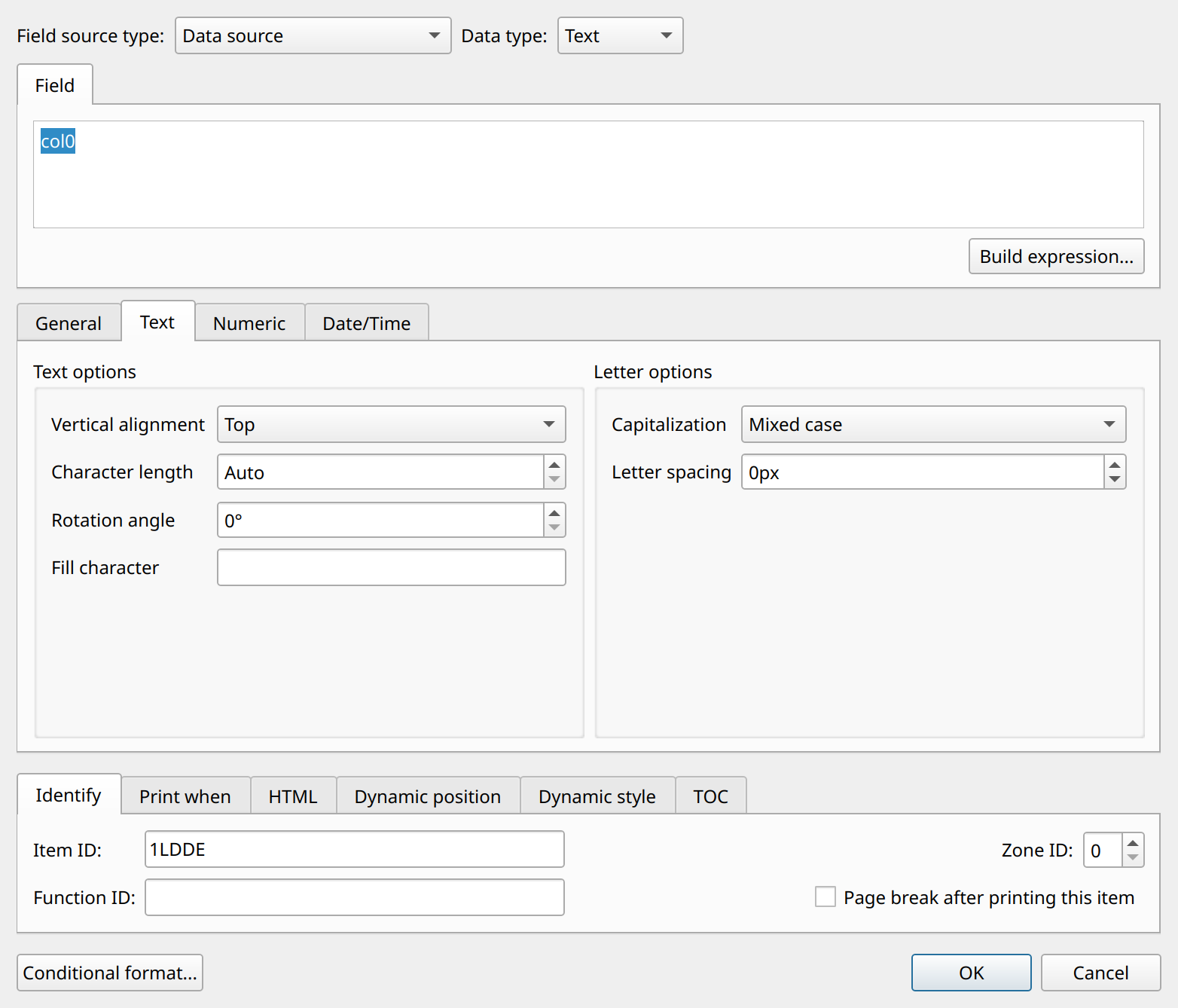
Use the Text tab for special text format settings. The basic settings (font, size, alignment) can be set from the toolbars. You can specify the following parameters:
- Vertical alignment
-
The vertical alignment of the text block: Top, Center, or Bottom.
- Character length
-
Sets the width of the string explicitly (number of characters). If the value is shorter, it is padded with the fill character, depending on the horizontal alignment (left-aligned values are padded on the right, right-aligned values on the left). The default is Auto (no padding).
- Rotation angle
-
The data can be rotated. 0 is the default position; 90 or 270 makes the text vertical.
- Fill character
-
The character used for padding when Character length is set (for numbers, also when Field width is set).
- Capitalization
-
Mixed case (default), All uppercase, All lowercase, Small caps, or Capitalize.
- Letter spacing
-
Spacing between letters in pixels; the default is 0.
Numeric formats
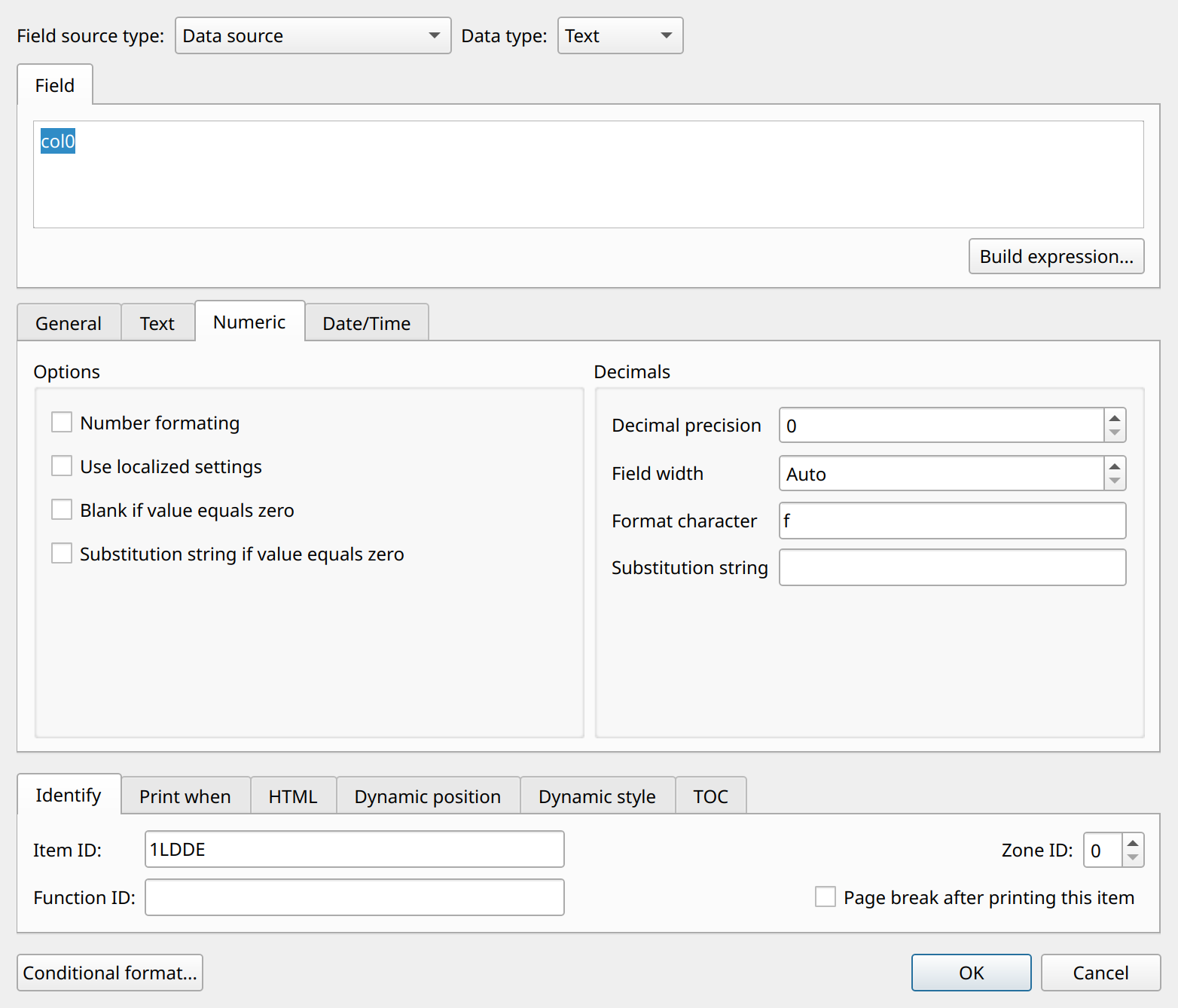
If the Data type is numeric, use the Numeric tab for special format settings. The basic settings (font, size, alignment) can be set from the toolbars. You can specify the following parameters:
- Number formatting
-
Enables or disables number formatting. It is turned off by default; in this case, the value is printed as it is.
- Use localized settings
-
If this is turned on, the number is formatted according to the report’s locale (QLocale), for example with localized decimal and group separators.
- Blank if value equals zero
-
If this is turned on and the value equals zero, nothing is shown; the zero value is hidden.
- Substitution string if value equals zero
-
Turn on this setting if you want to replace zero values with a string, for instance '-'.
- Substitution string
-
You can specify the substitution string here.
- Decimal precision
-
The number of decimal places. It is considered only if number formatting is turned on.
- Field width
-
The minimum width of the number in characters (not used with localized formatting). Shorter numbers are padded with the fill character.
- Format character
-
The number format character, as used by
QString::arg()andQLocale::toString():f(fixed-point, e.g. 123.45),eorE(scientific notation, e.g. 1.2345e+02), orgorG(the more concise of the two). If Use localized settings is on,Cformats the number as a currency string using the report’s locale.
Date Formats
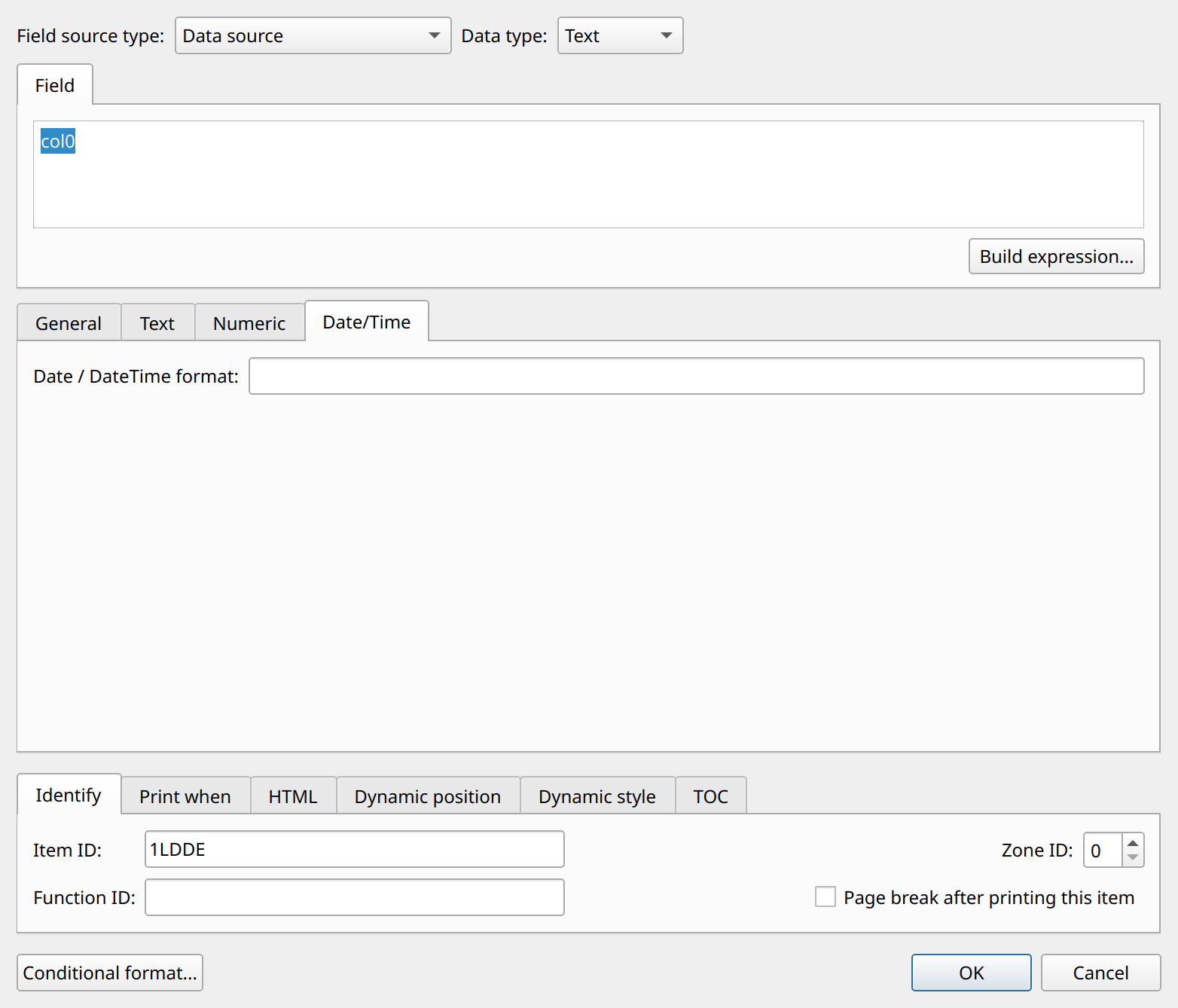
Fields can, of course, display date, datetime, and time data. The format can be specified in the Field settings dialog on the Date/Time tab, in the Date / DateTime format box. If the format is left empty, the short date (or datetime) format of the report’s locale is used. You can specify the format in two ways: statically or dynamically.
Static Date Format
The static date format is a Qt date format expression. Day and month names are localized according to the report’s locale:
Expression |
Output |
d |
The day as a number without a leading zero (1 to 31) |
dd |
The day as a number with a leading zero (01 to 31) |
ddd |
The abbreviated localized day name (e.g. 'Mon' to 'Sun') |
dddd |
The long localized day name (e.g. 'Monday' to 'Sunday') |
M |
The month as a number without a leading zero (1 to 12) |
MM |
The month as a number with a leading zero (01 to 12) |
MMM |
The abbreviated localized month name (e.g. 'Jan' to 'Dec') |
MMMM |
The long localized month name (e.g. 'January' to 'December') |
yy |
The year as a two digit number (00 to 99) |
yyyy |
The year as a four digit number. If the year is negative, a minus sign is prepended, making five characters. |
For DateTime and Time data, the following time expressions can also be used:
Expression |
Output |
h |
The hour without a leading zero (0 to 23, or 1 to 12 if AM/PM display is used) |
hh |
The hour with a leading zero (00 to 23, or 01 to 12 if AM/PM display is used) |
m |
The minute without a leading zero (0 to 59) |
mm |
The minute with a leading zero (00 to 59) |
s |
The second without a leading zero (0 to 59) |
ss |
The second with a leading zero (00 to 59) |
zzz |
The milliseconds with leading zeroes (000 to 999) |
AP or ap |
AM/PM or am/pm display |
Example: yyyy-MM-dd hh:mm:ss
Durations
If the data type is Time and the data is an integer number that represents a duration, append a | character and a unit marker
to the format: s for seconds, z for milliseconds, m for minutes, or h for hours. For example, the hh:mm:ss|s format displays
the value 3725 as 01:02:05.
Dynamic Date Format
The dynamic date format takes the format string from a parameter, a data source column, or a variable. Use the usual data reference syntax:
Example:
$D{ds.dformat} or $P{mydateformatparam}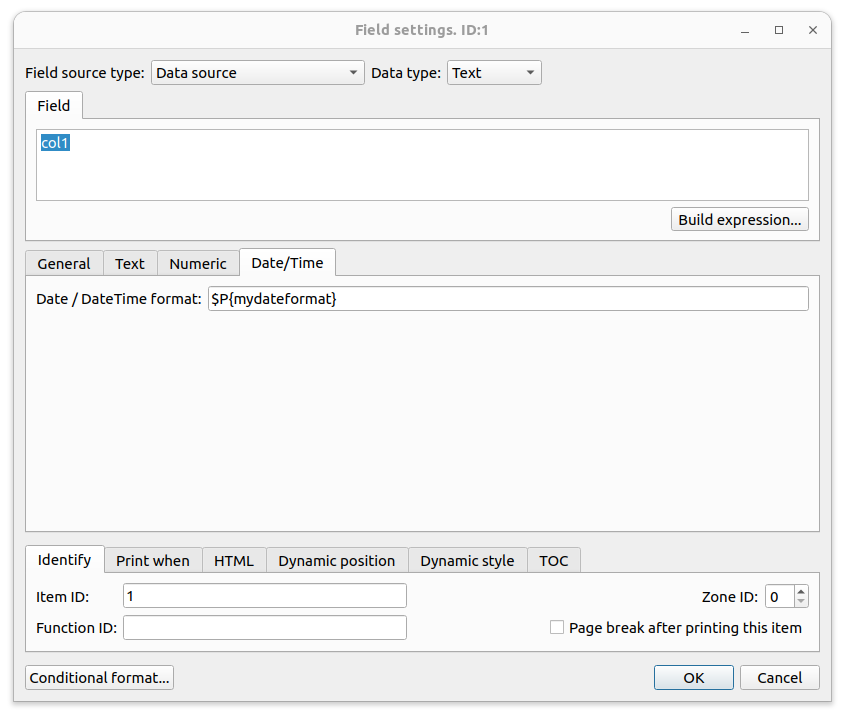
The dynamic date format is recognized by the report engine and evaluated during rendering. It is up to you whether a parameter or a data source stores the dynamic date format.
Template arg() string
The Template arg() string option on the General tab of the Field settings dialog wraps the formatted value in a text. The string must
contain the %1 placeholder, which is replaced by the formatted value (as in QString::arg()). For example, the Total: %1 USD string
prints Total: 1250.00 USD.