Dynamic data driven size and position
This feature makes it possible to manage the position and size of report items dynamically, driven by a data source, parameter, variable, or even a script expression.
For example, you can store the x and y coordinates of objects in the data source, so that the positions are controlled by the data. If you use graphical items such as rectangles or lines, you can even generate simple bar charts this way, with the bar heights coming from the data.
To set up dynamic position and size management for an item in the Designer, open the item’s settings dialog by double-clicking the report item. In the item settings dialog, choose the Dynamic position tab in the bottom property panel.
Dynamic position and size settings
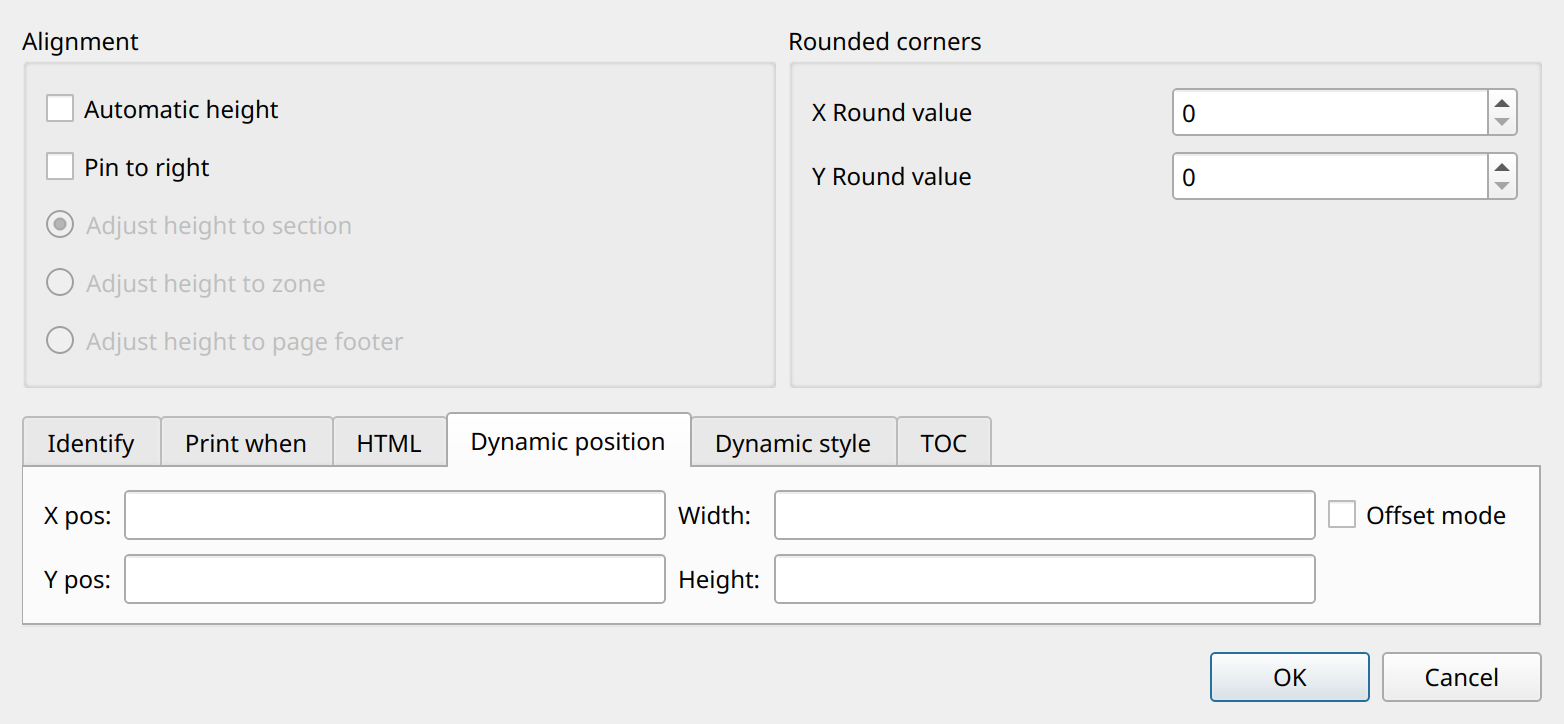
You can set the following properties. If you leave an option empty (this is the default), the setting is turned off and ignored. The values are always measured in millimeters and are relative to the coordinate system of the item’s section.
-
X posThe source of the item’s x position. -
Y posThe source of the item’s y position. -
WidthThe source of the item’s width. -
HeightThe source of the item’s height. -
Offset modeIf this option is enabled, the evaluated positions are offsets relative to the item’s original (designed) position; otherwise, they are absolute values.
Each property can be a constant number or any expression that results in a number: a data source, parameter, or variable reference
such as $D{x} or $P{width}, or a script expression between <% %> markers, for example <%$D{h}*2%>.
The expression is evaluated every time the item is rendered.