Getting started
This chapter provides a quick introduction to the NCReport system. If you are already familiar with the tool, you only need to skim this chapter. To work with NCReport, you need to understand a few basic concepts of report design in general, and of NCReport in particular. These are covered here. You also need some hands-on experience with the way an NCReport report definition is structured. This is covered in the following chapters.
Creating a basic report
To begin, we go through the basic steps of creating a simple report. In our example, we build a plain product price list
report grouped by product category. The finished report is included in the distribution as reports/gettingstarted_demo.xml.
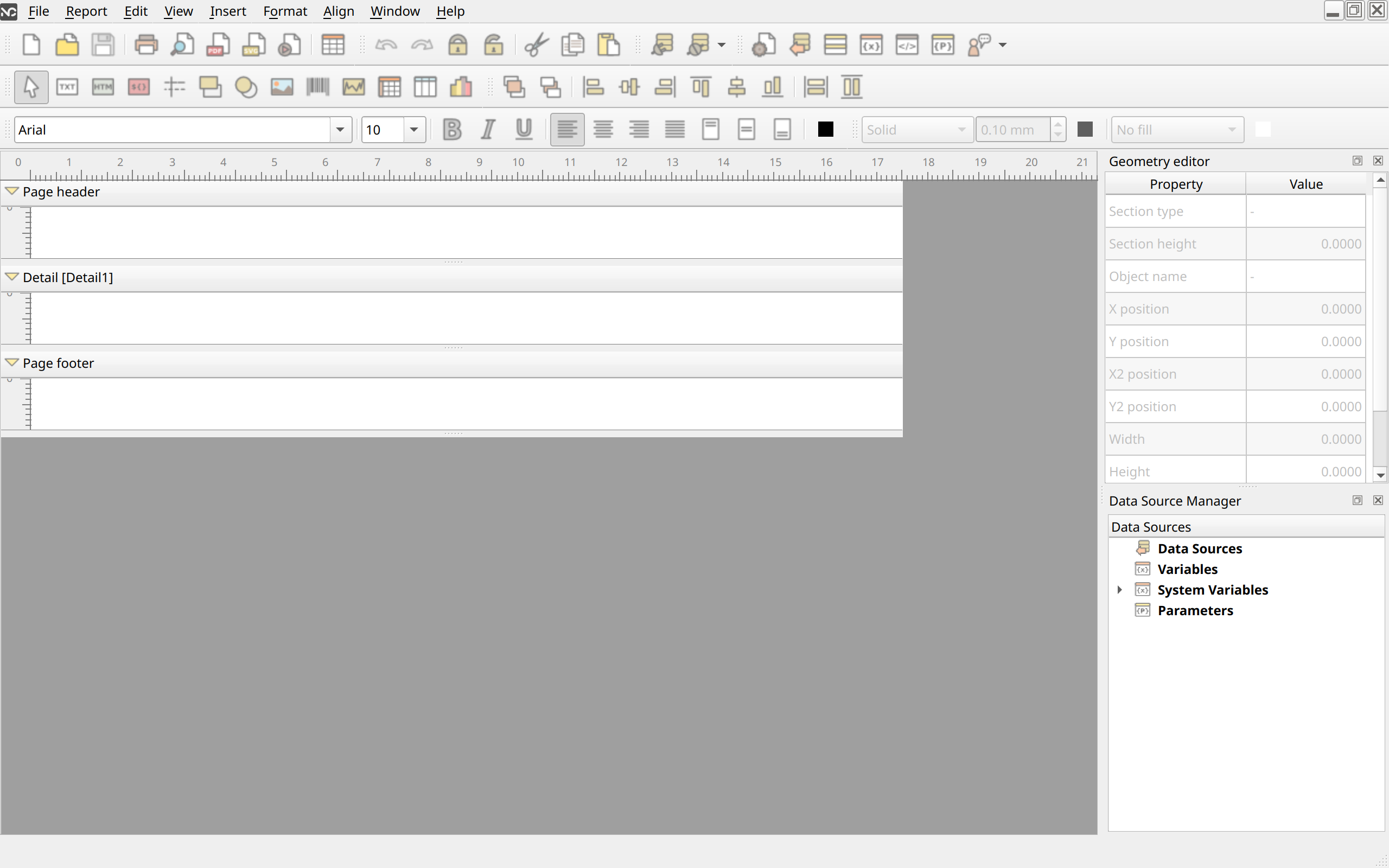
Beginning with a new report
Open the Designer application and start a new report by clicking the New toolbar button or by selecting .
Setting up page options
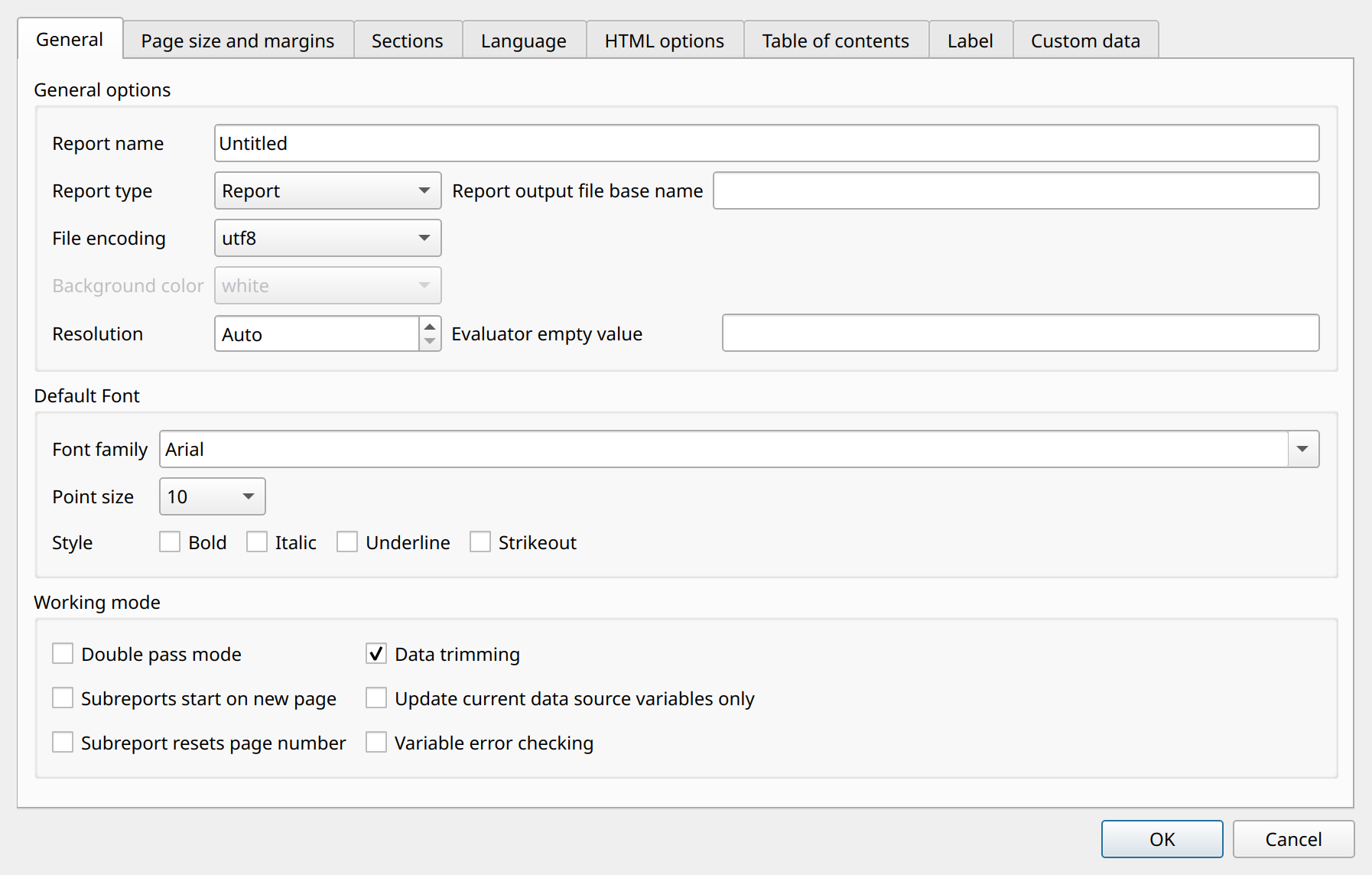
You can specify the page options of the current report in the Report and page settings dialog. To open it, select . In this dialog, you can specify the following options (see Setting up page and report options for the complete list):
Report name
The name of the report. This is an informative option only; it is not used by the report generator.
Report type
Three types of report are available. Report represents a normal report. Text document is a limited report mode in which the report can contain HTML text items only;
the generated report is a paginated HTML document. Label mode prints the detail records as labels arranged in rows and columns on the page; the label
dimensions are set on the Label tab of the dialog.
File encoding
The encoding of the XML file. This encoding is used when the report definition file is opened or saved. In most cases UTF-8 meets the requirements, but for special international characters you can choose any other supported encoding.
Default font
The default font family, size, and style used for the text labels and fields throughout the report. Individual item settings may override this option.
Page size
The size of the page. The combo box lists the standard paper size names (A4, Letter, and so on).
To use a non-standard paper size, select CUSTOM and specify the width and height of the page in millimeters.
Header and footer settings
Use the check boxes to enable or disable the page header, page footer, report header, and report footer. To change the height of these sections, use the spin boxes next to their check boxes. You can also change the section heights by dragging with the mouse or by using the geometry editor.
Margins
The margin properties represent the top, bottom, left, and right margins of the page in millimeters. To change the margin values, use the spin boxes.
Orientation
This radio button option sets the orientation of the page. You can select either Portrait or Landscape orientation.
Specify the page properties as in this example and click OK to save the settings. We set only the report name and leave the other properties at their default values.
Adding a data source
A new, empty report contains a page header, a detail section, and a page footer by default.
Before we start adding report items, we define the data source, which specifies where the data comes from.
In our example, the data source is a string list (QStringList).
To specify a data source in your report, select . A dialog then appears
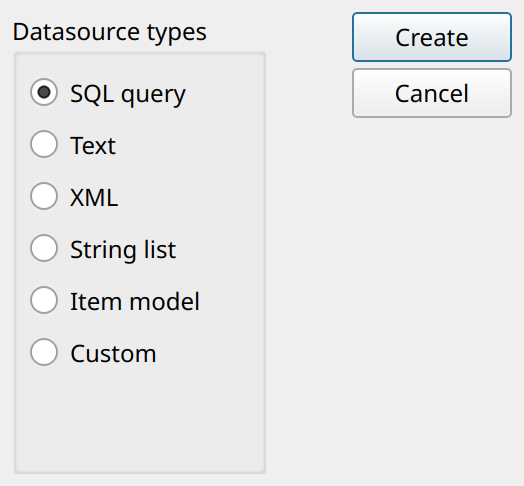
in which you can add and remove data sources. To add a new data source, click the Add button in the dialog, select the
String list data source type from the list of available data source types, and click the Create button.
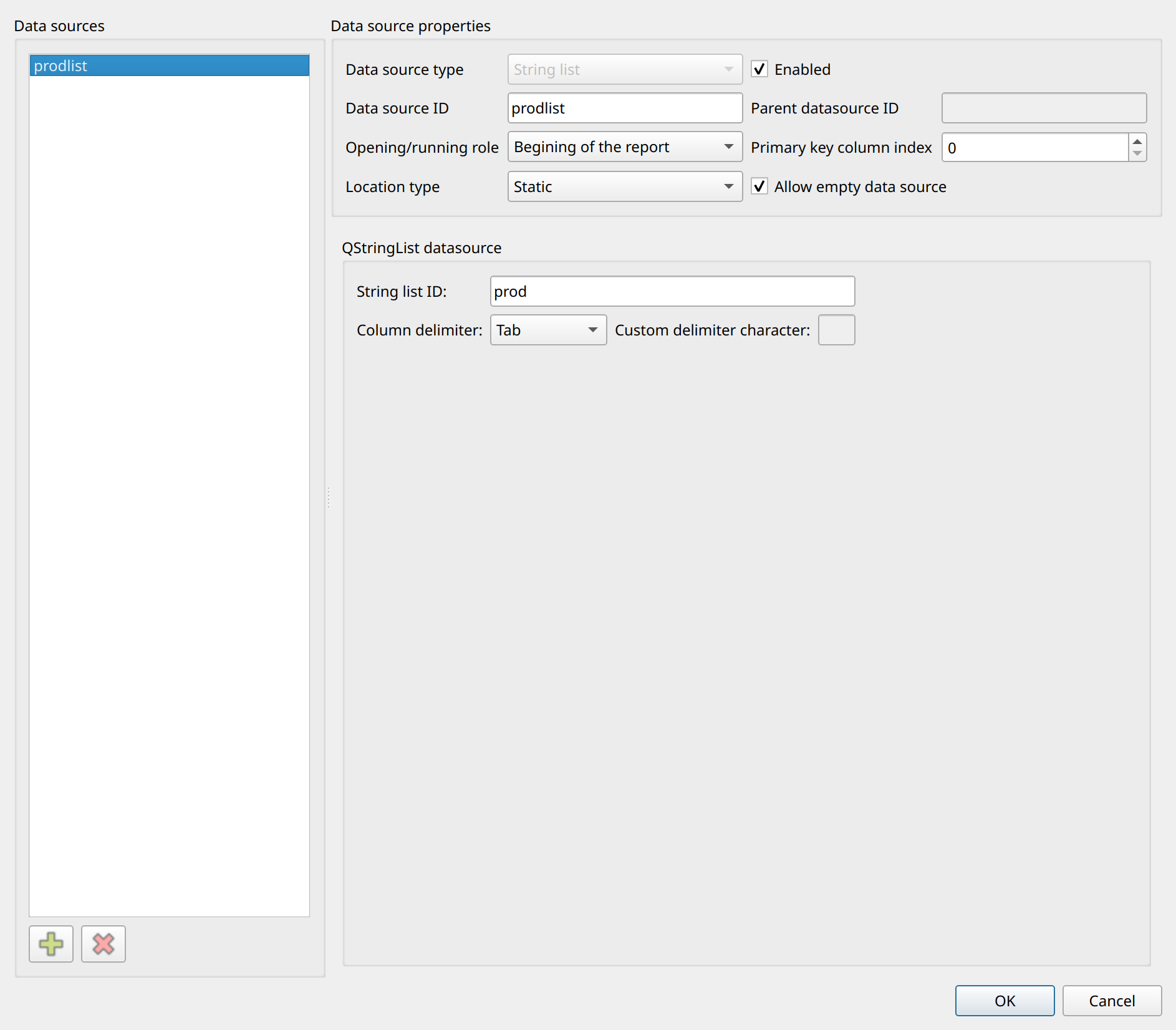
In the data source dialog, we specify the following properties:
Data source ID
The identifier of the data source. This ID is used to assign the data source to a detail section and to refer to it in expressions.
Location type
The location type describes where the data can be found. In this report, we keep the default Static location type.
String list ID
The ID of the string list that provides the data. A string list is passed to the report by the application (or, in the Designer, by the test data editor) under this ID.
In our example, the string list ID is prod, and the column delimiter is Tab.
Specify the data source properties as in this example and click OK to save the data source settings.
Assigning the data source to the detail section
To assign the data source we defined earlier, select .
A dialog then appears in which you can manage the detail sections of the report. The default detail ID is Detail1, but you
can change it to whatever you want. Select the previously defined data source from the Data source combo box.
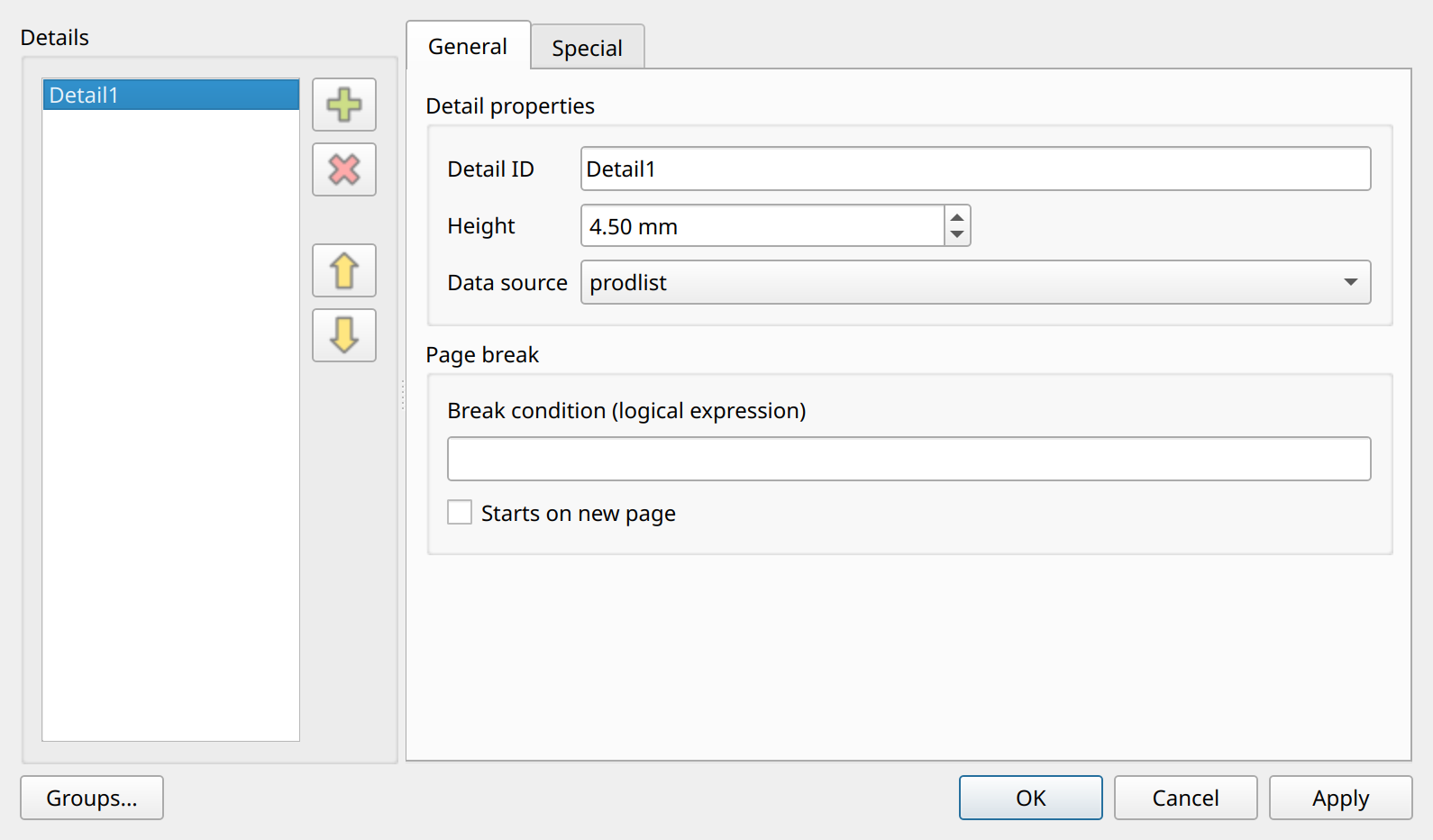
Click the OK button to apply the detail settings.
Preparing some test data
To try out our report in the Designer application, we need some test data. This step is not necessary if you test the report from your own application. The test data editor in the Designer makes designing, debugging, and testing reports easier. In our example, we create a simple product list with the following columns:
-
category as column 0
-
product name as column 1
-
product code as column 2
-
active as column 3
-
weight as column 4
-
price as column 5
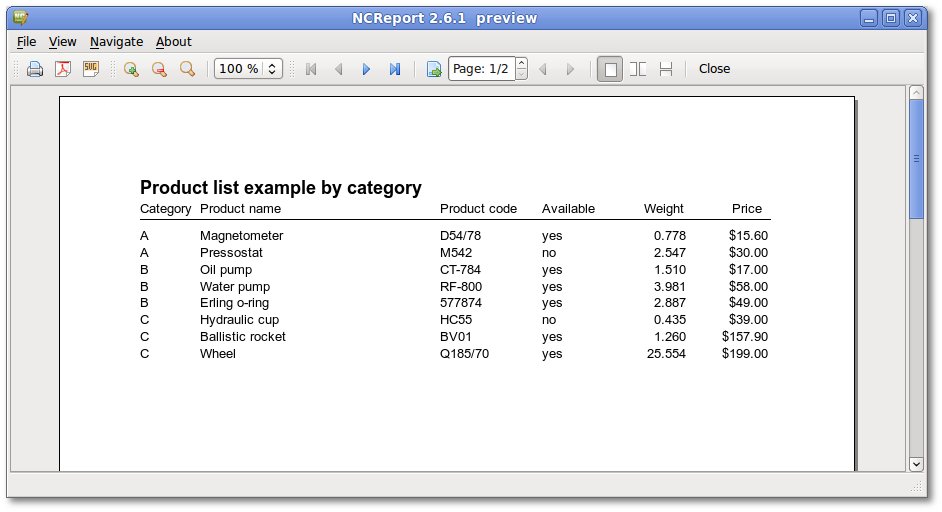
A  Magnetometer     D54/78    yes   0.778   15.6
A  Pressostat       M542      no    2.547   30
B  Oil pump         CT-784    yes   1.510   17
B  Water pump       RF-800    yes   3.981   58
B  Erling o-ring    577874    yes   2.887   49
C  Hydraulic cup    HC55      no    0.435   39
C  Ballistic rocket BV01      yes   1.260   157.9
C  Wheel            Q185/70   yes   25.554  199.0
To open the test data editor, select . A window then appears in which you can edit and
set up test data. Three data source types are available for testing: String list (QStringList), Item model (QStandardItemModel),
and String parameter (QString). We need the test data as a QStringList, so select the String list (QStringList) type,
set the ID (name) to the string list ID of our data source (prod), and check the Enabled / Add to report check box.
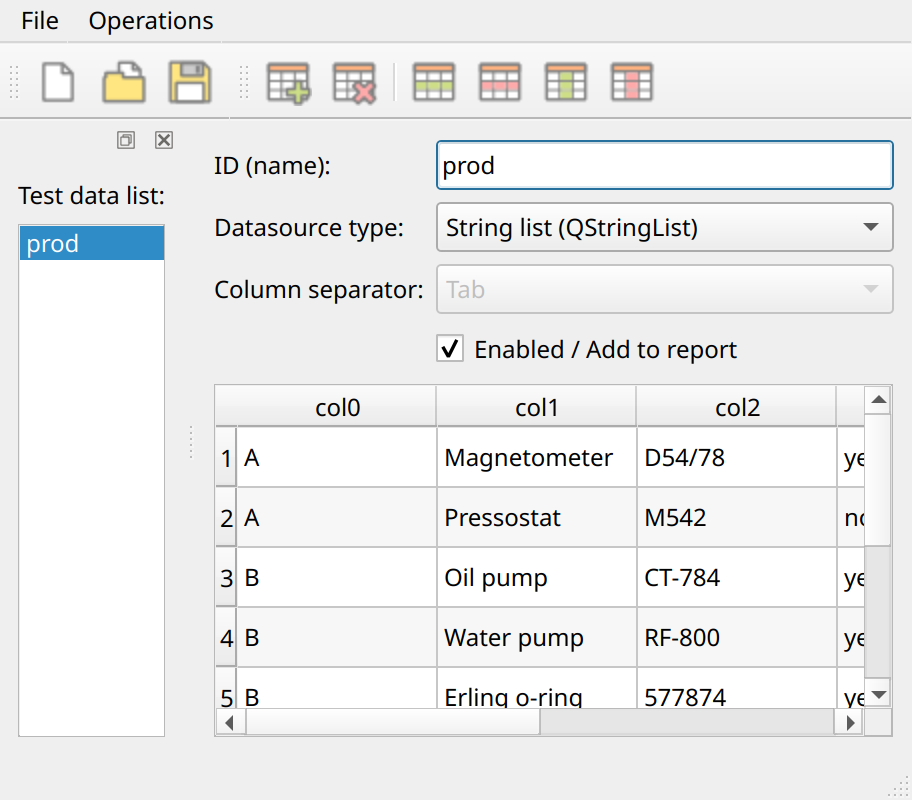
Save the test data to apply the settings. The enabled test data, with its corresponding ID, tells the Designer to add the test data to the report under the specified ID before running the report.
Using the Geometry Editor
The geometry editor is a small tool window in the Designer for showing and editing the position and size of the selected item or section. To show or hide the geometry editor, toggle the menu item. The tool window appears on the right side of the main window. An item or section becomes current when you click it. You can type numeric size or position values into the editor. Any change made to an item’s properties updates it immediately.
Designing the page header section
The page header contains the page headings. First, we add column titles as labels to the page header section. Labels are simple text items used to display descriptive information on a report, such as titles and headings. Labels are static items; their value never changes.
Adding Labels
Select the Label tool button or the menu item. The cursor then changes to a crosshair. Click in the page header of the report definition where you want the Label to be located. Doing so creates the Label object in that section and opens the Label settings dialog.
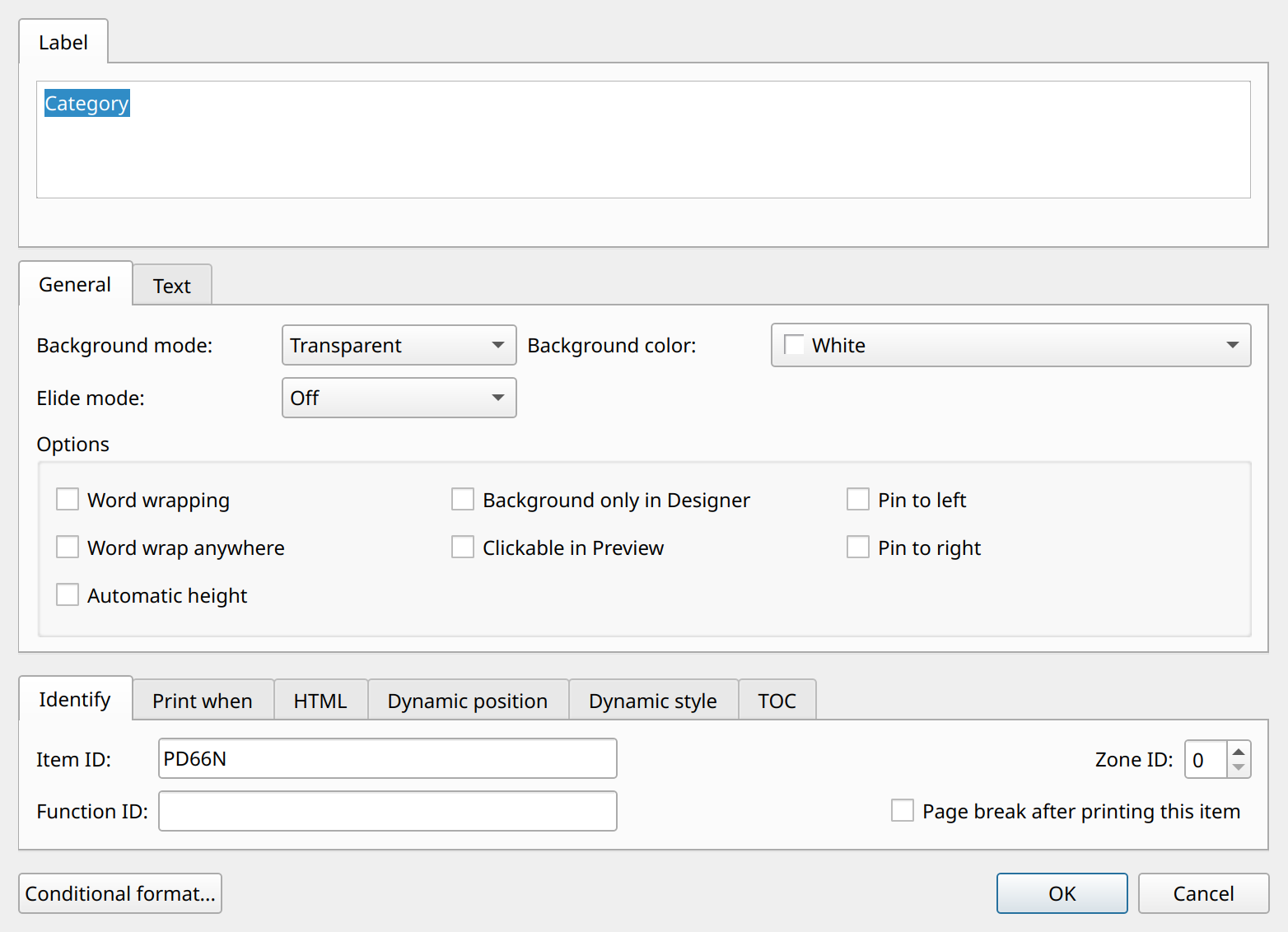
Add labels to the page header for the column titles and move them into position as in the example. Then select "Weight" and "Price" (multiple selection is supported) and align their text to the right by clicking the Right text alignment tool button.
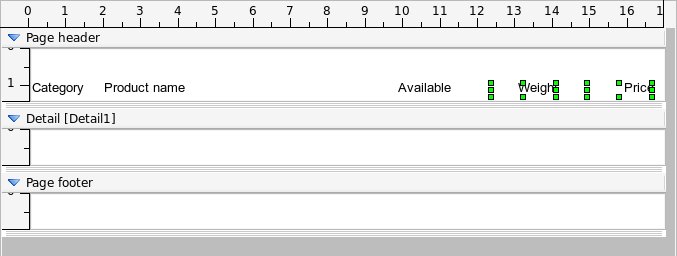
Resizing a section
Increase the height of the page header section by dragging the resizer bar at the bottom of the section. Another way to resize it is to type a Section height value in the geometry editor.
Drawing a line
To underline the labels, draw a line by selecting the Line button in the toolbar or the menu item. The cursor then changes to a crosshair. Click in the section where you want the line to start and drag the line to the end position. (To move the line, drag and drop it with the left mouse button.)

Designing the Detail section
The core information in a report is displayed in its Detail section. This is the most important section of the report, since it contains the row-by-row data from the data source.
Adding Fields
Select the Field tool button or the menu item. The cursor then changes to a crosshair. Click in the detail section where you want the field to be located. Doing so creates the Field object in that section and opens the Field settings dialog. The following properties must be specified:
Field column/expression
This property specifies the data column from which the field’s value is loaded. To identify data columns, specify:
-
the name of the SQL column when using an SQL data source, or
-
the column number, as
0,1,2…norcol0,col1,col2…coln, when using a string list, item model, string parameter, or text data source.
Data type
The field’s base data type. The following data types are supported:
Text, Numeric, Date, and Boolean.
The field property dialog for the first column field:
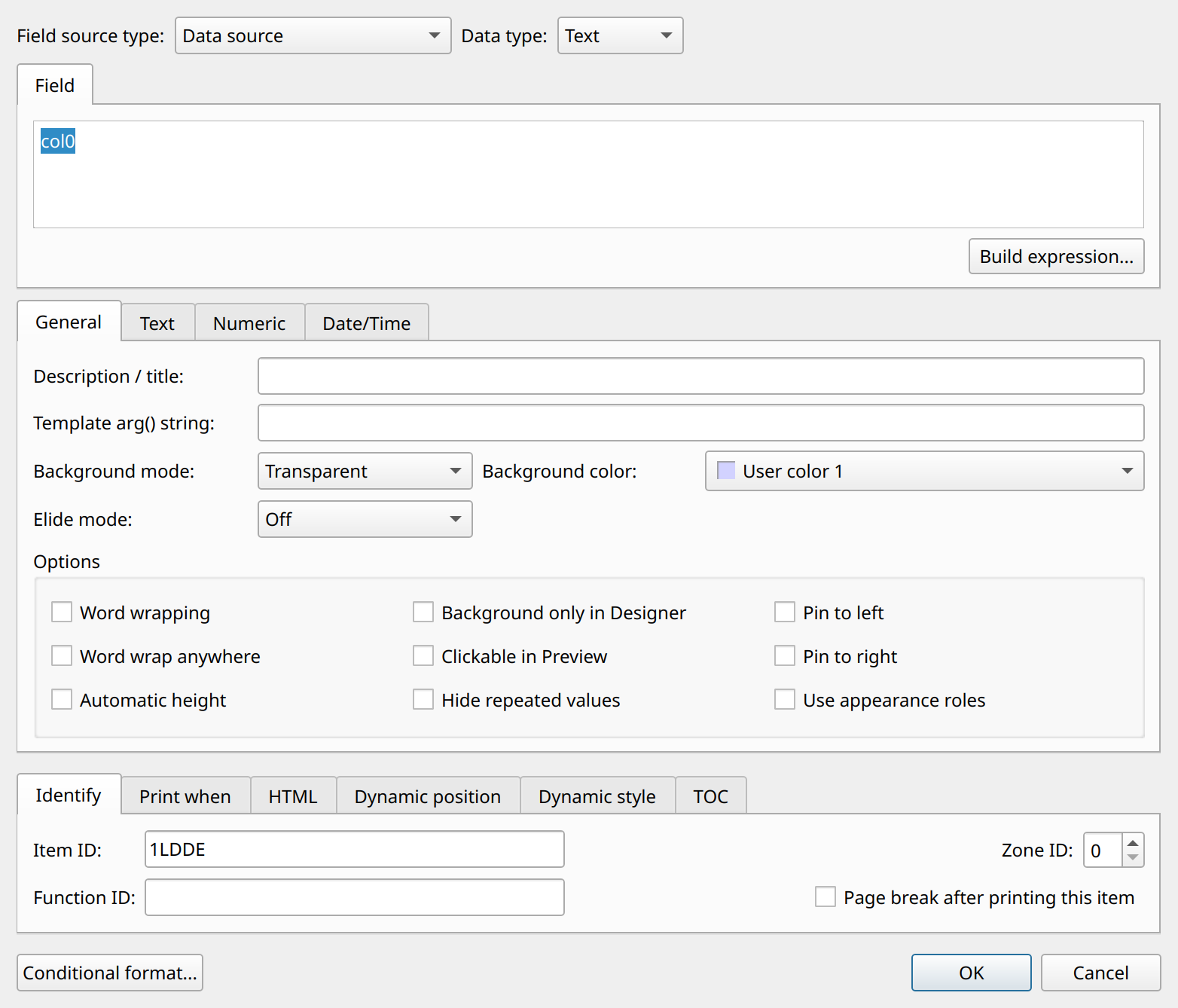
Add fields to the Detail section and move them into position as in the example. The field column names are col0, col1, col2, col3, col4, col5
(alternative naming: 0, 1, 2, 3, 4, 5). Select the col4 and col5 field items and align them to the right by clicking the Right text alignment tool button. Then,
in the field dialog, set the data type to Numeric and use the Numeric tab page to set the number
formatting properties.
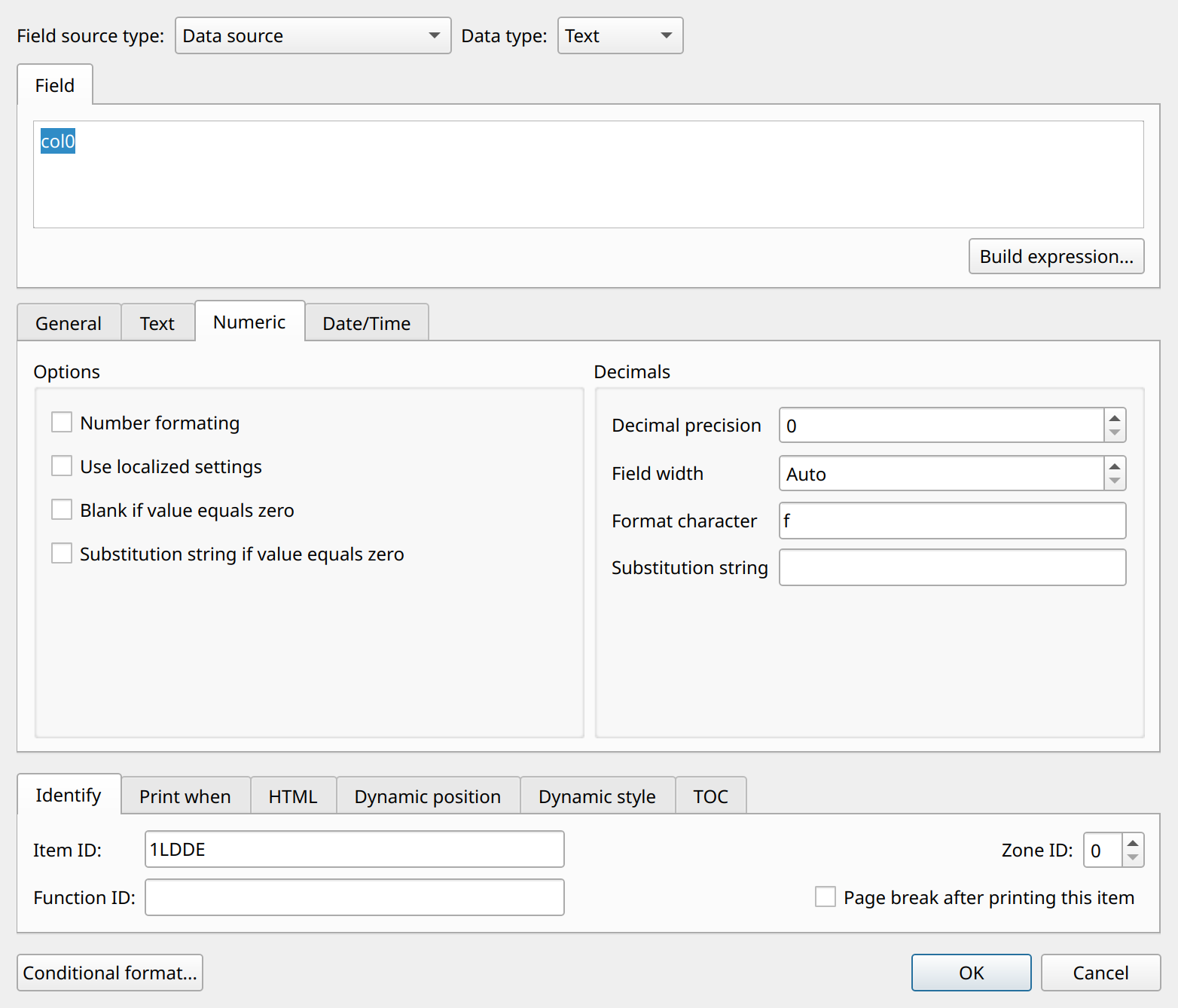
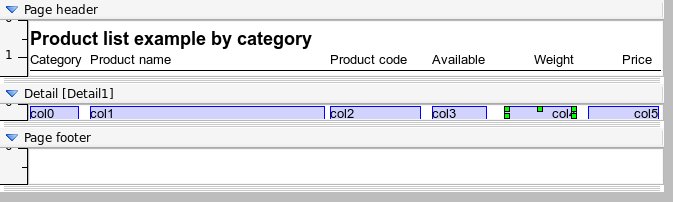
Set the height of the detail section to 4.5 mm. After you add and format a title label in the page header section, the report should look like this:
Designing the page footer section
The page footer is usually used to display information such as the page number. In our example, we add only two system variable fields: the application info and the current page number.
Adding System variable fields
Select the Field tool button or the menu item. The cursor then changes to a crosshair. Click in the page footer section where you want the field to be located. Doing so creates the Field object in that section and opens the Field settings dialog.
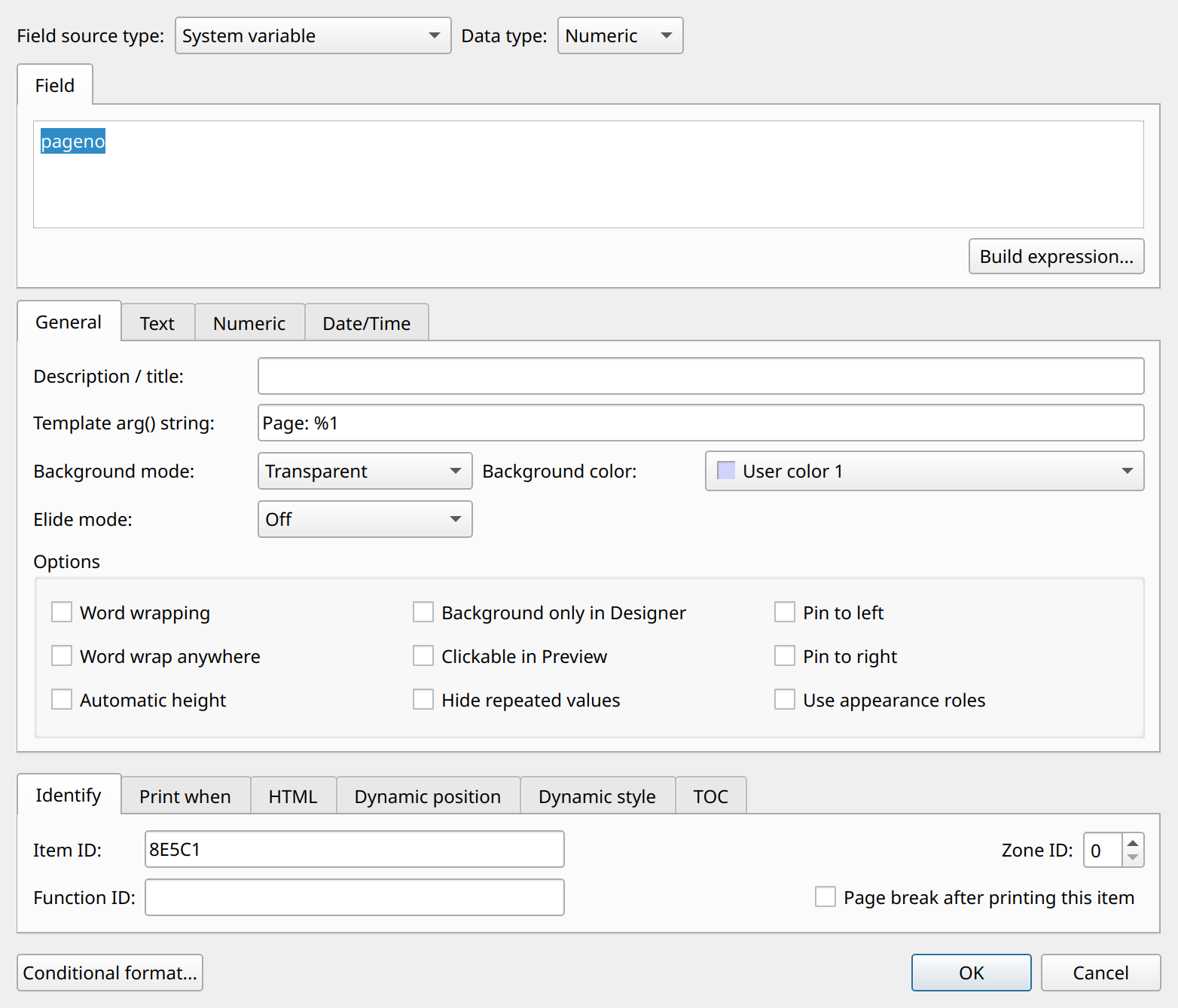
Adding a page number field
Specify the field properties as in this example (field source type: System variable, column: pageno):
Adding an application info field
Add another field to the page footer and specify its properties similarly to the previous one:
Field source type: System variable, Field column/expression: appinfo.
Resizing a section
Decrease the height of the page footer section by dragging the resizer bar at the bottom of the section. Another way to resize it is to type a Section height value in the geometry editor. After setting the alignments and moving the fields into the right positions, the report should look like this:
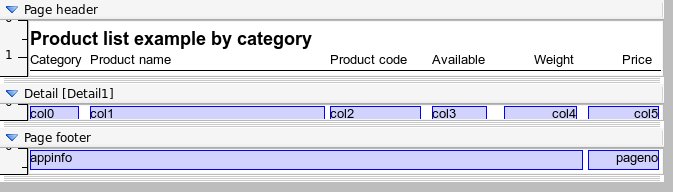
Testing the report in the Designer
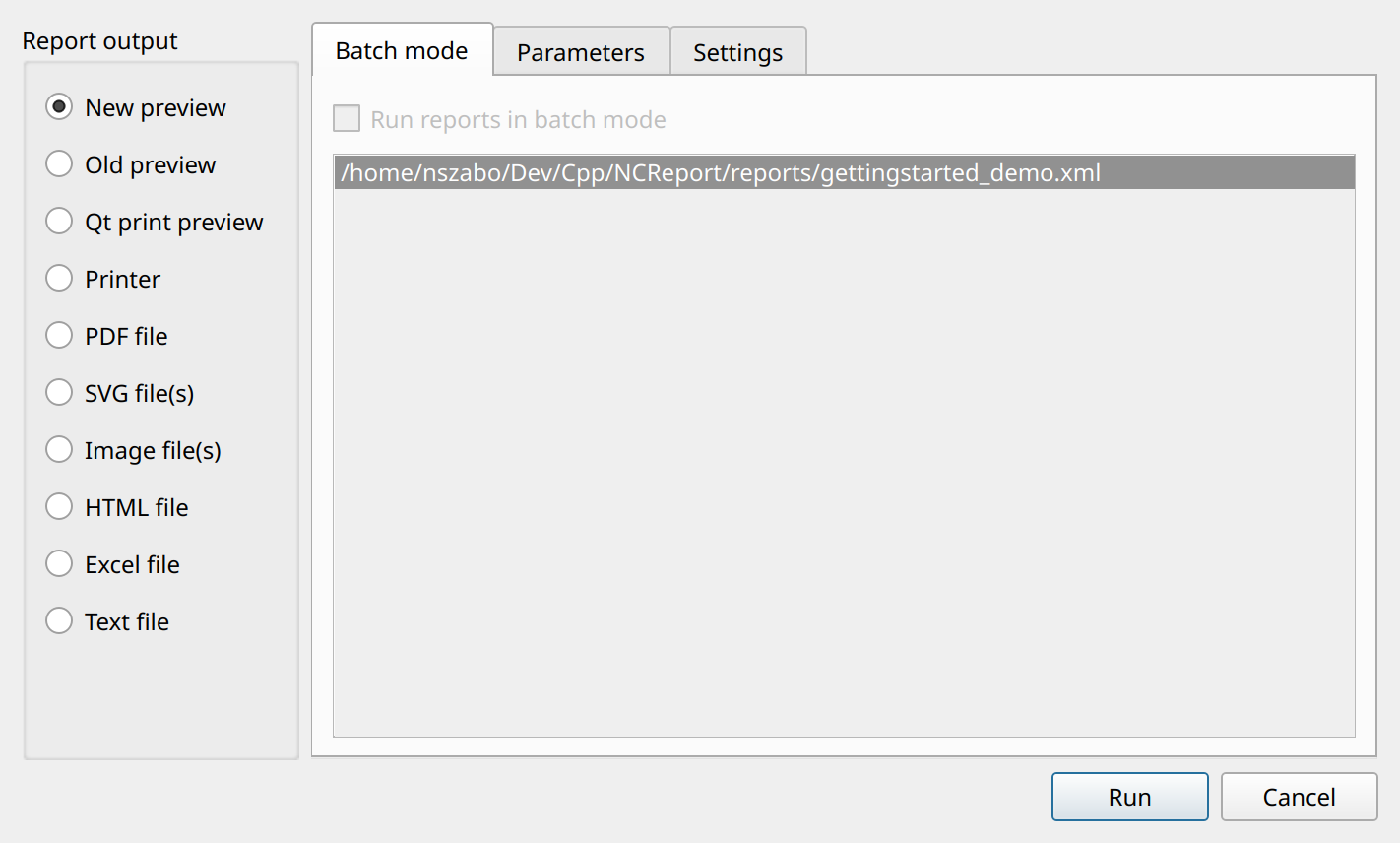
Our sample report is now ready for testing. There are several ways to run the report from the Designer. Select (Ctrl+R); when the report runner dialog appears, choose the report output. To start running the report, click the OK button.
For a fast preview, select (Ctrl+P), and the Designer runs the report to print preview immediately. At this stage, the preview of our example report looks like this:
Variables and Groups
The following section describes how to use some more advanced features of NCReport. We add a summary variable and then define a group in our example report.
Adding a variable for a summary
Variables are special numeric items used to provide counts, totals, and other aggregate values. Each variable has a name, a function type, and a data type, and is based on an expression, usually a data source column. To add a variable, select . A dialog then appears in which you can manage variables.
The following options are available for variables:
Function type
The aggregate function of the variable. Supported function types: COUNT, SUM, AVERAGE, STD (standard deviation), MIN, and MAX.
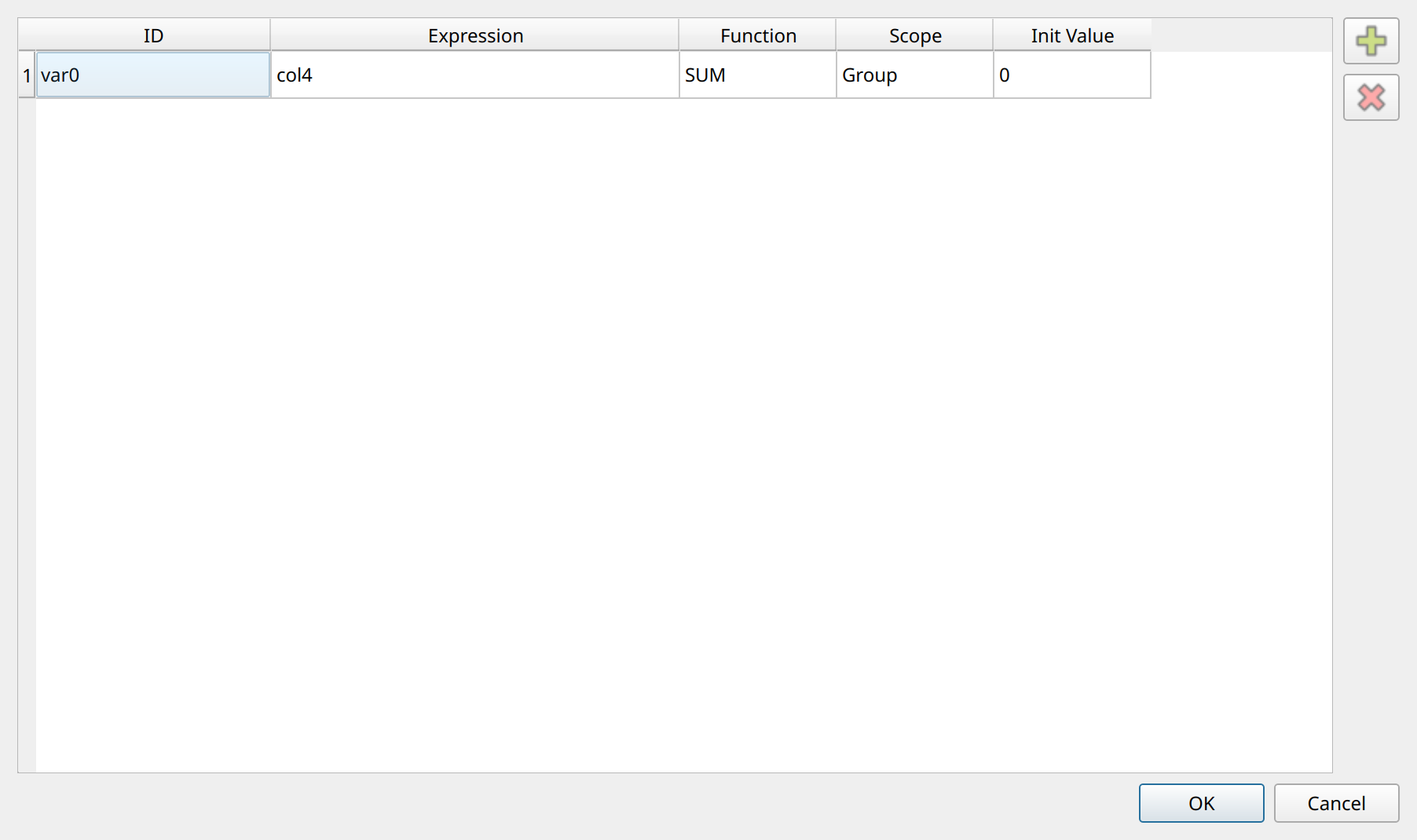
Defining a group
Reports often require summary data by group. In our example, we add a weight summary by product category to the report.
First, select . A dialog then appears in which you can manage the detail sections and
the groups within a detail. Select the Detail1 detail and click the Groups… button; the Data grouping dialog then appears.
The following properties are available for a group:
Group expression
The expression the group is based on. When the value of this expression changes, the group breaks. The group expression can be a data source column, any data expression, or a constant.
To define a constant group, use the %CONST expression (or 0); a constant group has only one group header and one group footer.
Header and Footer
To enable or disable the group header and footer, select or clear the corresponding check box. To set the initial height of these sections, use the spin boxes next to the check boxes.
Reset variables
This list contains the variables with Group reset scope. You can specify which variables the report generator resets
when the group ends.
We want the grouping to be based on the col0 column (the product category column).
Specify the properties as in this example:
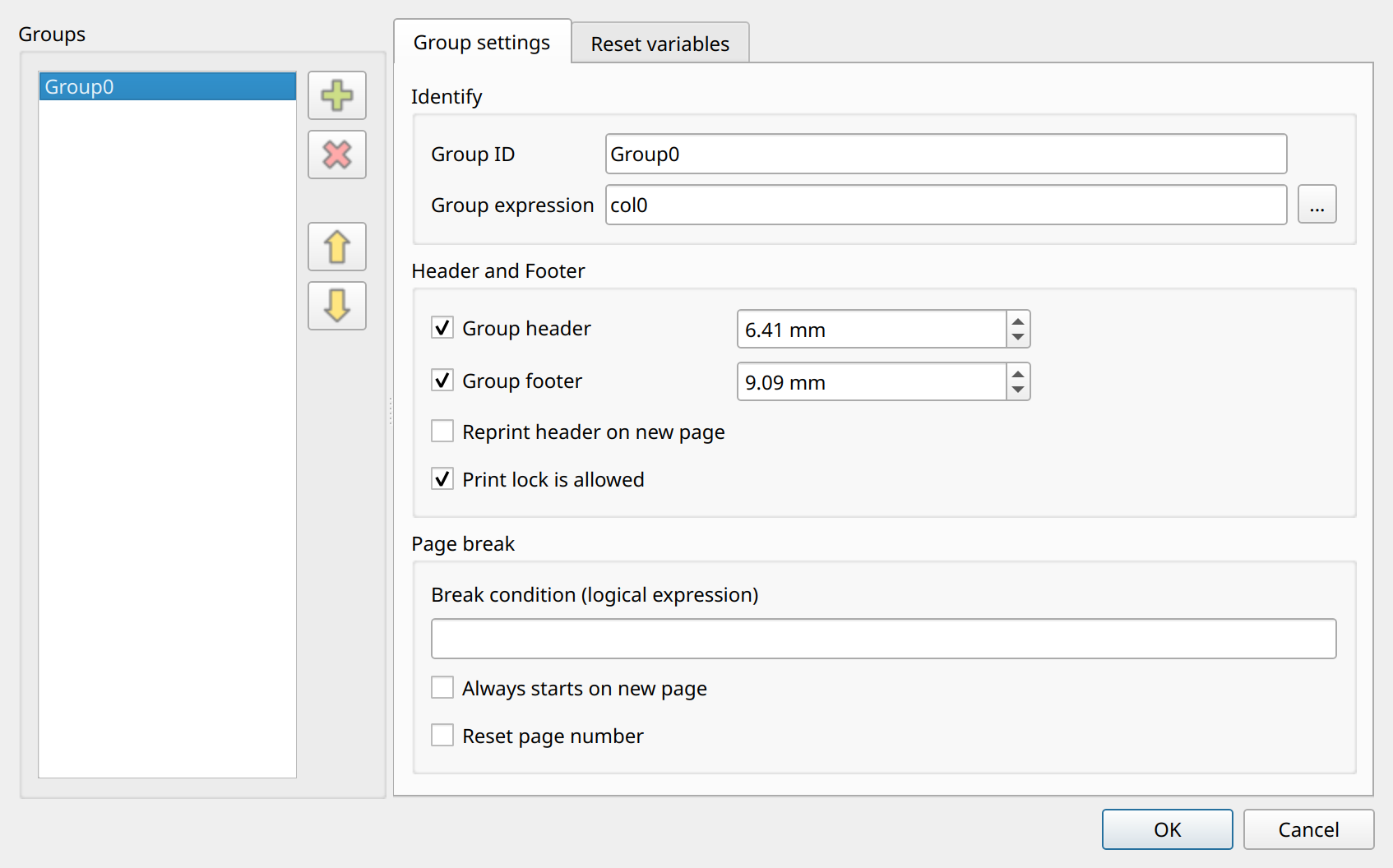
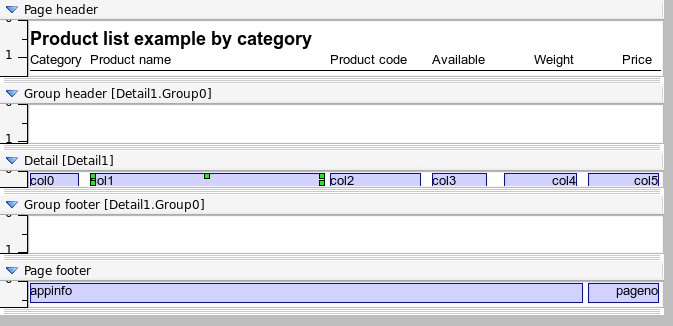
To apply the settings, click OK in the group dialog and then OK in the detail dialog. The group header and footer of the detail then appear in the report.
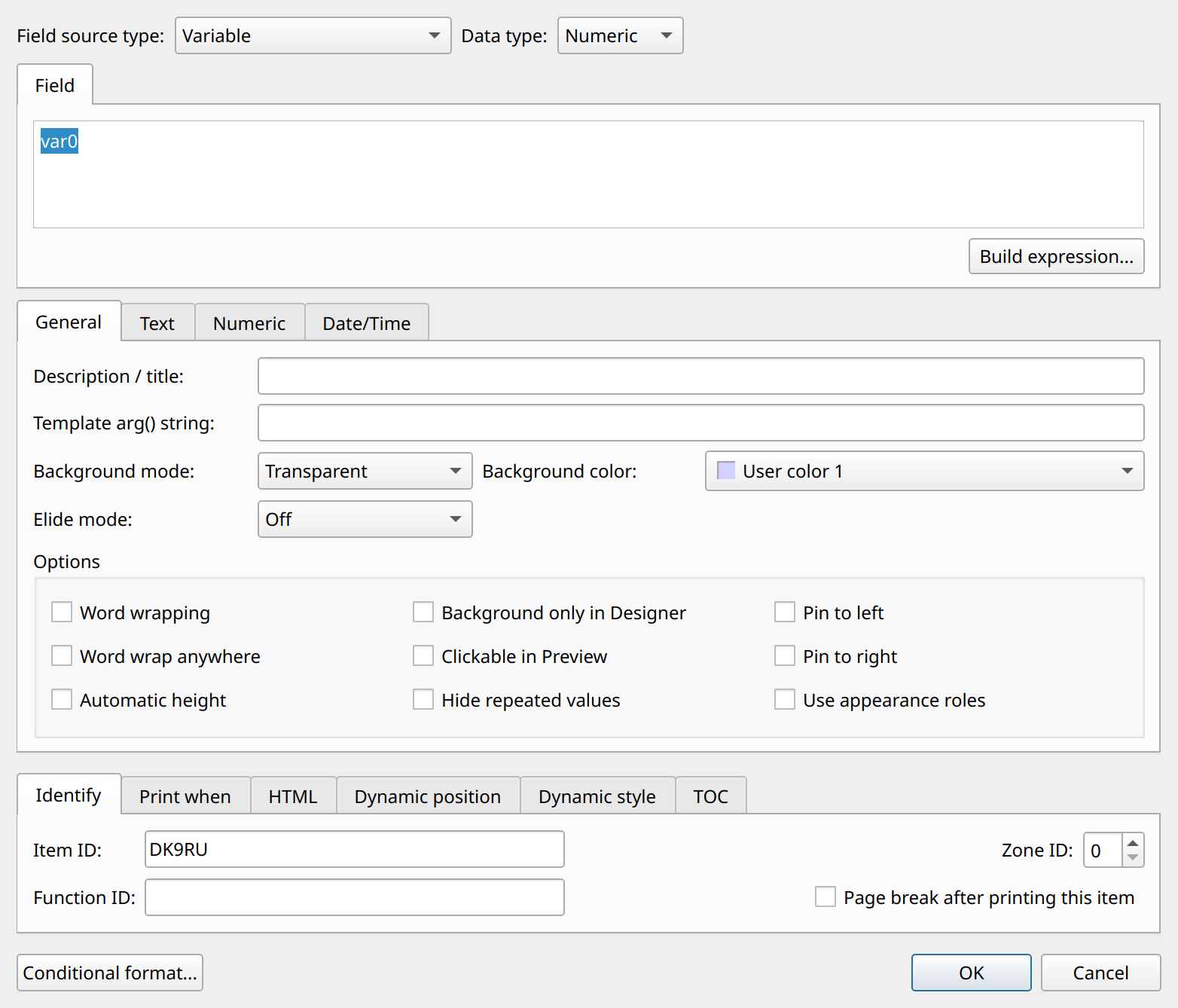
Adding a summary field to the group footer
To add a field based on the var0 variable, add another field to the group footer and specify its
properties as in the example:
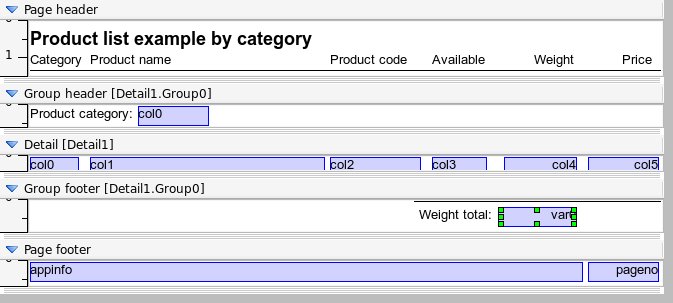
After you add the variable field, along with some labels and a line, to the group header and footer, the report should look like this:
Final testing of the report
Now we are ready! For preview testing, select again, and the Designer runs our report to print preview. The final preview of our example report looks like this:
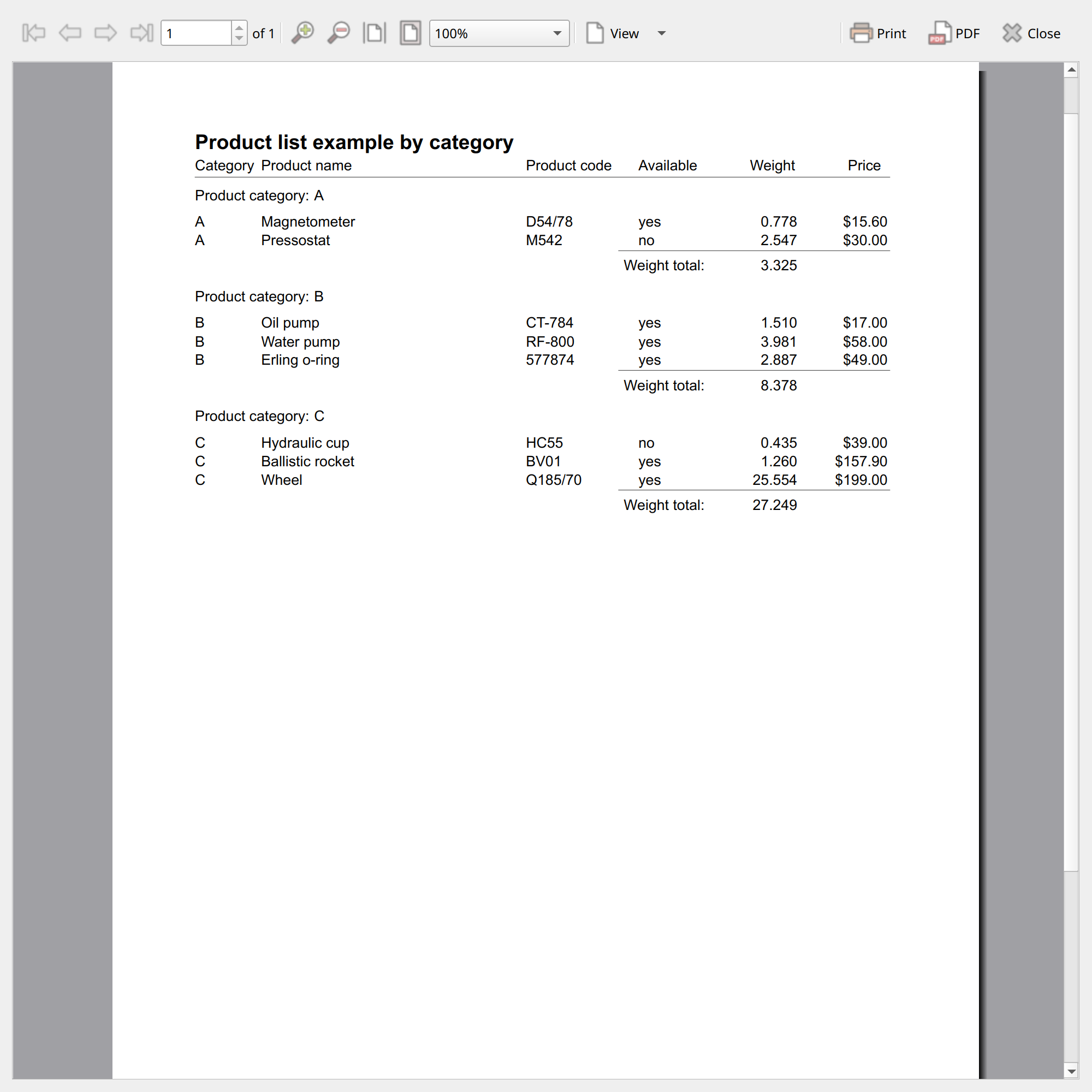
Congratulations! We have created a simple report with one group level. In the next section, we describe how to run this report from your application.
Integrating NCReport into a Qt application
Adding the NCReport library to an application
To use NCReport from your application, you first have to integrate NCReport into your application project and use the NCReport API classes. There are two ways to do this:
Statically adding source code to your project
Add all of the source code statically to your project and build it together with your application.
In this case, you do not need the NCReport shared libraries. To do this, open your
.pro project file and add the full engine source to the project, as the src/testapp/testapp.pro project does by including the
ncreport/ncreport.pri file.
Linking the report engine as a shared library
Use the NCReport engine as a shared library. To use the NCReport library like any other library in your project, you need to specify it in your project file. The following project example shows the necessary settings:
QT = xml sql gui core
TEMPLATE = app
CONFIG += warn_on \
qt \
thread \
release

TARGET = MyApplication
INCLUDEPATH = ../ncreport/includes

HEADERS += ...
SOURCES += ...

win32 {
LIBS += ../lib/NCReport2.lib
}
unix {
LIBS += -lNCReport -L../lib -L/usr/local/bin
target.path = /usr/local/bin
}
With Qt5 and Qt6, also add the printsupport and widgets modules to the QT variable.
If the engine was built with barcode support, the Zint library (zint, or zint2 on Windows) must also be linked.
For more information, see the "Declaring Other Libraries" chapter of the qmake manual in the Qt documentation.
Initializing the NCReport class
This step shows you how to initialize the NCReport class.
Includes. First, we have to add the includes. To include the definitions of the module’s classes, use the following includes:
#include "ncreport.h"
#include "ncreportoutput.h"
#include "ncreportpreviewoutput.h"
#include "ncreportpreviewwindow.h"
Creating the NCReport object. We create the report object just like any other QObject-based object:
NCReport *report = new NCReport();If the NCReport object was created earlier and passed as a parameter, you should initialize the report by calling the reset() method:
report->reset();
//or
report->reset(true);
The NCReport::reset() function deletes all object references and prepares the report
engine to run a report again. If the parameter is set to true, the report parameters and the added data, such as
string lists and custom items, are also deleted.
Setting the Report’s source
The report source determines where NCReport loads the XML report definition from. Report definitions can be opened from a file, which is suitable in most cases, but they can also be loaded from a table in an SQL database. In our example, we use a file as the report source:
report->setReportFile( fileName );This code is equivalent to the following:
report->setReportSourceType( NCReportSource::File );
report->reportSource()->setFileName( fileName );
Adding parameters.
To add a parameter to NCReport, use the addParameter() method. The parameter ID is a string, and the value is a QVariant object.
report->addParameter( "id", QVariant("value") );Since the value is a QVariant, it can also be passed directly, without an explicit conversion:
report->addParameter( "paramID", "Parameter value" );Running the Report
Now we are ready to run the report to different outputs. To do so, use one of the runReportTo…() functions.
Running the report to a printer:
report->runReportToPrinter();Running the report to PDF:
QString fileName("mypdffile.pdf");
report->runReportToPdf( fileName );
Running the report to print preview:
report->runReportToPreview();If you run the report to preview, the result is stored in an NCReportPreviewOutput object. The report engine does not open the preview window automatically. After the report engine finishes successfully, we need to create an NCReportPreviewWindow object for previewing. Before doing so, we check whether a report error occurred.
if ( !report->hasError() ) {
    NCReportPreviewWindow *pv = new NCReportPreviewWindow();
    pv->setOutput( (NCReportPreviewOutput*)report->output() );
    pv->setWindowModality( Qt::ApplicationModal );
    pv->setAttribute( Qt::WA_DeleteOnClose );
    pv->show();
} else {
    QMessageBox::warning( this, tr("Error"), report->lastErrorMsg() );
}
To get the current output, use the NCReport::output() function.
|
When you run the report to preview, the report output object is not deleted by NCReport.
When the |
Error handling
To catch errors, you can use the following functions:
bool error = report->hasError();
QString errormsg = report->lastErrorMsg();
Deleting the report object. After running the report, you may delete the report object. When the NCReport object is deleted, all of its child objects are deleted as well.
delete report;|
Do not delete the NCReport object while the |