Designing a Report
In this chapter, we look at the main steps users take when creating a new report with NCReport Designer. Creating a new report usually involves the following activities:
-
Deciding what kind of report structure to create.
-
Deciding which kinds of data sources to use.
-
Connecting to an SQL database, if an SQL data source is used.
-
Defining the data sources.
-
Setting up the page and report options and the report sections that are needed.
-
Deciding which kinds of items to use in the different sections.
-
Composing the report layout by adding report items to the sections.
-
Adding variables, groups, and parameters, if needed.
-
Testing the report.
You may prefer to perform these activities in a different order. We present them in roughly the order above and leave it up to you to find the approach that suits you best. To demonstrate the process, we look at the steps needed to create a simple product list report with NCReport Designer. The report draws its data from an SQL database data source, which lets us illustrate some additional features of the tool, such as database connections and SQL queries.
Connecting to a database from Designer
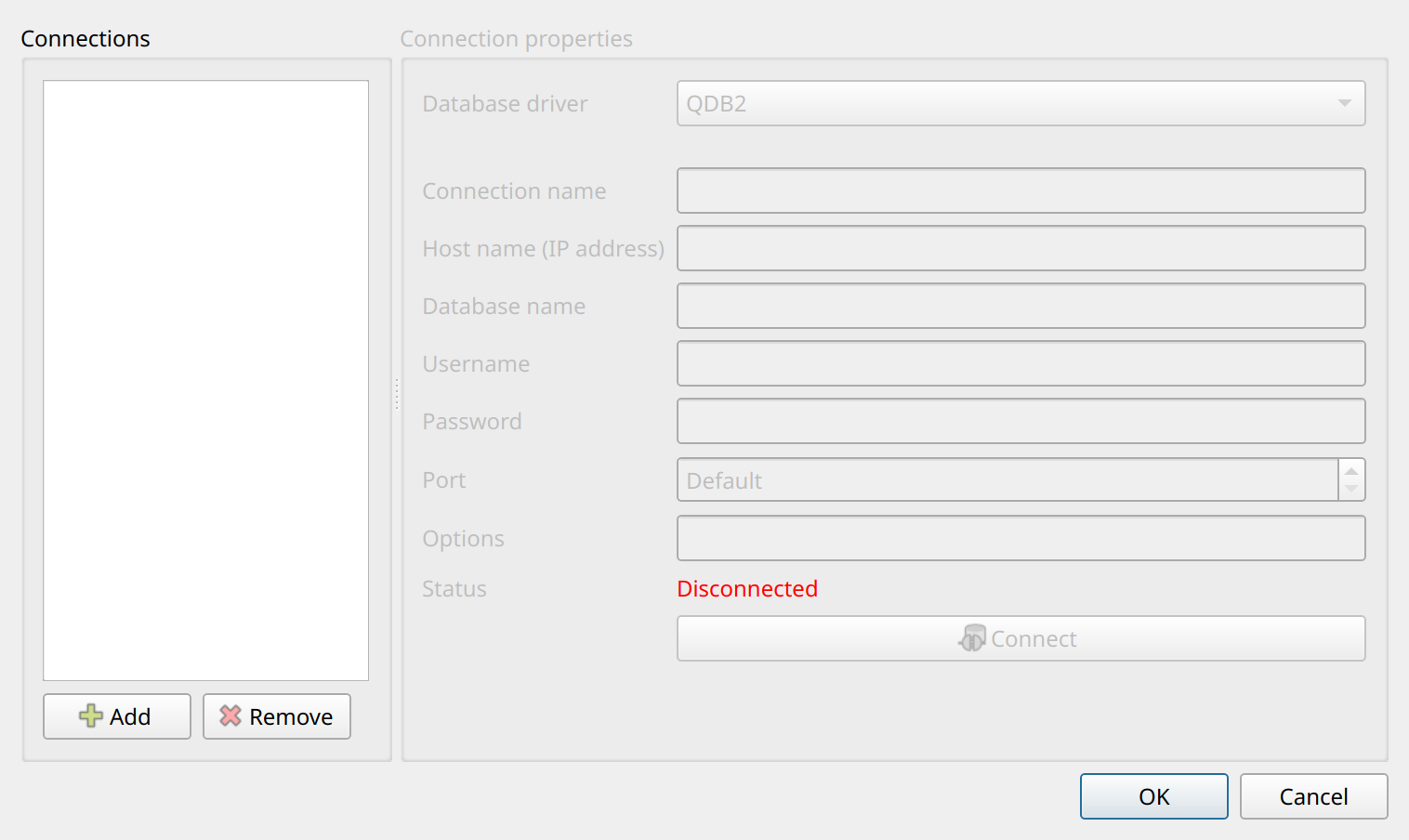
NCReport Designer lets you test the report from inside the Designer. Since our example report uses an SQL data source on a MySQL database, we first have to connect to the "northwind" database. SQL database connections are managed by the connection manager of the Designer. Select . The Database connections dialog then appears. In this dialog you can add one or more SQL connections.
The following options are available for connections:
Database driver-
The Qt SQL database driver to use, for example QMYSQL, QPSQL, QSQLITE, or QODBC.
Connection name-
The name of the database connection. Qt uses this name in the
QSqlDatabase::addDatabase(…)function. This value must be specified in order to identify the connection. Host name (IP address)-
The name or IP address of the database host.
Database name-
The name of the database.
Username-
The user name of the connection.
Password-
The password of the connection.
Port-
The port number of the connection. If Default is selected, the default port of the driver is used.
Options-
Driver-specific connection options.
Status-
Shows whether the connection is currently connected or disconnected.
SQL connection dialog
-
Connect Tries to establish the connection.
-
Add Adds a new connection and enables its options for editing.
-
Remove Removes the connection selected in the list.
-
OK Saves your connection settings.
-
Cancel Closes the dialog without saving any changes and returns you to the Designer main window.
After you have specified the parameters of the new connection, click the Connect button to establish the connection. If the connection succeeds, your report is ready to run. Before running the report, we rename our connection to northwind; the connection name of our data source must be changed to northwind as well. To do so, open the dialog again and change the connection name of the data source to northwind.
The defined connections are also listed in the submenu and on the Database Connections toolbar.
|
You do not need an SQL connection if you use only non-SQL data sources in your report, for example a text, string list, XML, or item model data source. |
Connection names (ID)
Each SQL data source has its own connection name, which is used for running its SQL query. The QSqlDatabase connection must have the same name as the one set in the data source. In the Designer, create a connection in the connection manager with the same connection name you defined in the report.
Using the default connection
When the SQL data source does not have a connection name, the report engine runs the SQL query using the default database connection. To test such a report, create a connection in the Designer’s connection manager with default as the connection name. This connection is opened as the default connection, so you can run your report from the Designer with an empty connection name in the data source.
Beginning a new report
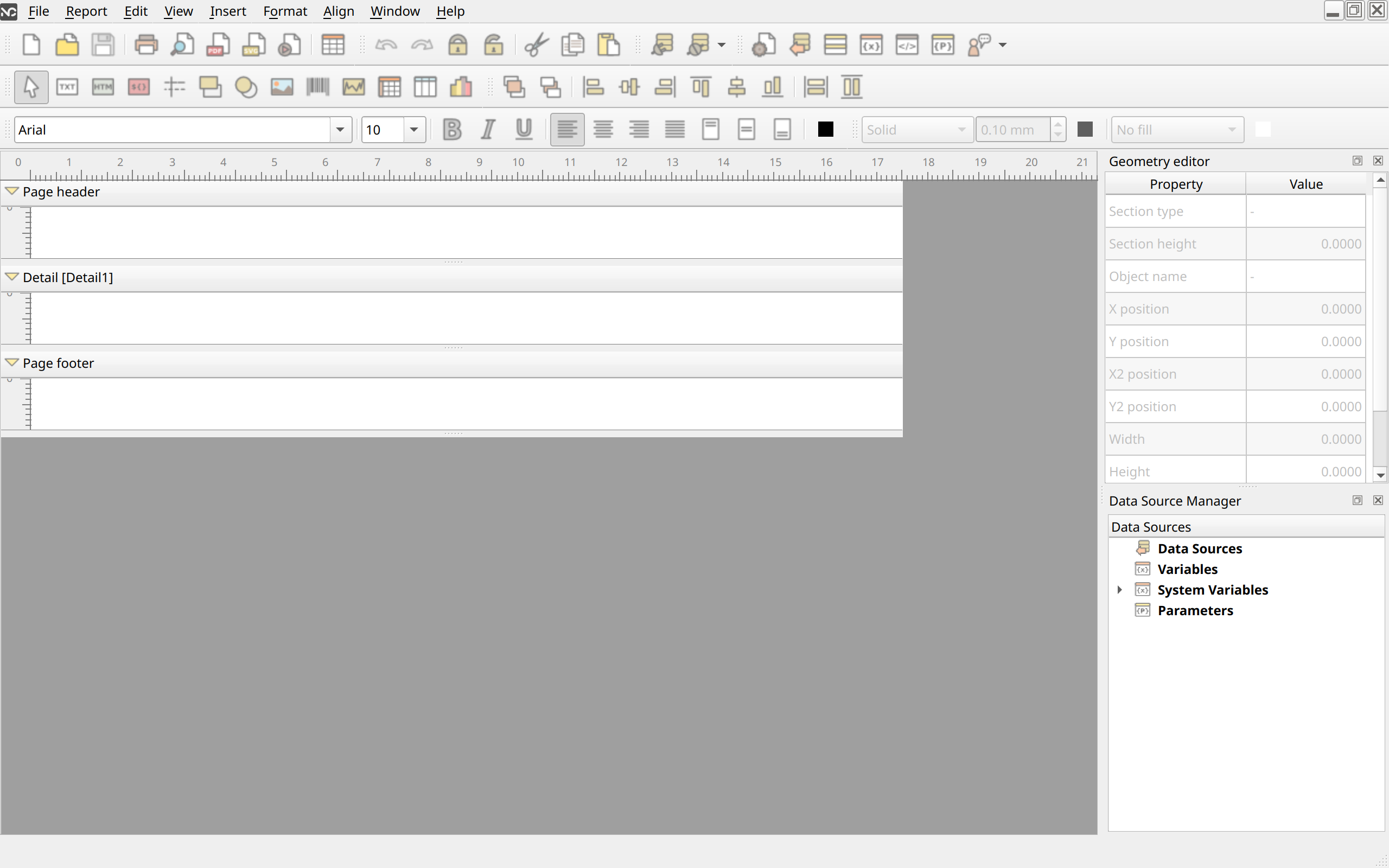
To begin a new report definition, select (Ctrl+N) or click the New toolbar button. A new report window opens in the MDI area with a temporary name (report1.ncr, report2.ncr, and so on), which you can change when you first save the report. By default, the new empty report contains a page header, a detail, and a page footer section. The default font of the report is taken from the Designer preferences ().
When you save the report with or , you can use either the .ncr or the .xml file extension; both are saved in the same XML format.
Report sections
Report sections are the function-specific areas of a report. Reports are built from sections, many of which are recurring areas, such as the detail, header, or footer sections. The most important section is the Detail, since it contains the fields that change row by row. Each section can contain all kinds of report items. An item’s coordinates are always relative to its parent section. A report can contain the following sections: report header, report footer, page header, page footer, group headers and footers, and details.
To change the height of a section, drag the resizer bar under the section area to the size you want, or type the height value in millimeters in the geometry editor, if it is enabled. To make a section current, click an empty area of the section. The settings dialog of the current section can be opened with (Ctrl+2).
Detail
The core information in a report is displayed in its Detail section. This is the most important section of the report, since it contains the row-by-row data from the data source. The Detail section has the following characteristics:
-
It generally prints in the middle of a page (between the headers and footers).
-
It contains the core information of a report.
-
It displays multiple rows of data returned by a data source.
-
It generally contains fields.
-
Multiple independent details are allowed in one report; they are printed one after the other.
-
Every detail is assigned to one data source.
Page header
The page header contains the page headings. The page header has the following characteristics:
-
It always prints at the top of a page.
-
It always contains the first information printed on a page.
-
It displays only one (the current) row of data returned by a data source.
-
Only one page header is allowed per page.
Most reports need a page header. To add or remove the page header, select ; a dialog then appears in which you can set the page options of the current report. To enable or disable the page header, use the Page header check box on the Sections tab.
Page footer
Page footers are commonly used to close the pages. The page footer has the following characteristics:
-
It always prints at the bottom of a page.
-
It displays only one (the current) row of data returned by a data source.
-
Only one page footer is allowed per page.
The page footer is usually used to display information such as the page number, the report title, and so on. Most reports need a page footer. To enable or disable the page footer, use the Page footer check box in the dialog.
Report header
The report header contains the report headings. The report header has the following characteristics:
-
It is always printed after the page header.
-
It is printed only once, at the beginning of the report.
-
It displays only one (the current) row of data returned by a data source.
To enable or disable the report header, use the Report header check box in the Report and page settings dialog, which you can open by selecting .
Report footer
The report footer is commonly used to close the report. The report footer has the following characteristics:
-
It is always printed at the end of the report, before the page footer.
-
It displays only one (the current) row of data returned by a data source.
-
Only one report footer is allowed per report.
To enable or disable the report footer, use the Report footer check box in the Report and page settings dialog, which you can open by selecting .
Setting up page and report options
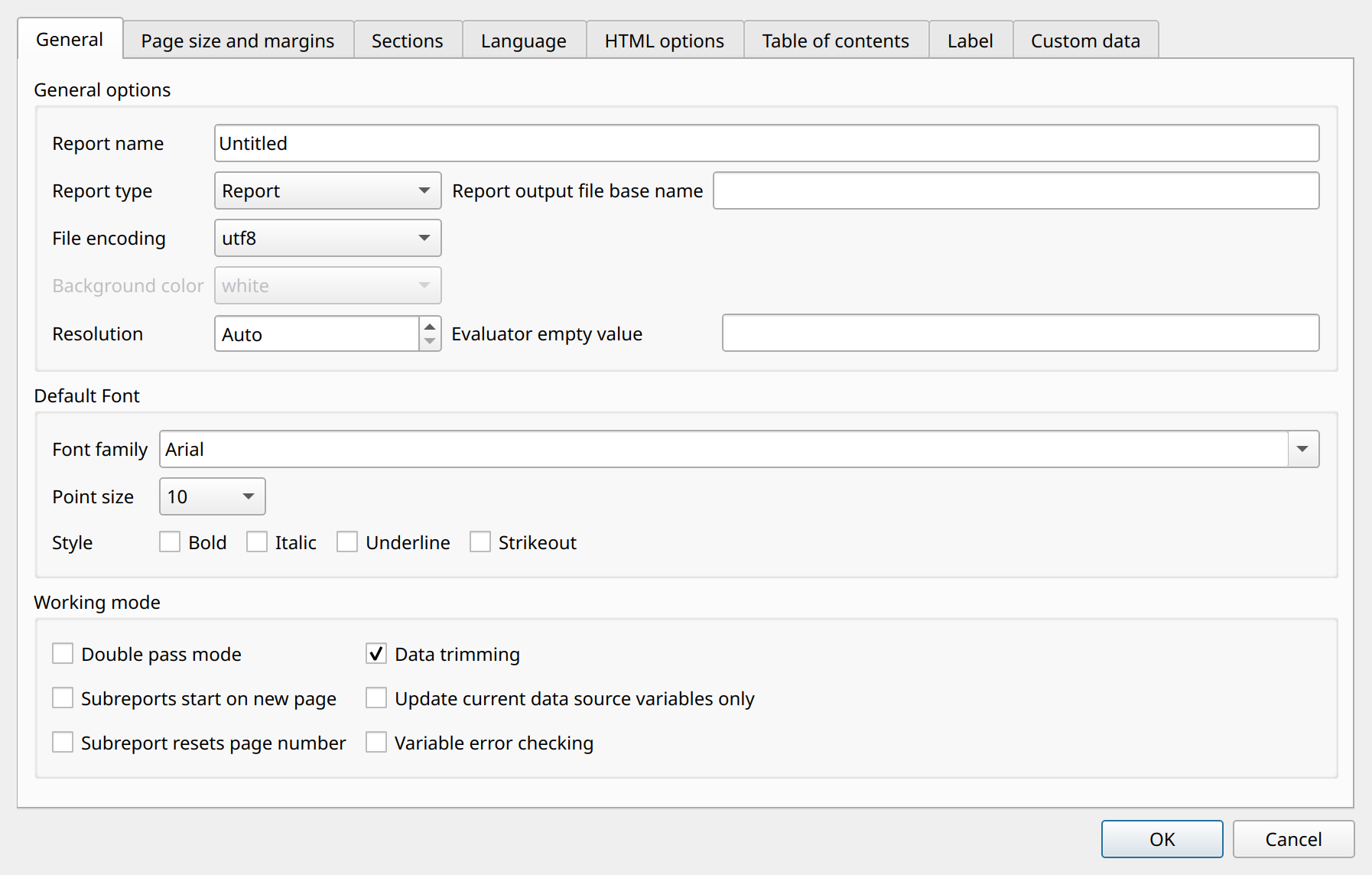
The page and report options of the current report are specified in the Report and page settings dialog. To open it, select . The options are arranged on several tab pages.
General
Report name-
The name of the report. This is an informative option only; it is not used by the report generator.
Report type-
Reportis a normal report.Text documentis a limited mode in which the report contains HTML text items only and the result is a paginated HTML document.Labelmode prints the records of the first detail as labels arranged in rows and columns; the label layout is set on the Label tab (see Label and Multi-Column Reports). File encoding-
The encoding of the XML file, used when the report definition file is opened or saved. In most cases UTF-8 is suitable, but for special international characters you may choose a different encoding.
Resolution-
The print resolution (dpi) of the report for the printer and file outputs.
Automeans that the default resolution of the output is used. Background color-
The background color of the report. This option is currently not used.
Report output file base name-
The base name of the output file, used when the report is generated to file outputs.
Evaluator empty value-
The text that the expression evaluator substitutes when a referenced value is empty or cannot be evaluated.
Default Font-
The font family, point size, and style (bold, italic, underline, strikeout) used by default when text, label, or field items are added to the report. Each item may override this setting.
Working mode-
Report processing options:
-
Update current data source variables only: only the variables that belong to the currently processed data source are updated.
-
Subreports start on new page and Subreport resets page number: options for reports that contain subreports.
-
Double pass mode: enables two-pass report generation, which makes it possible to print the total number of pages.
-
Variable error checking: report processing stops with an error if a variable cannot be evaluated.
-
Data trimming: enables the data trimmer for special calculations.
-
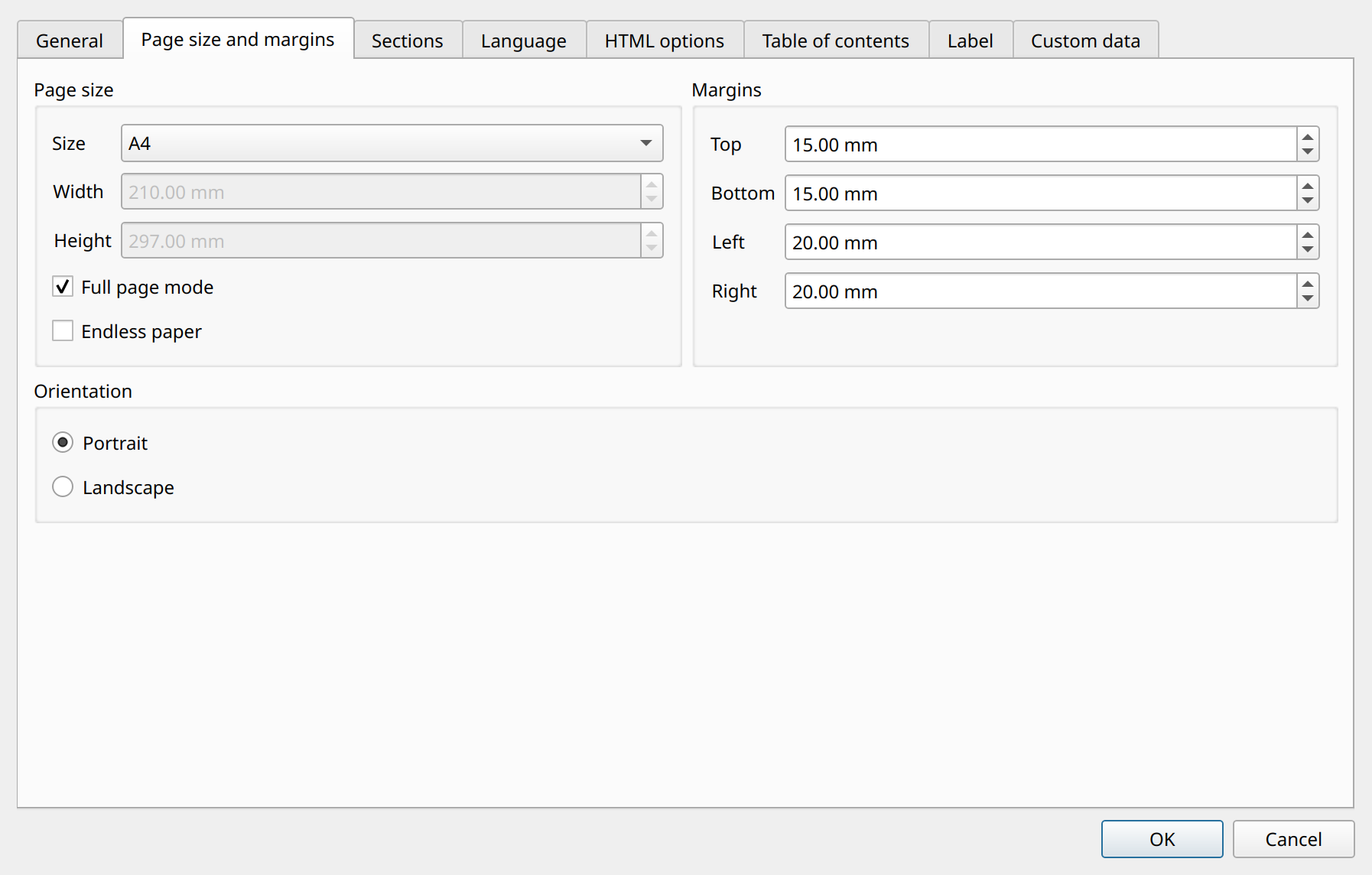
Page size and margins
Page size-
The size of the page. The combo box lists the standard paper size names. To use a non-standard size, select
CUSTOMand enter the Width and Height of the page in millimeters. Endless paper-
The page height is adjusted to the length of the report content, which is useful for continuous (roll) paper.
Full page mode-
Sets the printer to full page mode, in which the page coordinates refer to the whole paper rather than the printable area.
Margins-
The top, bottom, left, and right margins of the page in millimeters.
Orientation-
The orientation of the page: Portrait or Landscape.
Sections
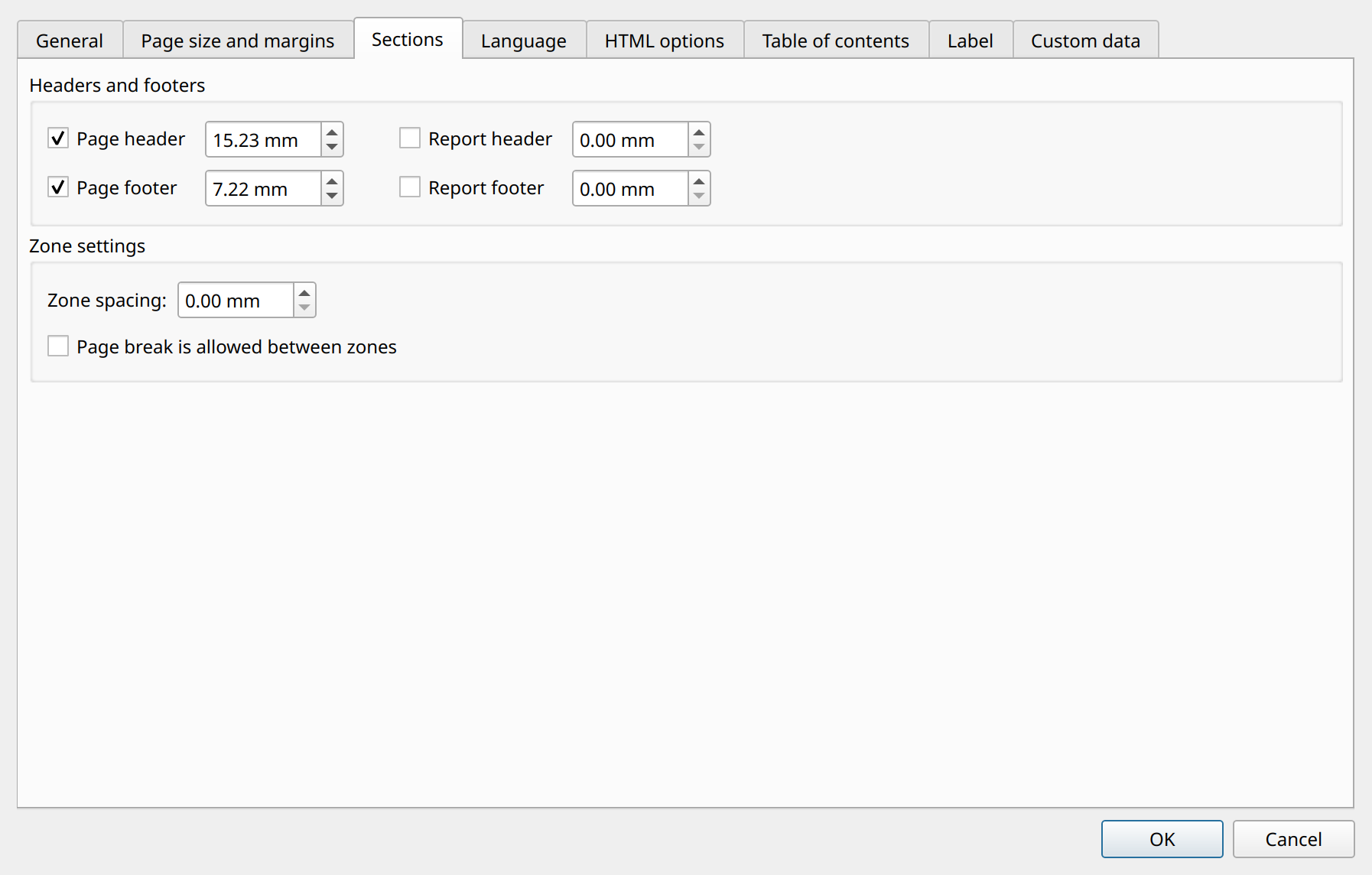
Headers and footers-
Use the check boxes to enable or disable the page header, page footer, report header, and report footer. To change the height of these sections, use the spin boxes next to the check boxes. You can also change the section heights by dragging with the mouse or by using the geometry editor.
Zone spacing-
The vertical space between the zones of a section. See the chapter about zones for details.
Page break is allowed between zones-
If enabled, a page break may occur between the zones of a section.
Language
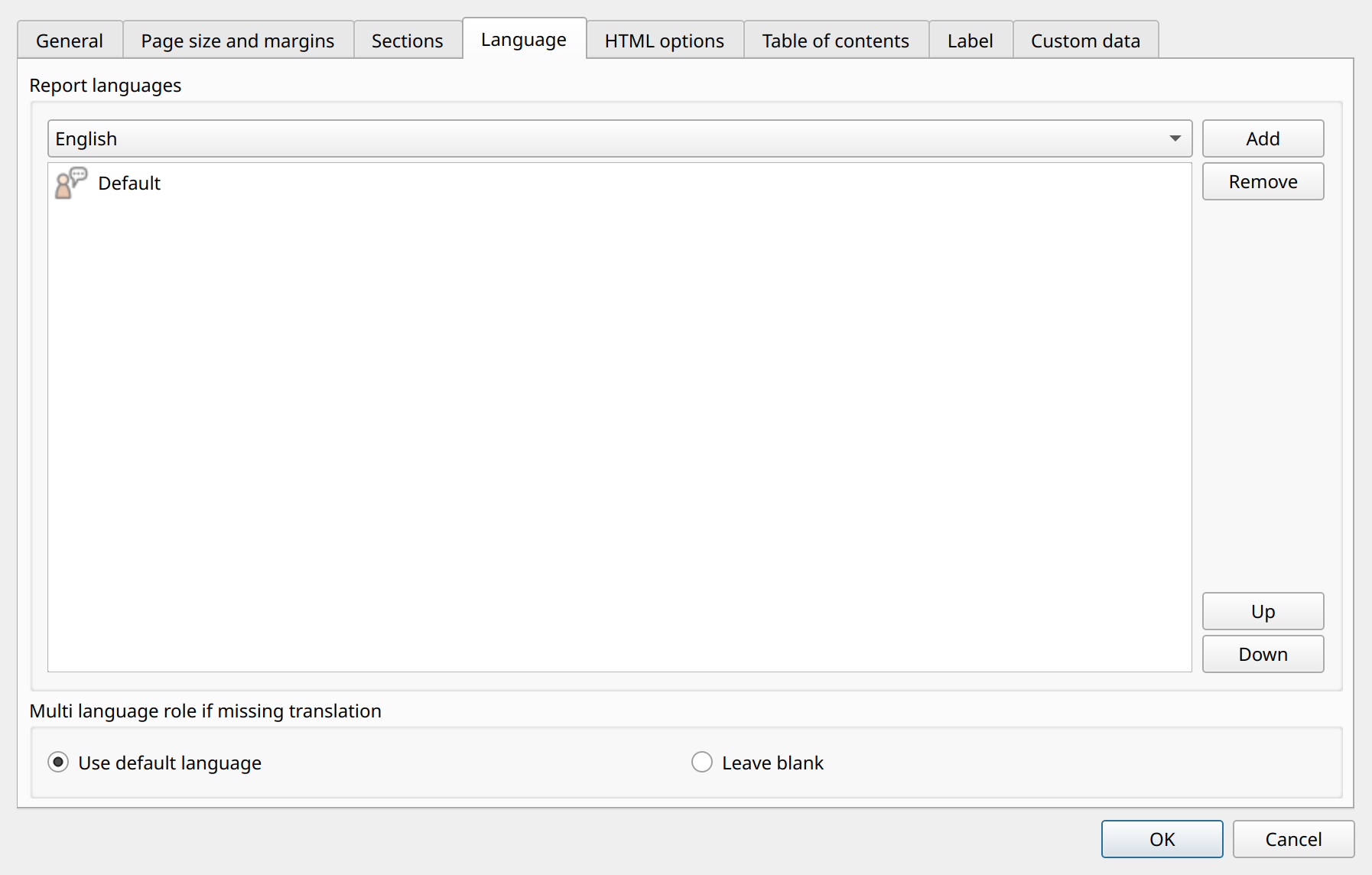
Report languages-
The languages of a multilingual report. Select a language in the combo box and click Add to add it, or click Remove to remove the selected language. The order of the languages can be changed with the Up and Down buttons.
Multi language role if missing translation-
Specifies what is printed when a translation is missing: the text in the default language (
Use default language) or nothing (Leave blank).
HTML options
Body style optionsandGeneral head options-
Custom style and head content used when the report is generated to HTML output.
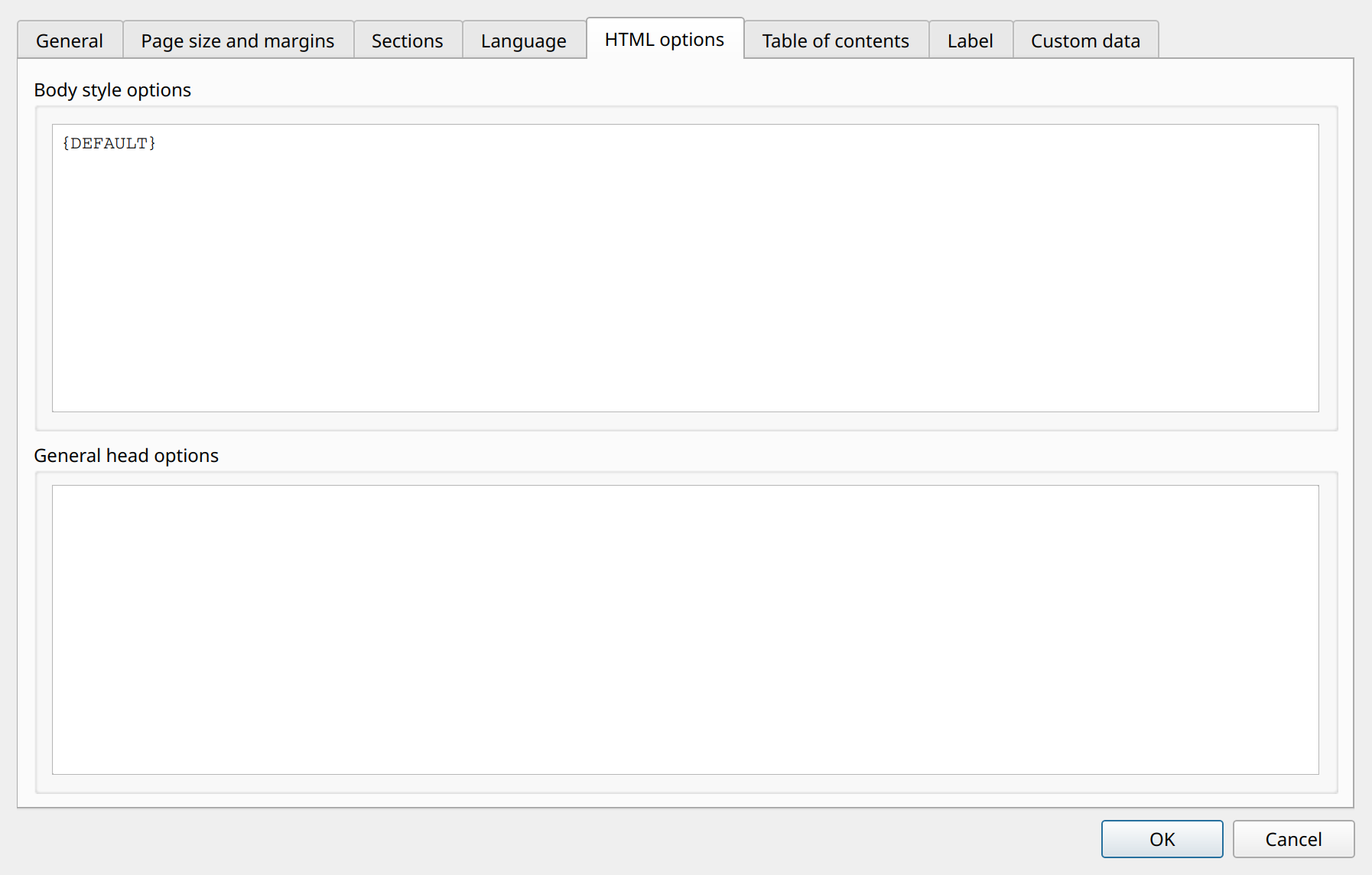
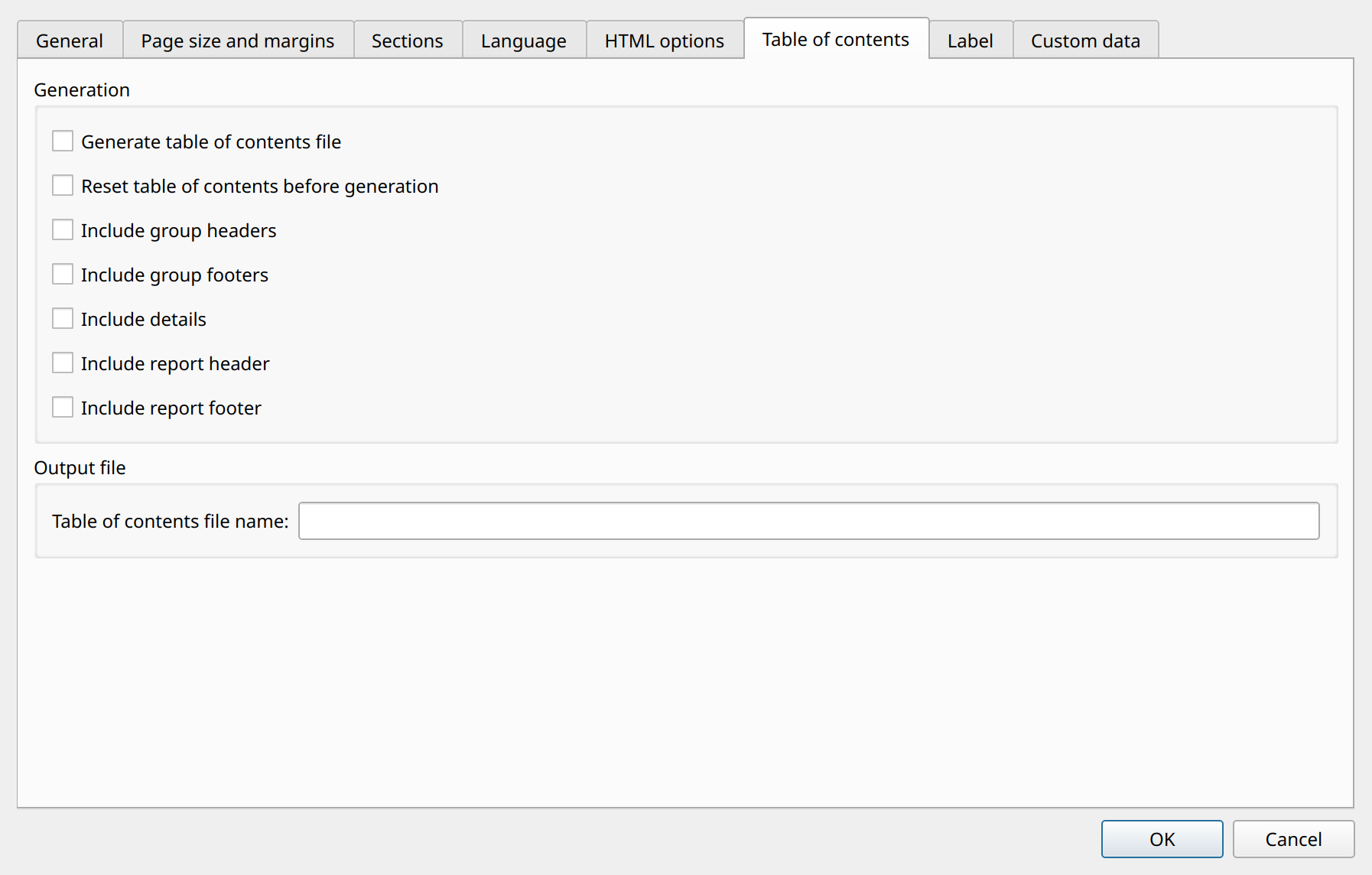
Table of contents
Generation-
Enables the generation of a table of contents file (Generate table of contents file), optionally resetting it before generation, and specifies which sections are included: group headers, group footers, details, report header, and report footer.
Output file-
The name of the table of contents file.
Label
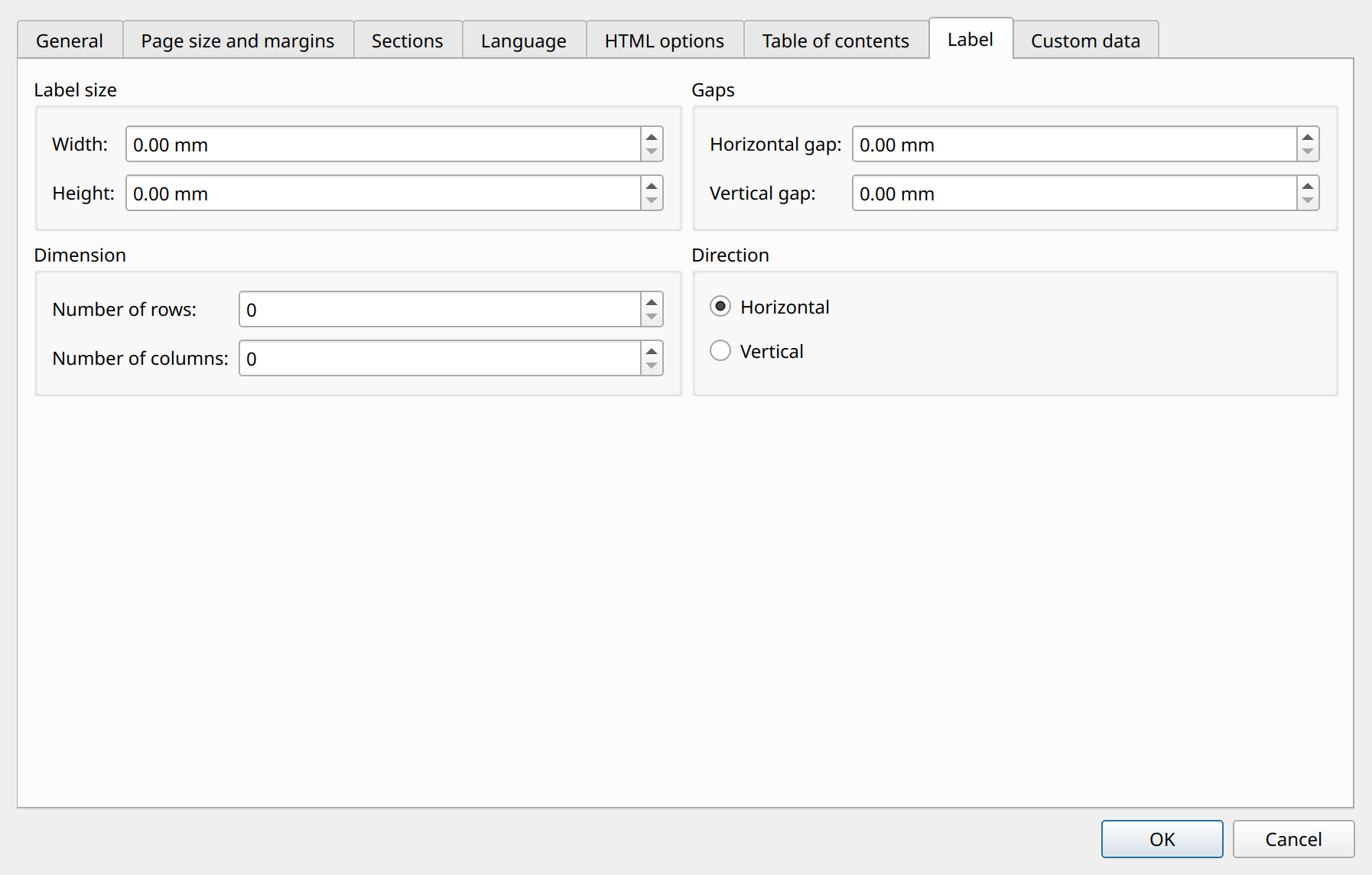
These options are used when the report type is Label:
Direction-
The order in which the labels are filled: Horizontal or Vertical.
Label size-
The width and height of one label in millimeters.
Gaps-
The horizontal and vertical gaps between the labels in millimeters.
Dimension-
The number of label rows and columns on a page.
In label mode, the label size and the number of rows and columns must be set, and the page and report headers and footers must be disabled; otherwise the dialog displays an error message.
Custom data
Custom report data-
Free-form custom data stored in the report definition, which can be used by the application.
The following buttons are available for applying or canceling the settings:
-
OK Applies your settings.
-
Cancel Closes the dialog without saving any changes and returns you to the Designer main window.
Specify the report page properties in the Report and page settings dialog and confirm the settings by clicking the OK button.
Adding data sources
At the very beginning, you have to decide which data source type or types you intend to use in the report. Since the report generator builds a printable representation of data from a data source, at least one data source must be defined in the report. Data may be fetched by an SQL query using Qt’s SQL database drivers, or from other sources that do not require an SQL connection, such as a text, XML, a string list, an item model, or a custom-defined data source. A report can contain multiple data sources, and each detail is connected to one selected data source. A data source does not have to be assigned to a detail; in this case, you can use the unassigned data source as a single-record (first row) source of data. See the details later.
To add a data source to your report, select . A dialog then appears in which you can add and remove data sources. To add a new data source, click the Add button and then select the data source type from the list of available types: SQL query, Text, XML, String list, Item model, or Custom.
Data source types dialog
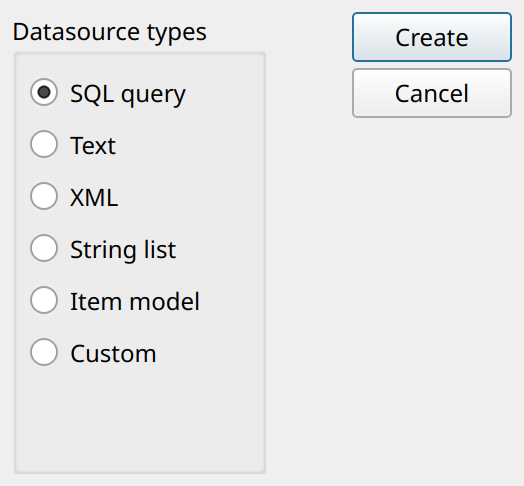
In our example, we choose the SQL query data source type. After you click the Create button, a new SQL query data source is added to the list in the dialog. You can then specify the data source options. The following properties are available for data sources:
Data source ID-
This string property identifies the data source. You refer to the data source by this ID.
Data source type-
The type of the data source you chose earlier. It cannot be changed after the data source has been added to the list.
Location type-
Describes where the data or the SQL query can be found: inside the report file or in an external file. Its value may be Static, File, Http, Ftp, or Parameter. The Http and Ftp types are currently not supported for SQL queries. Its meaning differs slightly for the different types of data source. For an SQL query, the Static location type is suitable; it means that the SQL query is saved statically in the report file. The Parameter type means that the data is passed to NCReport as a parameter. For example, a QString text or an SQL query can be added as a parameter, depending on the data source type.
File name-
When a non-Static location type is selected, you can specify the name of the file that contains the data.
Opening/running role-
Specifies when the data source is opened: at the beginning of the report, as a child data source (subquery), when a group changes, or for subreport iteration.
Connection Name-
The ID of the SQL database connection. This name is the same ID that is used in the
QSqlDatabase::addDatabase()function to identify the database connection. When you add a database connection in your application before running the report, you must use this connection name. Use private database connection-
If you want the SQL data source to use its own database connection, select this check box (on the Database connection tab). The private connection parameters then become enabled, and you can specify the required properties of the SQL connection: driver, host, database, username, password, and port (optional).
Query-
A text area in which you can edit the SQL query. In almost every case it is a
SELECT…FROMstatement using the SQL syntax of the specified database. Only one SQL query is allowed per data source. The query can contain parameters (see later); use the Insert Parameter button to insert one, and the Test Query button to try the query.
SQL data source
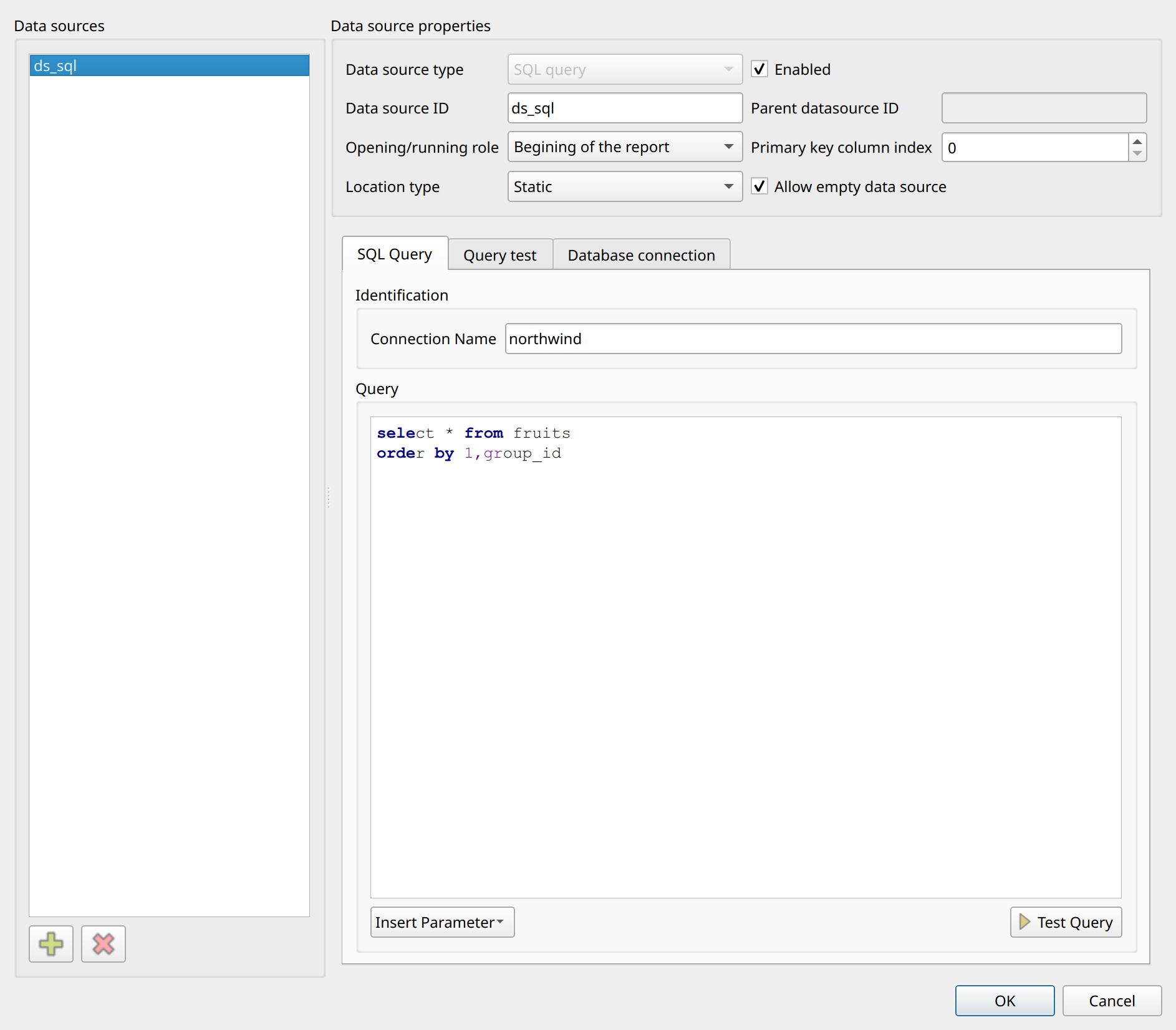
In our example, we keep the default data source ID and choose the Static location type. We set the
connection name to Con0. Then we specify the SQL query.
|
This example requires a running MySQL database server with the
northwind demo database and its tables. SQL script files for creating the sample database and tables are included in the |
Let’s use this simple query:
SELECT ProductID, ProductName, QuantityPerUnit, UnitPrice,
QuantityPerUnit*UnitPrice as value
FROM products
WHERE ProductID>20
ORDER BY ProductName
The following buttons are available for applying or canceling settings:
-
OK Applies your data source settings.
-
Cancel Closes the dialog without saving any changes and returns you to the Designer main window.
Confirm the data source settings by clicking the OK button.
Assigning a data source to the Detail
To assign the data source we defined earlier, select . A
dialog then appears in which you can manage the detail sections of the report. A default detail named Detail1 is already defined. You
can rename it by changing the Detail ID. Select the previously defined data source from the Data source combo box,
which contains all data sources defined in the report. A detail must have a data source assigned for the report to work.
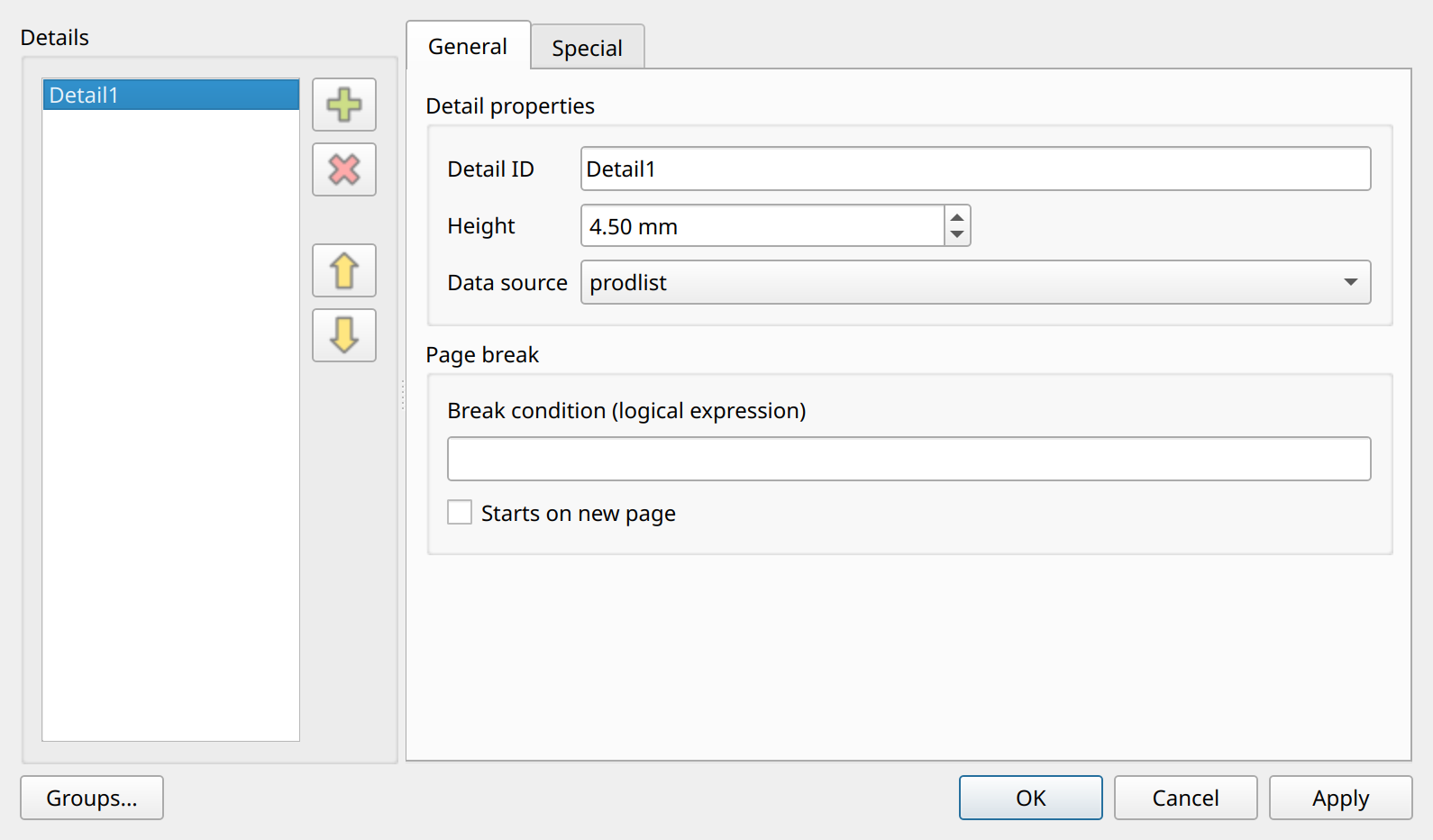
The main options of the Detail settings dialog are the following:
Detail ID-
The name of the detail section.
Height-
The height of the detail section in millimeters. You can also change the height by dragging with the mouse or by using the geometry editor.
Data source-
The data source assigned to the detail. Previously defined data sources can be selected in the combo box.
Page break-
A break condition (logical expression) that forces a page break, and the Starts on new page option.
Groups…-
Opens the group management (Data grouping) dialog of the selected detail.
The Special tab contains further options: a secondary data source, the parent section ID, alternating row background colors (odd or even rows), and repeating the detail a given number of times.
You can add more details with the Add button or remove an existing detail with the Remove button. At least one detail section must exist, so the only detail cannot be removed.
The following buttons are available for applying or canceling settings:
-
OK Applies your settings.
-
Cancel Closes the dialog without saving any changes and returns you to the Designer main window.
Confirm the detail settings by clicking the OK button.
Adding report items
After we have defined the data source and specified the report options, we can design the report by adding items to the sections. The Insert menu and the Tools toolbar display the report items that can be used when designing a report. Let’s summarize the various report items of NCReport:
- Label
-
The Label represents simple static text. Label items are used to display descriptive information in a report, such as titles and headings. Labels are static items; their values do not change when the report is rendered.
- Text
-
The Text item displays HTML (rich) text. Its content can be static or loaded dynamically, for example from a data source.
- Field
-
The Field is the core report item. By data type, fields may be text, numeric, date, or boolean. Field items are used to pull dynamic data into a report from the specified data source, such as a database. For example, a Field item may be used to present SQL data, variables, and parameters. NCReport handles data formatting for the different types of field, such as numbers, dates, and text.
- Line
-
Line items are generally used for drawing vertical or horizontal lines for headings, underlining titles, and so on. Lines are defined by their start and end point coordinates.
- Rectangle
-
Rectangles are usually used for drawing boxes or borders around a specified area. A rectangle makes drawing boxes easier than drawing four separate lines.
- Ellipse
-
The Ellipse item draws a circle or an ellipse in a report, for example as a decoration or a border around text.
- Image
-
Image items are used to insert either static or dynamic images into a report. Static images, such as a company logo often displayed in the report header, can be loaded from a file or stored in the report definition. Dynamic images can be loaded from a data source, for example from an SQL column or from a file name stored in the data.
- Barcode
-
The Barcode item renders barcodes using the integrated Zint library, which supports more than 50 barcode symbologies (for example EAN-13, Code 128, QR Code, Data Matrix, and PDF417). Barcodes can be either static or dynamic items, similar to images. Static barcodes read their value from the report definition; dynamic barcodes are loaded from the specified data source.
- Graph (custom item)
-
The Graph/Custom item is a special member of the NCReport items. It enables you to render QPainter-drawn content in reports using your own C++/Qt code. The typical use of this feature is rendering graphs or similar content.
- Cross tab
-
The cross table (pivot table) item. See the chapter about cross tables for details.
- Table View
-
Renders a QTableView widget or a QAbstractItemModel as a table.
- Graphics View
-
Renders the content of a QGraphicsView widget provided by the application at runtime.
- Chart
-
Renders HighCharts charts. This item is available only if the optional HighCharts extension is enabled.
Adding heading Labels
First, let’s add the labels that represent the column headers of the data rows. To create a new Label object, select the Label tool button or the menu item. The cursor then changes to a crosshair. Click in the section where you want the label to be located. (In our example, we add the labels to the page header.) Doing so creates the Label object in that section and opens the label settings dialog, in which you can set the properties of the label.
The following options are available for labels:
Text-
The text of the label.
Word wrapping-
If this check box is selected, the text is wrapped to fit the width of the item.
Print when expression-
A logical expression that defines when the label is printed. See the details later.
Label dialog
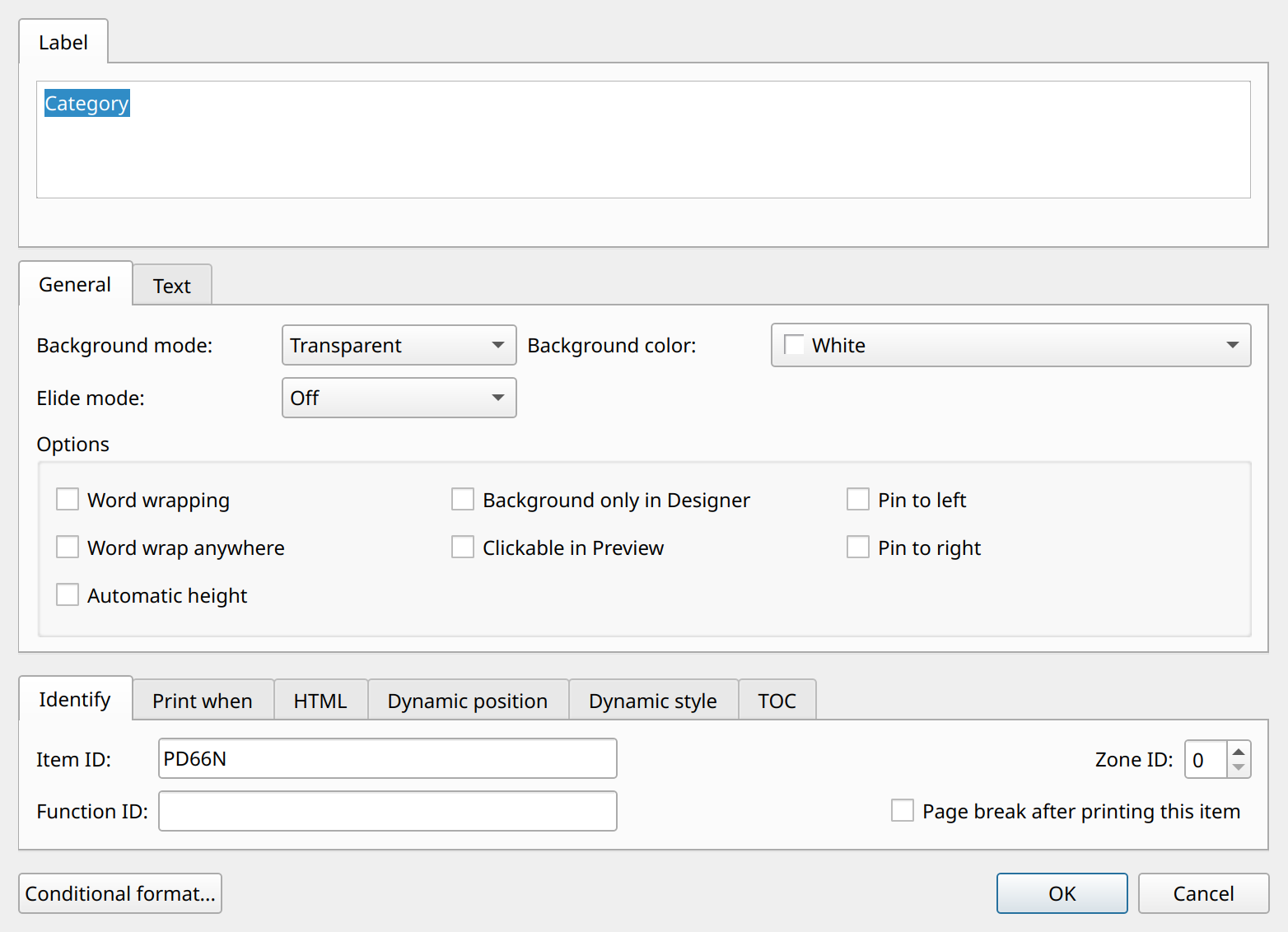
The following buttons are available for applying or canceling settings:
-
OK Applies your label settings.
-
Cancel Closes the dialog without saving any changes and returns you to the Designer main window.
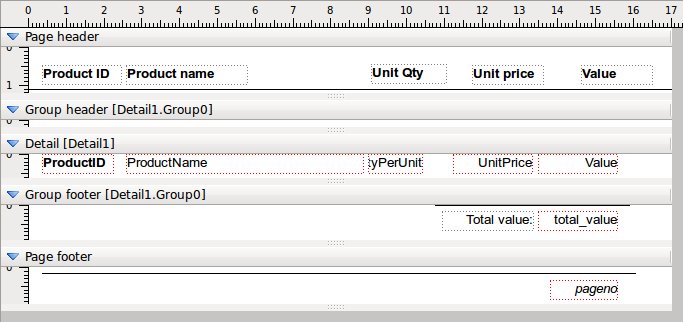
Add the following labels to the page header: Product ID, Product name, Unit Qty, Unit price, and Value, and move them to the location you want by drag and drop. To move a label, drag it with the left mouse button and drop it at the new location. To delete a label, select it and press the Delete key.

Adding a Line
To create a new Line object, select the Line button in the toolbar or the menu item. The cursor then changes to a crosshair. Click in the section where you want the line to start and drag the line to the end position. To move a line, drag it with the left mouse button and drop it at the new location. To delete a line, select it and press the Delete key.

The style, width, and color of the selected line can be set using the Shape properties toolbar. To open the line properties dialog, double-click the line. The dialog provides the following option:
- Print when expression
-
A logical expression that defines when the line is printed. See the details later.
Adding Fields
Now we add the most important items to the report. Field objects contain dynamic information retrieved from a data source, a parameter, or a variable. To create a new Field object, select the Field tool button or the menu item. The cursor then changes to a crosshair. Click in the section where you want the field to be located, which is generally the Detail section. Doing so creates the Field object in that section at the clicked position and opens the field settings dialog, in which you can set the properties of the field.
The following options are available for fields:
- Field source type
-
The combo box contains the possible sources from which the field can pull data: Data source, Parameter, Variable, System variable, Script expression, and Template. You can find information about the various source types in the NCReport specification.
- Field column/expression
-
The data column or expression from which the field’s value is taken. When the field uses an SQL query data source, this is the name of the corresponding SQL column in the query. For other data sources, such as Text, this value is usually the number of the data column. The Build expression… button opens the expression builder.
- Data type
-
The field’s base data type. The following data types are supported: Text, Numeric, Date, DateTime, Time, and Boolean.
- Word wrapping
-
If this check box is selected, the field text is wrapped to fit the width of the item.
- Template arg() string
-
A string expression containing a
%1placeholder, which serves the same purpose as theQString("String %1").arg(value)code. The field’s value is embedded into this expression. - Print when expression
-
A logical expression that defines when the field is printed. See the details later.
Field dialog
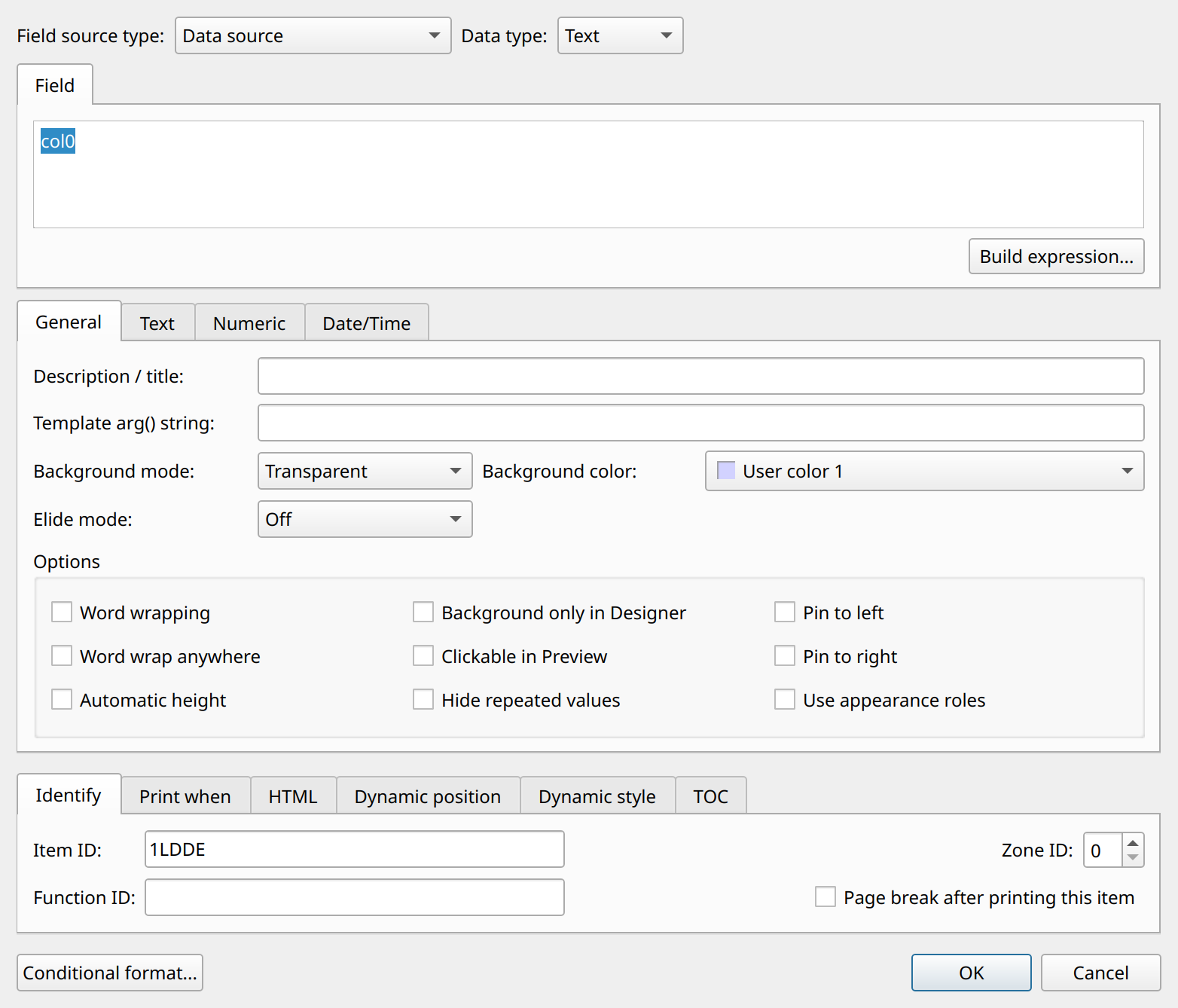
The following table summarizes the various formulas you can specify in fields as the field column expression. The formula depends on which field source type you use.
Field column formulas
Field source type |
Field column formula |
Description |
Data source |
|
The column is a valid column name of the data source, for example an SQL column name in your SQL query. If dataSourceID is specified, the report engine uses the data source with this ID. If you do not specify dataSourceID, the default (currently processed) data source is used, which is the one assigned to the detail. Data source references can also contain functions. Read more in the Expressions chapter. |
Parameter |
|
The name/ID of the parameter |
Variable |
|
The name/ID of the variable |
System variable |
|
The name/ID of the system variable |
Script expression |
|
You can use even a complex script expression for the field. Data source values, parameters, and variables can all be used in expressions. For more information, see the Expressions chapter. |
Template |
|
A template is a simple text substitution of data source values, parameters, or variables, all joined into one string. |
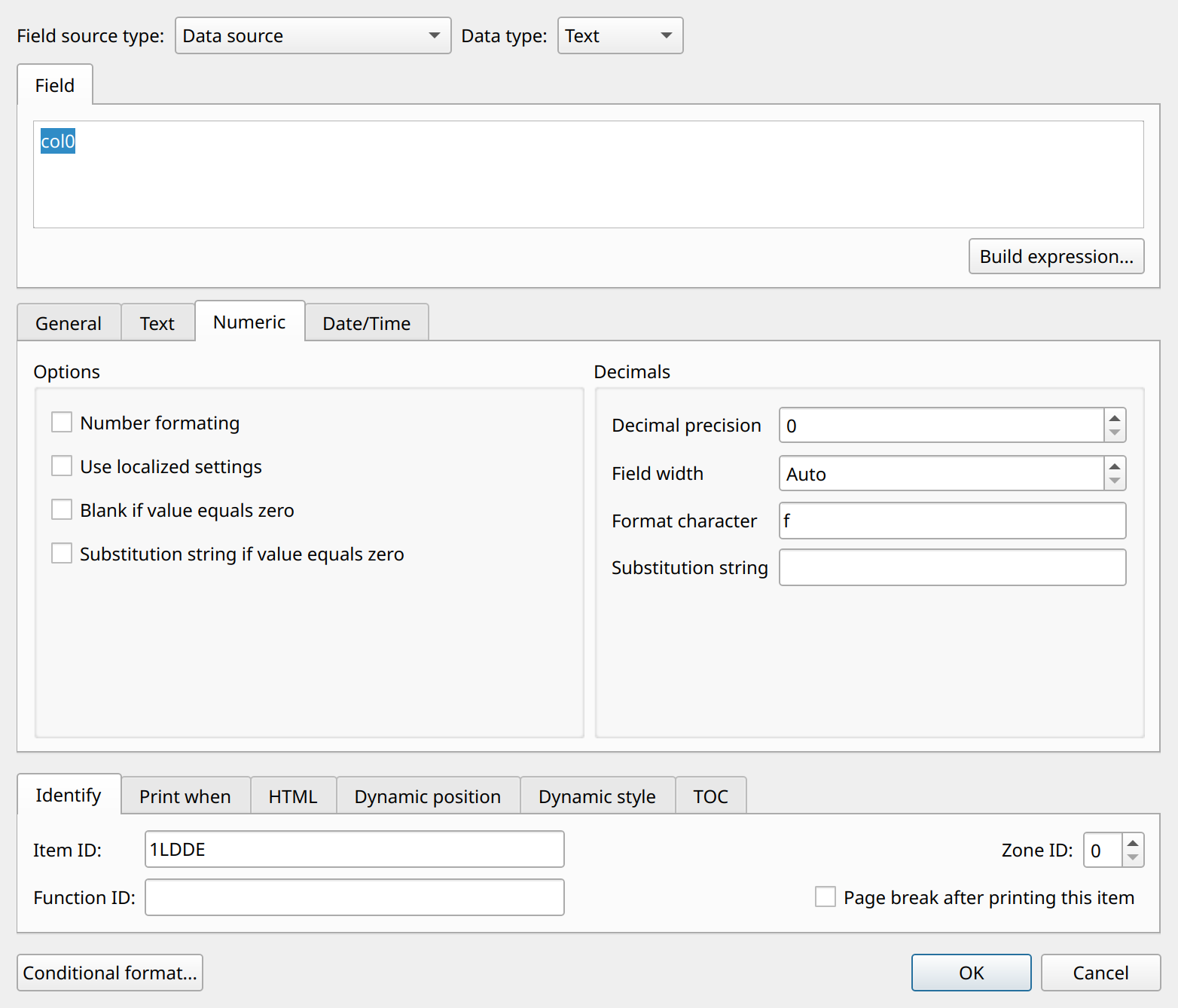
Some properties are available only for certain data types. They are located on separate tab pages of the dialog (Text, Numeric, and Date/Time). The following additional options are available for numeric fields:
- Number formatting
-
If this option is selected, number formatting is turned on.
- Use localized settings
-
If this option is selected, the report engine uses localized number formats based on the application’s current QLocale settings.
- Blank if value equals zero
-
If this option is selected, the field’s value does not appear when it equals zero.
- Substitution string if value equals zero
-
If this option is selected, the text specified in Substitution string is printed instead of a zero value.
- Decimal precision
-
The number of digits after the decimal point.
- Field width
-
The width of the number in characters. Specifies the minimum amount of space that the value is padded to. A positive value produces right-aligned text, whereas a negative value produces left-aligned text.
Automeans no padding. - Format character
-
A single character that specifies the number format code. Possible values are e, E, f, g, and G. With e, E, and f, the precision is the number of digits after the decimal point. With g and G, the precision is the maximum number of significant digits. The value is used by the
QString::arg(double a, int fieldWidth = 0, char format = 'g', int precision = -1, QChar fillChar)function.
Field dialog - numeric data
The following buttons are available for applying or canceling settings:
-
OK Applies your field settings.
-
Cancel Closes the dialog without saving any changes and returns you to the Designer main window.
To continue our example report, add the following fields to the detail section, using these column names and data types: ProductID (Numeric), ProductName (Text), QuantityPerUnit (Numeric), UnitPrice (Numeric), and Value (Numeric).

Adding Variables for totals
Before we add a variable field to the report, let’s look at how variables are handled in NCReport. Variables are special items used for providing counts, totals, and other aggregate values. Each variable has a name, a function type, and a data type, and is based on an expression, usually a data source column. To add a variable, select . A dialog then appears in which you can manage variables. The variables are listed in a table with the columns ID, Expression, Function, Scope, and Init Value, which can be edited directly in the table.
The following options are available for variables:
Variable ID-
The name/ID of the variable.
Variable expression-
The data column (or expression) from which the variable’s value is taken.
Function type-
The aggregate function of the variable:
COUNTincrements by 1 for every detail row;SUMsums the values of the specified data column;AVERAGE,STD,MIN, andMAXcalculate the average, the standard deviation, the minimum, and the maximum of the values. Reset scope-
When the variable is reset:
Report,Page, orGroup. Initial value-
The initial value of the variable.
Variable dialog
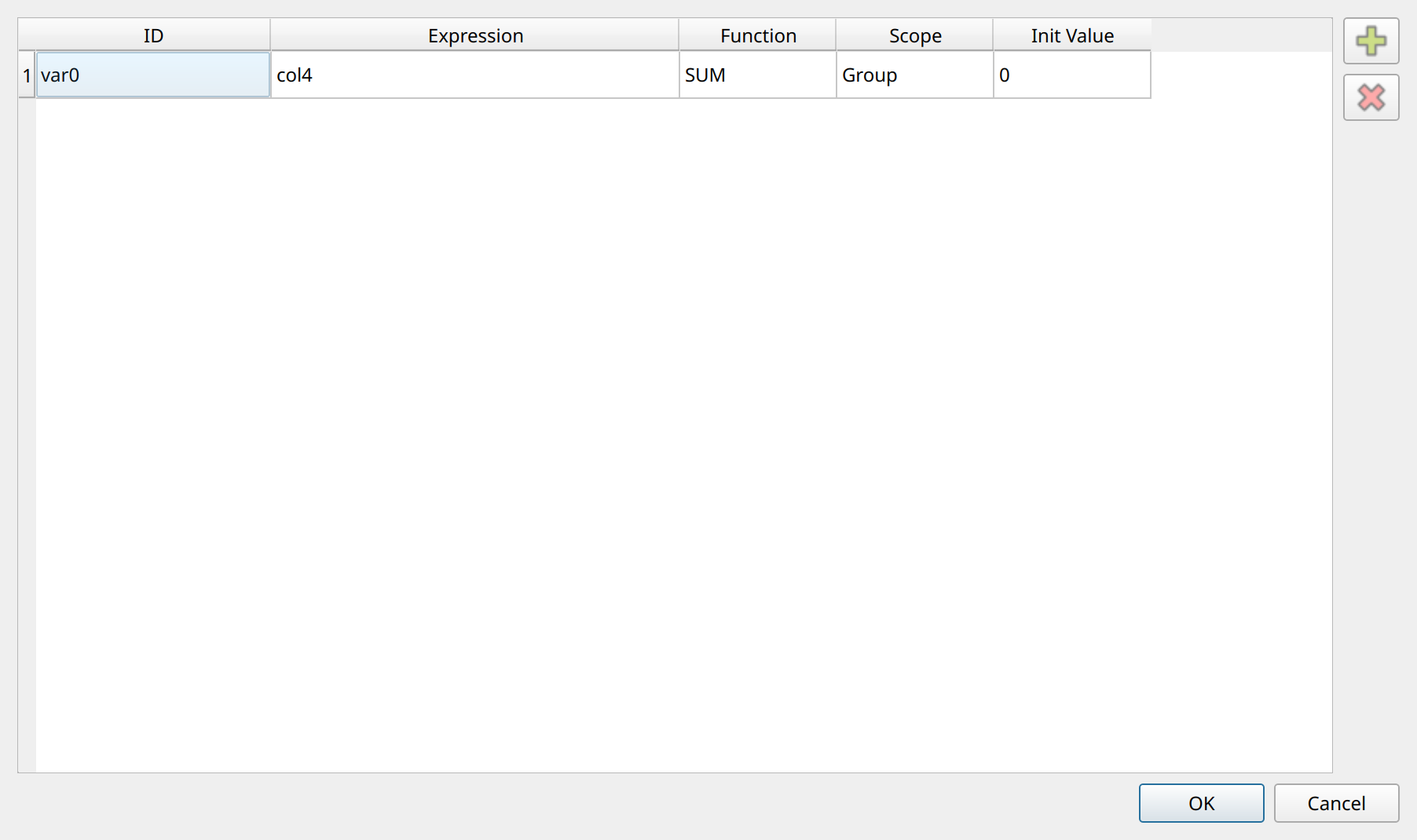
The variables added to the report are shown in the variable table. Clicking a row makes that variable active. The following buttons are available in the dialog:
-
Add Adds a new variable and enables the variable options for editing.
-
Remove Deletes the selected variable.
-
OK Saves your variable settings.
-
Cancel Closes the dialog without saving any changes and returns you to the Designer main window.
Add a new variable by clicking the Add button, and then specify the options as follows: Variable ID: total_value, Variable expression: value, Function type: SUM, Reset scope: Group. To print the total, we first have to add a new group to the detail. In the next section, we explain how to use the grouping feature.
Adding a group to a detail
While many reports can be defined using a single Detail section with multiple columns and rows of data, others, like our example report, require summary data such as totals and subtotals. For such reports, NCReport supports group sections. Group sections have the following characteristics:
-
They are always associated with a Detail section.
-
They are defined by group headers and group footers.
-
Group headers always print above their detail rows.
-
Group footers always print below their detail rows.
-
They reference a data column (or expression) on which the group headers and footers break.
-
A new group footer and group header are printed each time the value of the referenced column changes.
-
An unlimited number of group levels is allowed.
In the group dialog, the groups of the detail are shown in the order you added them. The added group sections appear in the Designer after you apply the group settings. Groups are structured hierarchically: the first group is the primary (outermost) group level, the second one is the second level, and so on.
To add a new group to the detail, select . The Detail settings
dialog then appears. Select the Detail1 detail in the list, then click the Groups… button to open the Data grouping dialog,
which always belongs to the selected detail. To add a new group, click the Add button.
The following options are available for a group:
Group ID-
The name/ID of the group, used for identification purposes.
Group expression-
The data source column (or expression) the group is based on. When the value of this column changes, the group breaks. The constant expression
%CONSTcan also be used as the group expression (a group expression of0is converted to%CONSTwhen the report is loaded). In that case the group never breaks; it just ends at the end of the data. This is useful for grand total fields. Header and Footer-
To enable or disable the group header and footer, select or clear the corresponding check box. To set the initial height of these sections, use the spin boxes next to the check boxes. The Reprint header on new page option repeats the group header at the top of each new page.
Page break-
A break condition (logical expression), and the Always starts on new page and Reset page number options.
Reset variables-
This list contains the variables that can be reset when the group ends. Only the variables with
Groupreset scope are listed.
Group dialog
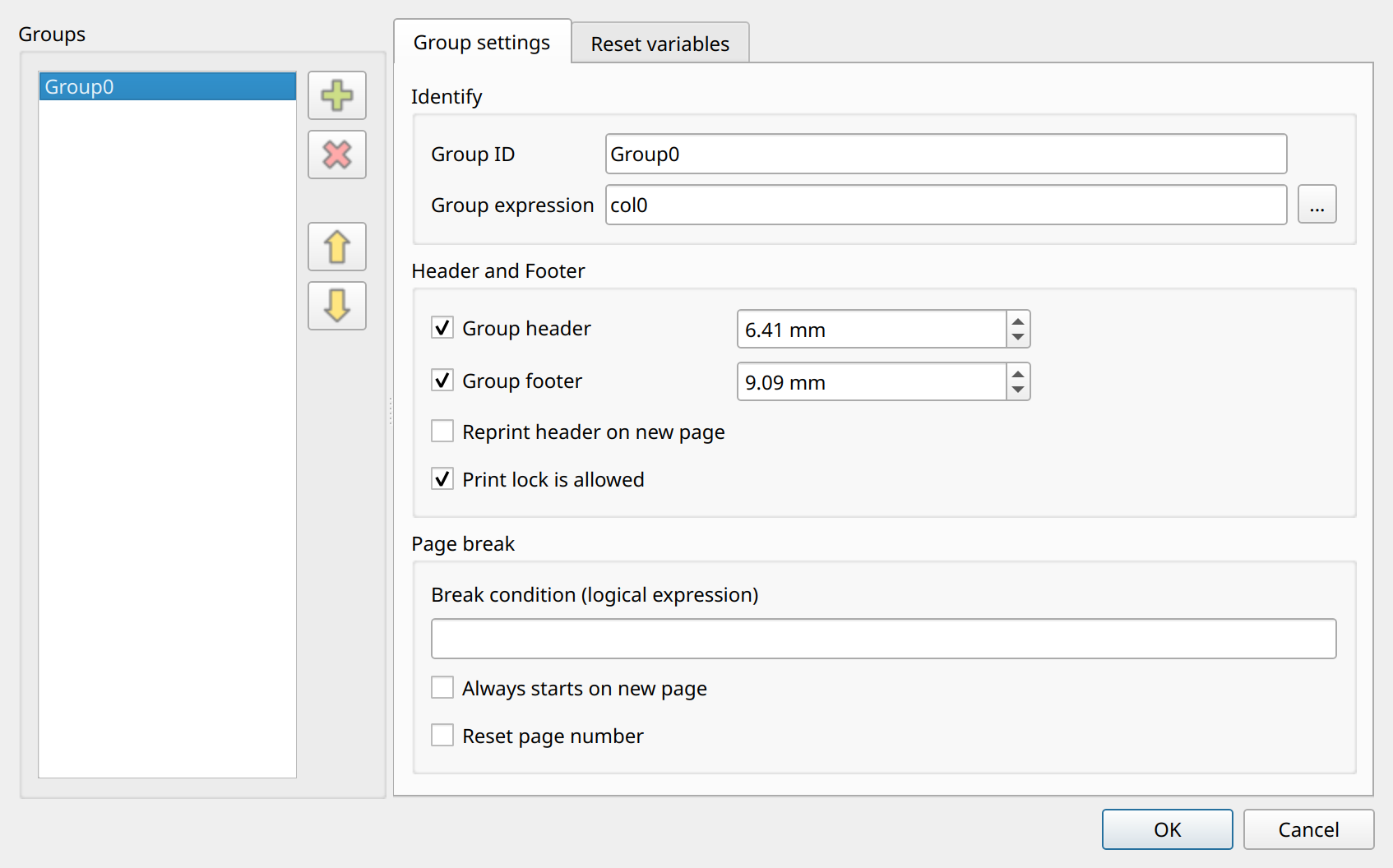
The groups added to a detail appear in the group list. Clicking a list item makes that item active. To delete the selected group, click the Remove button. The following buttons are available in the dialog:
-
Add Adds a group and enables the group options for editing.
-
Remove Removes the group selected in the list.
-
OK Saves your group settings.
-
Cancel Closes the dialog without saving any changes and returns you to the Detail settings dialog.
Now let’s add a new group with the following settings: Group ID: Group0, Group expression: %CONST, group header and footer enabled,
and the total_value variable reset. After you click the OK button, the new group sections (header and footer) appear in the report.
Close the Detail settings dialog by clicking the OK button.
Adding a total variable field
Now we have a group with a header and a footer. Group footer sections are generally used for showing totals and subtotals.
Let’s add a new field to the group footer with the following properties:
Field source type: Variable, Field column: total_value, Data type: Numeric.
Now we have almost all of the fields we need. All that is left to do is add some missing lines and labels and adjust the report.
Other items
The remaining tasks are summarized below:
-
Add a "Total value:" label to the group footer section, near the total field.
-
Add a line above the totals.
-
Move the items to align them with the appropriate columns.
-
Add a line to the page footer, similar to the line in the page header.
-
Add a field to the page footer: Field source type:
System variable, Field column:pageno, Data type:Numeric, QString::arg() expression:Page: %1.
Adjustment and formatting
To finish the report, we can now format and adjust the items. Perform the following tasks:
-
Adjust the height of the sections to a suitable size by dragging the bottom edge of the section with the mouse or by using the geometry editor. The height of the detail is important, since it is repeated for every record.
-
Select the labels in the page header and set the font weight to bold by clicking the Bold tool button in the toolbar. Multiple items can be selected at once.
-
Select the ProductID field in the Detail section and set its font weight to bold.
-
Right-align the text of all of the numeric fields by clicking the Right text alignment tool button in the toolbar.
-
Set the number format options for the numeric fields: Number formatting: on, Decimal precision: 2.
-
Also turn on Use localized settings for the value and total_value fields.
Save the report. Now you should have something similar to this:
Running the report
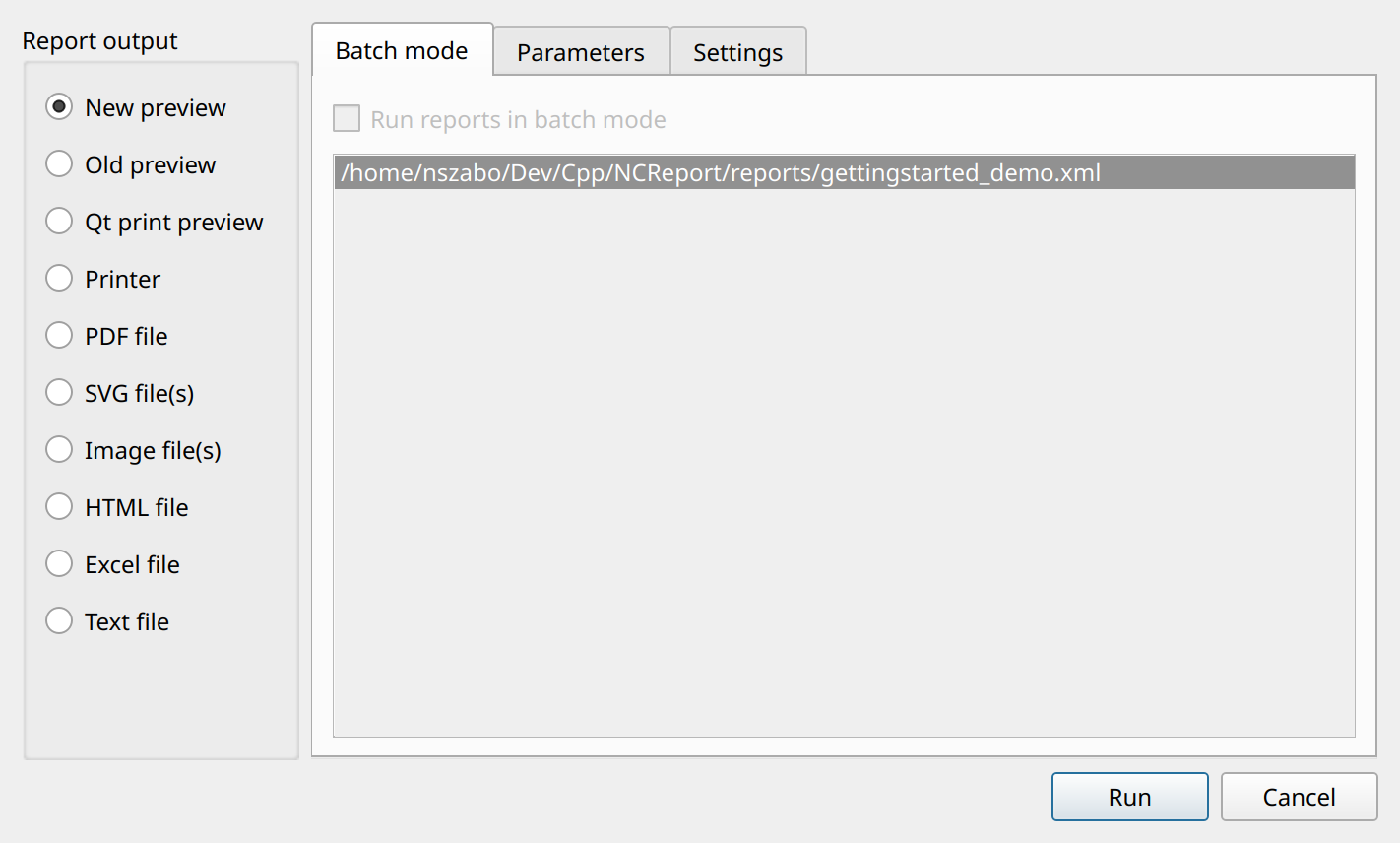
To run the report from the Designer, select (Ctrl+R). The Run report dialog then appears. Select the output of the report: New preview, Old preview, Qt print preview, Printer, PDF file, SVG file(s), Image file(s), HTML file, Excel file, or Text file. You can add and remove test parameters with the Add and Remove buttons on the Parameters page; for more about parameters, see the Parameters chapter. The dialog also lets you set a page range and run reports in batch mode. Start the report by clicking the OK button.
To run the report directly to a given output without the dialog, use the submenu, for example (Ctrl+P).
When you run the report to the preview window, you should see something similar to this:
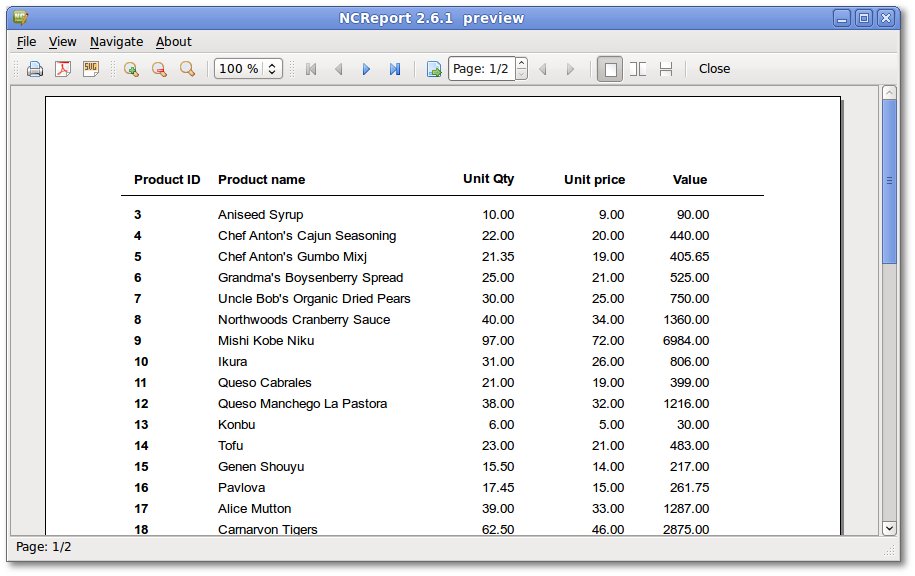
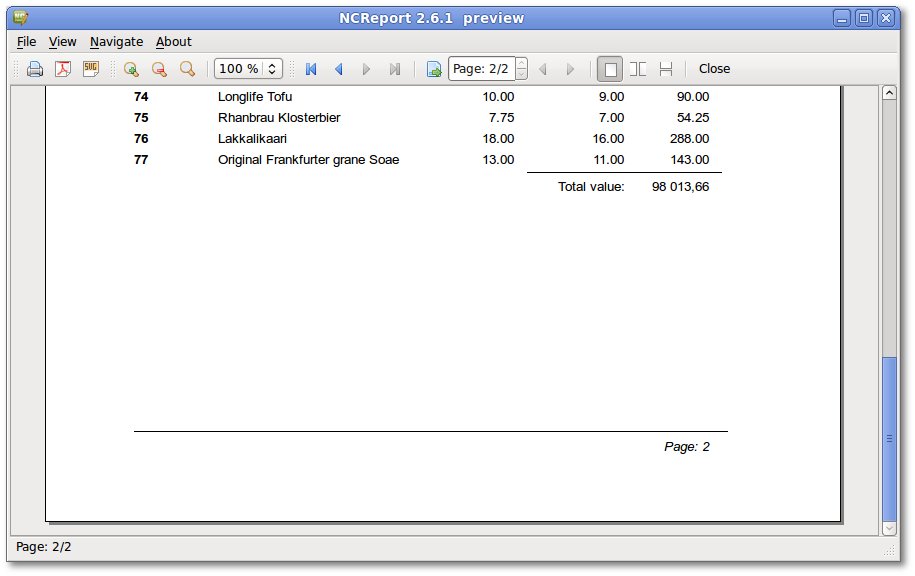
The second page: