Getting Started with NCReport Designer
This chapter covers the fundamental steps that most users take when creating reports with NCReport Designer. We introduce the main features of the tool by creating a simple report that you can use with the NCReport engine.
Launching Designer
The way you launch NCReport Designer depends on your platform:
-
On Windows, open the Start menu and click the NCReport Designer shortcut created by the installer.
-
On Unix or Linux, you may find an NCReport Designer icon on the desktop or in the desktop start menu. You can launch the Designer from this icon. Alternatively, enter
./NCReportDesignerin a terminal window in thebindirectory of NCReport. -
On macOS, double-click the NCReportDesigner application in the Finder.
The User Interface
NCReport Designer has a standard multiple document interface (MDI): every opened report is displayed in its own window inside the main window, so you can work on several reports at the same time. The main window consists of a menu bar, toolbars, the MDI area that contains the report windows, and two dock windows on the right side: the Geometry editor for editing the position and size of items and sections, and the Data Source Manager that lists the data sources, variables, system variables, and parameters of the active report. Both dock windows can be shown or hidden from the View menu.
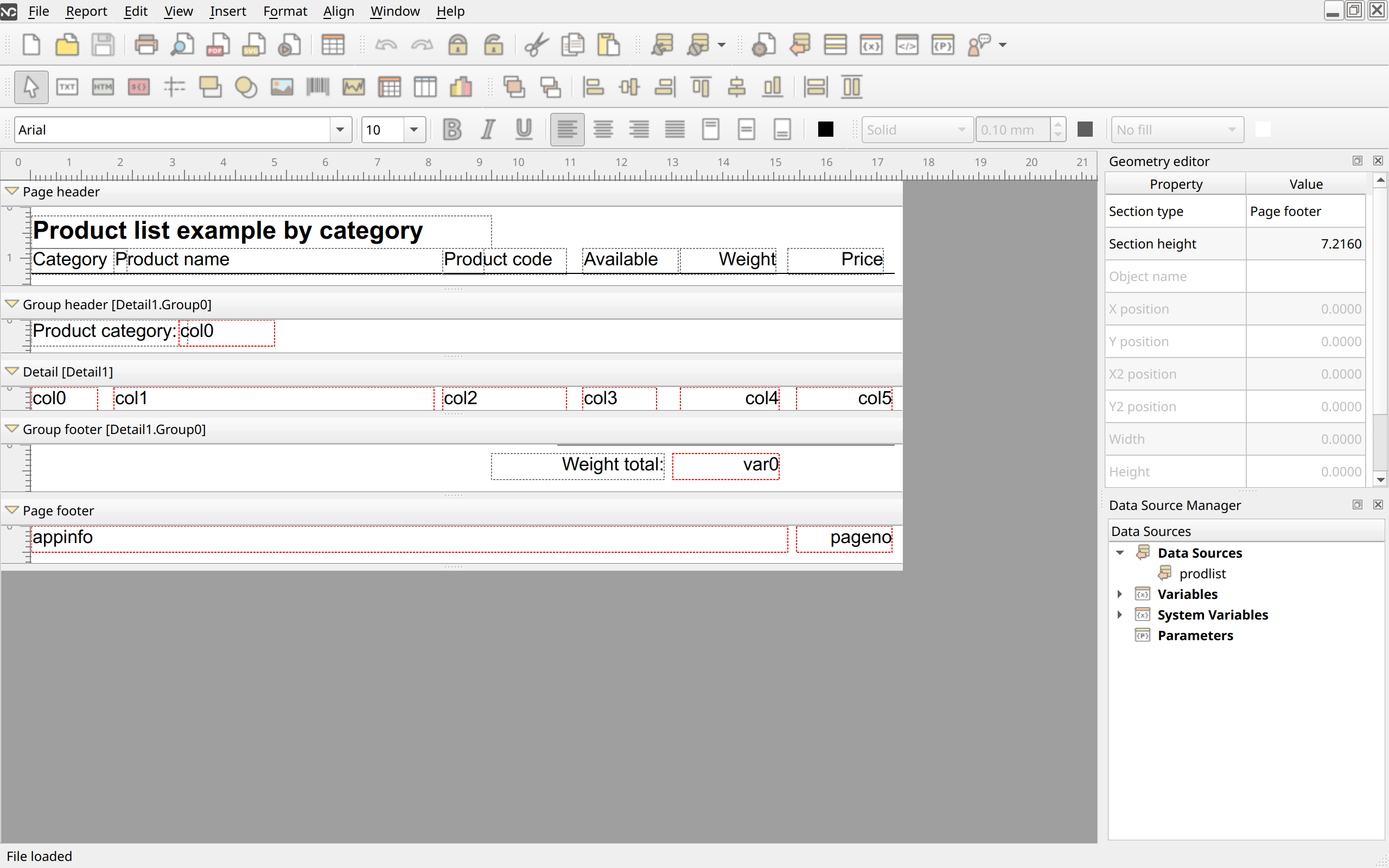
NCReport Designer Main Window
The menu bar provides all the standard actions for opening and saving report files, managing report sections, using the clipboard, and so on. The toolbars display the most common actions used when editing a report; these are also available from the main menu.
Most features of NCReport Designer are accessible from the menu bar or the toolbars. Some features are also available from context menus that can be opened over the report sections and items. On most platforms, the right mouse button opens context menus.
The main menu contains the following menus:
- File
-
File operations: (Ctrl+N), (Ctrl+O), , (Ctrl+S), , and the submenu. The submenu runs the current report directly to a selected output: Preview (Ctrl+P), Qt preview, Printer, PDF file, SVG file, Text file, HTML file, Excel file, or Image file. (Ctrl+R) opens the report runner dialog, in which you can choose the output, add test parameters, and set other run options. The File menu also contains (copies the XML source of the report), , and (Ctrl+Q).
- Report
-
The settings of the current (active) report and its sections: , , , , , and . (Ctrl+1) and (Ctrl+2) open the settings dialog of the selected item or section. manages the SQL database connections used for testing; the submenu lists the defined connections, and the submenu switches the current language of a multilingual report. (Ctrl+T) opens the test data editor.
- Edit
-
(Ctrl+Z), (Ctrl+Y), (Ctrl+L) and (Ctrl+Shift+L) for protecting the selected items from accidental changes, for assigning the same zone ID to all selected items, and the clipboard actions , , and .
- View
-
, , and (reset zoom), and , and the and items, which show or hide the corresponding dock windows.
- Insert
-
The report items that can be added to the report: Label, Text, Field, Line, Rectangle, Ellipse, Image, Barcode, Graph, Cross tab, Table View, and Graphics View (and Chart, if the HighCharts extension is enabled). The Selection item switches back to selection mode.
- Format
-
Text formatting actions for the selected text items: Bold, Italic, Underline, horizontal alignment (Left, Center, Right, Justify), vertical alignment (Top, Middle, Bottom), and Text color.
- Align
-
Arrangement and alignment actions for the selected items: Bring to Front, Move to Back, Align left, Center horizontally, Align right, Align top, Center vertically, Align bottom, Set widths the same, and Set heights the same.
- Window
-
Window management actions for the report windows that are open concurrently: Close (Ctrl+F4), Close All, Tile, Cascade, Next, and Previous, followed by the list of open windows.
- Help
-
The About box of the application and the About Qt box.
The toolbars (File, Edit, Database Connections, Report, Tools, Align, Text properties, and Shape properties) provide quick access to the most frequently used actions of these menus.
Geometry editor
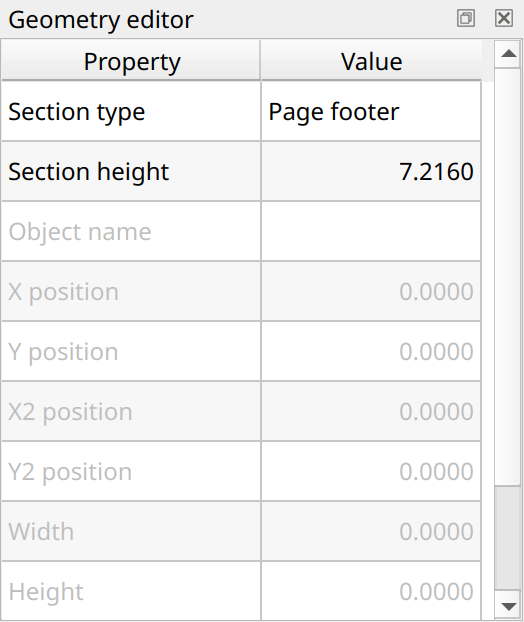
The geometry editor is a dock window that displays and edits the position and size of the current report item or section. To show or hide it, toggle the menu item. Items and sections become current when you click them.
The editor is a two-column property table (Property and Value) that contains the following properties:
-
Section type and Section height: the type and the height of the current section. The section height can be edited.
-
Object name: identifies the current item (read-only).
-
X position and Y position: the position of the item relative to its section, in millimeters.
-
X2 position and Y2 position: the end point coordinates of line items.
-
Width and Height: the size of the item, in millimeters.
-
Z-value: the stacking order of the item.
You can type numeric size or position values into the editable cells. Any change made to an item’s properties updates it immediately.
Data Source Tree
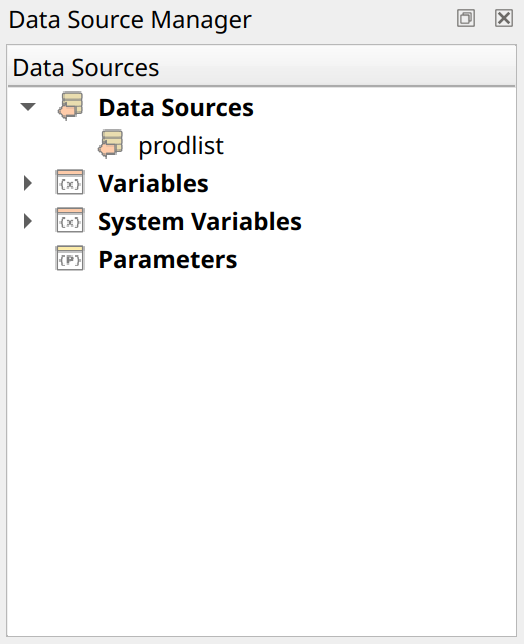
The Data Source Tree (shown as the Data Source Manager dock window) is located on the right side of the main Designer window. To show or hide it, toggle the menu item. The tree makes it easy to add fields to the report with a simple drag-and-drop action. It contains the following top-level nodes:
-
Data Sources: the data sources defined in the report. If the data columns are available at design time, they appear under the appropriate data source item.
-
Variables: the variables defined in the report.
-
System Variables: the built-in system variables of the report engine, such as the current page number.
-
Parameters: the parameters defined at design time.
The tree is updated whenever you add or modify a data source, a variable, or a parameter in the report. Therefore, we recommend that you begin building the report by defining the data sources first.
Adding a Field using the Data Source Tree
To add a field to any report section, drag the selected data source column and drop it onto the section at the position you want. A Field item is created at the drop position (the position of the mouse pointer is used), with the appropriate field source type and column already set. Variables, system variables, and parameters can be dragged to the sections in the same way; the created field then has the Variable, System variable, or Parameter source type.
Field Expression Builder
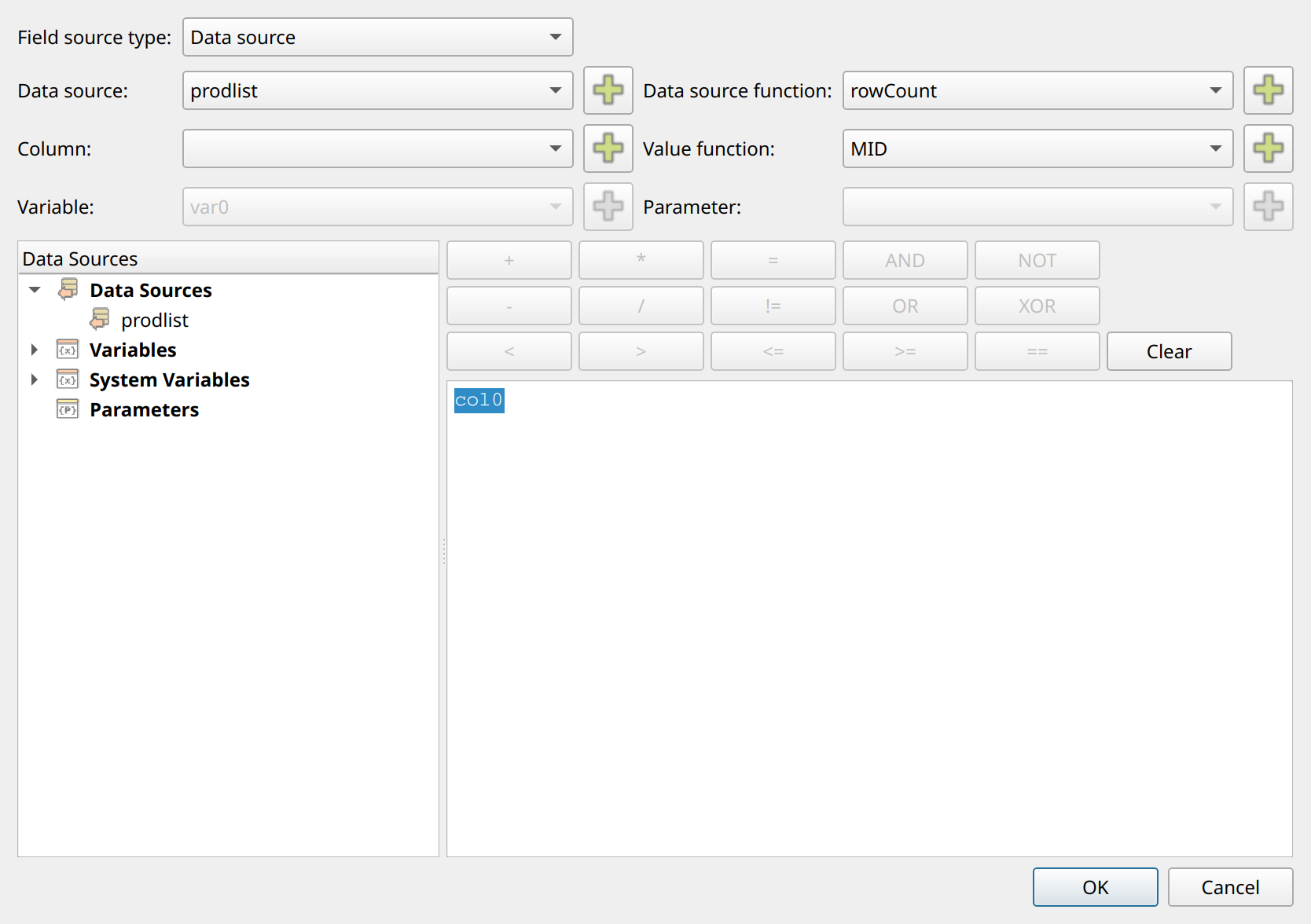
When you work with Field items, a helper tool is available for creating correct field expressions. To open the Expression Builder, click the Build expression… button in the field settings dialog. Use the combo boxes to select the desired element, and add it by clicking the small … button beside the combo box. The expression is then inserted into the text area at the cursor position. Depending on the type of the inserted element, the expression builder applies the correct syntax. The dialog also contains a data source tree, which you can use for the same purpose: double-click a data source column, a parameter, or a variable in the tree to insert it.
Expression Builder Dialog Controls
The following list describes the combo boxes of the dialog and their purpose.
- Field source type
-
Selects the field source type. Do this first, because the source type determines which other controls are available.
- Data source
-
Selects a data source from all data sources available in the report. To insert the data source, click the button beside the combo box.
- Column
-
Selects a data source column. To insert the column, click the button beside the combo box.
- Variable
-
Selects any available variable, including the system variables. To insert the variable, click the button beside the combo box.
- Data source function
-
Selects one of the available data source level functions. To insert the function expression, click the button beside the combo box.
- Value function
-
Selects one of the available data source value functions. To insert the function expression, click the button beside the combo box.
- Parameter
-
Selects one of the parameters defined at design time. To insert the parameter, click the button beside the combo box.
Logical Operation Buttons
The dialog also has operator buttons that speed up editing a script or a logical expression: arithmetic operators (+, -, *, /), comparison operators (==, !=, <, <=, >, >=), assignment (=), and the logical operators AND, OR, XOR, and NOT.
When you click a button, the corresponding operator is inserted into the text area. The Clear button clears the text area.