Images
The Image item renders bitmap or vector (SVG) graphics in a report. An image can be stored statically inside the report definition, or it can be loaded at run time from a file, from a URL, from a data source column or from a report parameter. This makes the image item suitable both for fixed content such as company logos and for dynamic, record-dependent content such as product photos.
Adding an Image Item
In the Designer, select the Image tool from the toolbar or the Tools menu, then click in the section where you want to place the item.
The new item is created with a default size and its property dialog opens.
When no image is loaded (for example, when the image comes from a data source), the Designer displays a hatched placeholder labelled IMAGE (…) with the source text in parentheses.
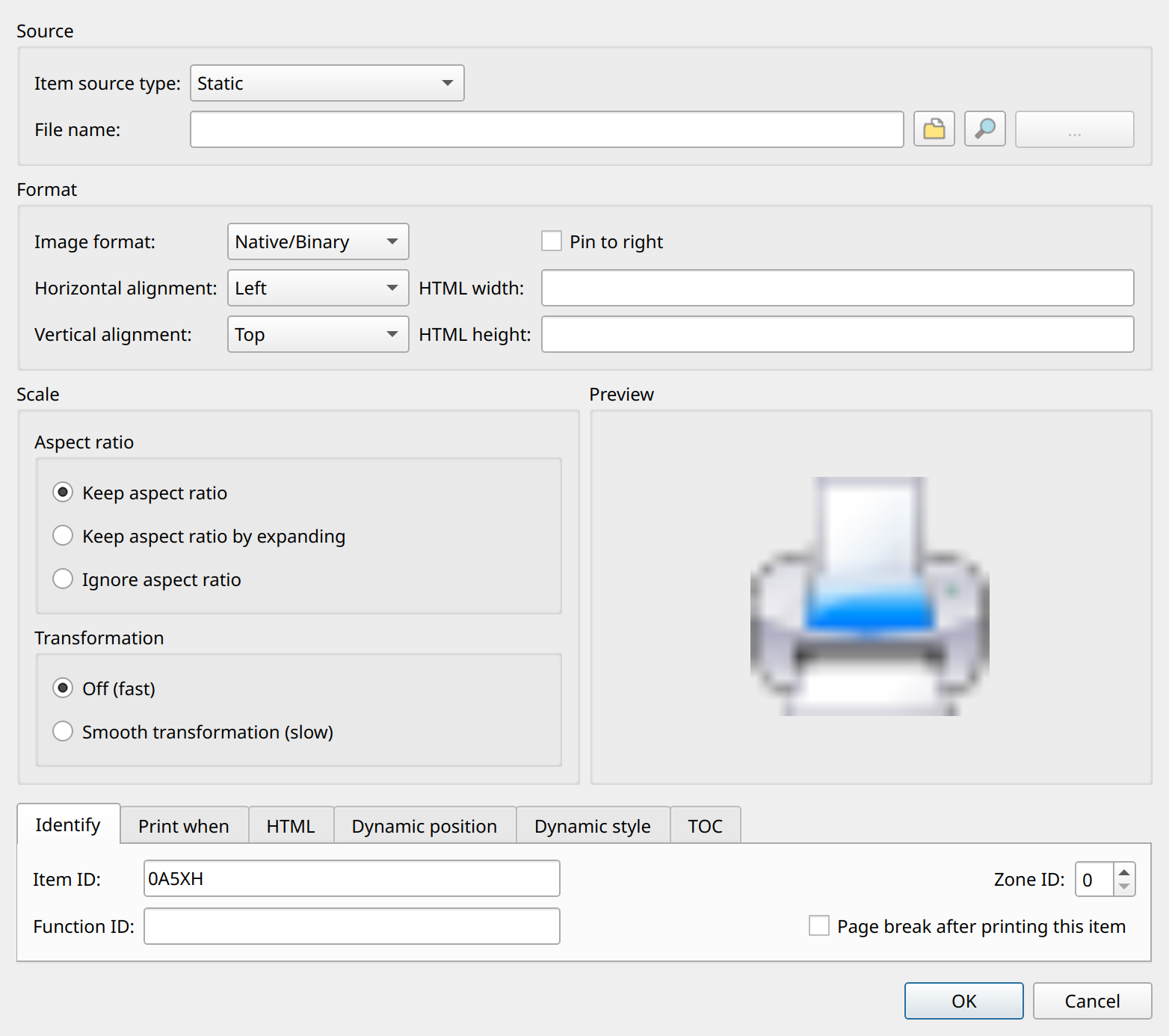
The Image properties dialog has the following groups:
- Source
-
The Item source type and the source text (file name, data source column, URL or parameter ID, depending on the source type). For static and file sources, a file browser button and a preview button are available.
- Format
-
Image format, horizontal and vertical alignment, Pin to right, and the HTML width / HTML height options.
- Scale
-
The aspect ratio mode and the transformation (smoothing) mode.
- Preview
-
A thumbnail preview of the selected image.
- Advanced Options
-
The common item options: Print When expression, HTML options, item ID, function ID and zone ID.
Image Sources
The source type defines where the image comes from. In the report XML it is stored in the resource attribute of the <image> element, and the element text holds the source text.
If the attribute is missing, the source is static.
| Source type (Designer) | resource value |
Element text and behavior |
|---|---|---|
Static |
(none) or |
The image is embedded in the report definition as Base64-encoded data. When the report is saved, raster images are always written as Base64-encoded PNG. In SVG format, the SVG XML text is embedded instead. |
File |
|
The path of an image file. The file is loaded when the report definition is read. If the file name contains |
File name from data source |
|
A data source column expression (for example |
Data source |
|
A data source column that holds the image data itself, for example a BLOB column, a Base64 text column, or an SVG XML text column (depending on the image format). |
URL |
|
A URL. The image is downloaded through the built-in HTTP client. |
URL from data source |
|
A data source column expression whose value is the URL to download for every record. |
Parameter |
|
The ID of a report parameter that provides the image (see Images from parameters). |
|
Images that depend on a data source (data source, file name from data source and URL from data source) are reloaded only when the column value differs from the previous one, so consecutive records that refer to the same image do not load it again. |
File names
File names, whether static or coming from a data source, go through the NCReport file name evaluation. The following placeholders are replaced in a file name:
| Placeholder | Replaced by |
|---|---|
|
The system temporary directory |
|
The user’s home directory |
|
The current working directory |
|
The value of the |
|
The root directory set by |
|
The value of the application properties |
In addition:
-
If the file name contains no
{or%characters, the application propertiesPATH0…PATH9are used as search paths: if a file with the same name exists in one of these directories, that file is used. -
A relative file name that does not exist is resolved relative to the directory of the report definition file.
-
File names that start with
httpare not modified.
Example of a file name built from two data source columns:
<image id="9KF7T" posX="20.637" posY="0.000" width="15.875" height="14.287"
       resource="file" aspectRatio="keep" format="0"
       alignment="1">$D{d1.filepath}/$D{d2.filename}</image>
Images from parameters
With the Parameter source type, the element text is a parameter ID. How the parameter value is interpreted depends on the image format:
-
Native/Binary: the parameter can hold a
QPixmapobject (aQImageif the engine is built with thenopixmapbuild mode) or a string containing an image file name. -
Base64 encoded: the parameter holds the Base64-encoded image data as a string.
-
SVG format: the parameter holds the SVG XML text.
NCReport *report = new NCReport(this);
report->setReportFile("invoice.ncr");
report->addParameter("logo", QPixmap(":/images/logo.png"));
Image Formats
The image format tells the engine how to interpret the source data. It is stored in the format attribute; the engine accepts both the numeric and the textual form.
| Format (Designer) | format value |
Description |
|---|---|---|
Native/Binary |
|
Raw image data or an image file in any format supported by Qt’s image readers. The Designer’s file dialog offers |
Base64 encoded |
|
Base64-encoded image data. With a file source, the file must contain Base64 text; with a data source, the column value is decoded from Base64 before loading. |
SVG format |
|
SVG XML content, rendered as vector graphics with Qt’s SVG renderer. |
|
Use the Base64 encoded format when images are stored as text in a database or in an XML/text data source, for example when an image is delivered in a JSON or XML document. |
SVG handling
When the SVG format is selected, the item keeps the SVG XML text and renders it with QSvgRenderer instead of converting it to a bitmap:
-
The SVG is scaled from its default size to the item size according to the aspect ratio mode, so it remains sharp in PDF and printer output.
-
SVG content can come from a static (embedded) source, a file, a data source column containing SVG XML text, or a parameter.
-
In the Designer, the SVG image is drawn in the item only for static and file sources.
-
If the engine is built without SVG support (
NCREPORT_NO_SVG), SVG images are not rendered.
|
URL sources are always loaded as raster image data, regardless of the selected format. |
Scaling and Transformation
An image is always scaled to fit the item rectangle. The way it is scaled is controlled by two options.
- Aspect ratio (
aspectRatioattribute) -
-
Keep aspect ratio (
keep, default): the image is scaled as large as possible inside the item rectangle while preserving its aspect ratio. -
Keep aspect ratio by expanding (
expand): the image is scaled to cover the item rectangle while preserving its aspect ratio. Selecting this mode also turns on the item’s automatic height (autoHeight="true"). -
Ignore aspect ratio (
ignore): the image is stretched to fill the item rectangle exactly.
-
- Transformation (
transformModeattribute) -
-
Off (fast) (
fast, default): the image is drawn directly into the target rectangle. This is the fastest method. -
Smooth transformation (slow) (
smooth): the image is first rescaled with smooth (bilinear) filtering and then drawn. This gives better quality, especially when images are scaled down, at the cost of rendering speed.
-
These options correspond to Qt’s Qt::AspectRatioMode and Qt::TransformationMode values.
Alignment
When the scaled image is smaller than the item rectangle (which happens with Keep aspect ratio), the horizontal and vertical alignment determine where the image is placed inside the rectangle:
-
Horizontal alignment: Left, Center, Right
-
Vertical alignment: Top, Center, Bottom
The default is left/top. In the XML, the alignment is stored in the alignment attribute as the numeric value of the combined Qt::Alignment flags, for example 36 (Qt::AlignHCenter | Qt::AlignVCenter) or 34 (Qt::AlignRight | Qt::AlignVCenter). The attribute is omitted for the default left/top alignment.
The Pin to right option (pinToRight="true") moves the image so that its right edge is aligned to the right page margin.
HTML Options
HTML width and HTML height (htmlWidth, htmlHeight attributes) are used when the image is converted to HTML in text document print mode. The image is then embedded as an <img> tag with Base64 PNG data, and these values become its width and height attributes. The horizontal alignment determines the alignment of the surrounding block.
Output Support
Images are painted in all graphical outputs: printer, PDF, SVG, image output and print preview. For HTML-based outputs, the image is converted by the output class itself.
XML Examples
A static, embedded PNG image (Base64 data shortened):
<image id="2" zValue="2" posX="0.000" posY="6.350" width="28.787" height="20.955"
       aspectRatio="keep" transformMode="smooth" format="1"
       alignment="1">iVBORw0KGgoAAAANSUhEUgAA...</image>
An image whose file name comes from a data source column, centered in the item:
<image id="11771" posX="57.150" posY="0.000" width="55.562" height="11.112"
       resource="filefromds" aspectRatio="keep" format="0"
       alignment="36">col0</image>
A Base64-encoded image stored in a data source column:
<image id="N7XDB" posX="16.087" posY="0.000" width="6.350" height="6.350"
       resource="datasource" aspectRatio="keep" transformMode="smooth"
       format="1" alignment="1">col0</image>
An image downloaded from a URL stored in a data source:
<image id="N7Q30" posX="149.225" posY="0.000" width="20.637" height="9.525"
resource="urlfromds" aspectRatio="keep" format="0">col1</image>|
The NCReport distribution contains several demo reports for images in the |