Label and Multi-Column Reports
Printing labels, such as address labels, product labels or barcode stickers on pre-cut label sheets, is a common reporting task. In a label sheet, the same layout is repeated in a grid: several labels side by side in columns, and several rows on each page. NCReport supports this with a dedicated report type, the label report.
Report Types
Every report definition has a report type, stored in the type attribute of the root <NCReport> element. The possible values are:
| Report type (Designer) | type value |
Description |
|---|---|---|
Report |
|
The default, normal paged report with headers, footers, details and groups. |
Text document |
|
Text document print mode (see the Text Document printout mode chapter). |
Label |
|
Label sheet mode: the detail section is printed repeatedly in a grid of labels. |
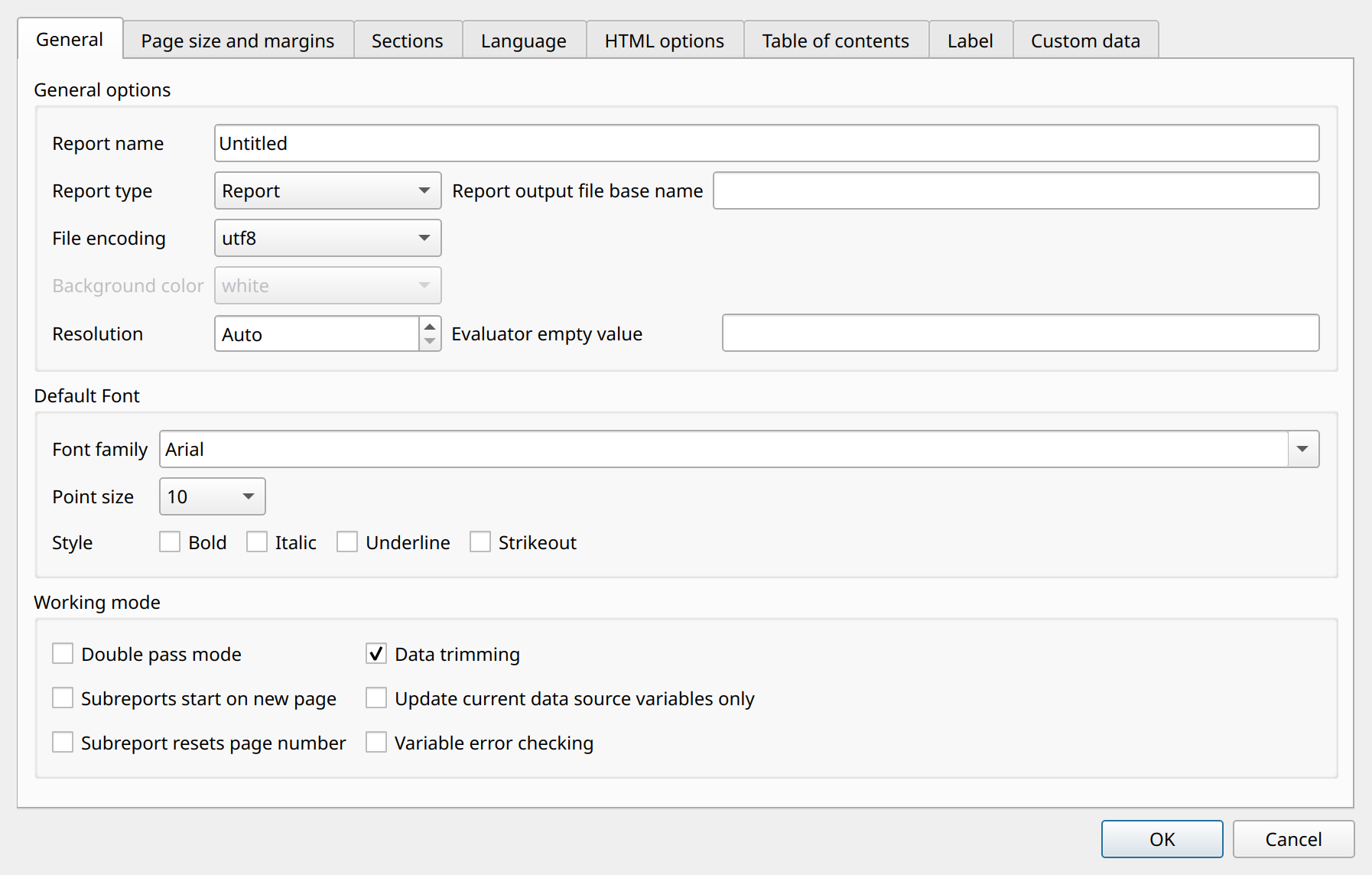
In the Designer, the report type is selected in Report > Report and page settings, on the General tab, with the Report type combo box.
Label Settings
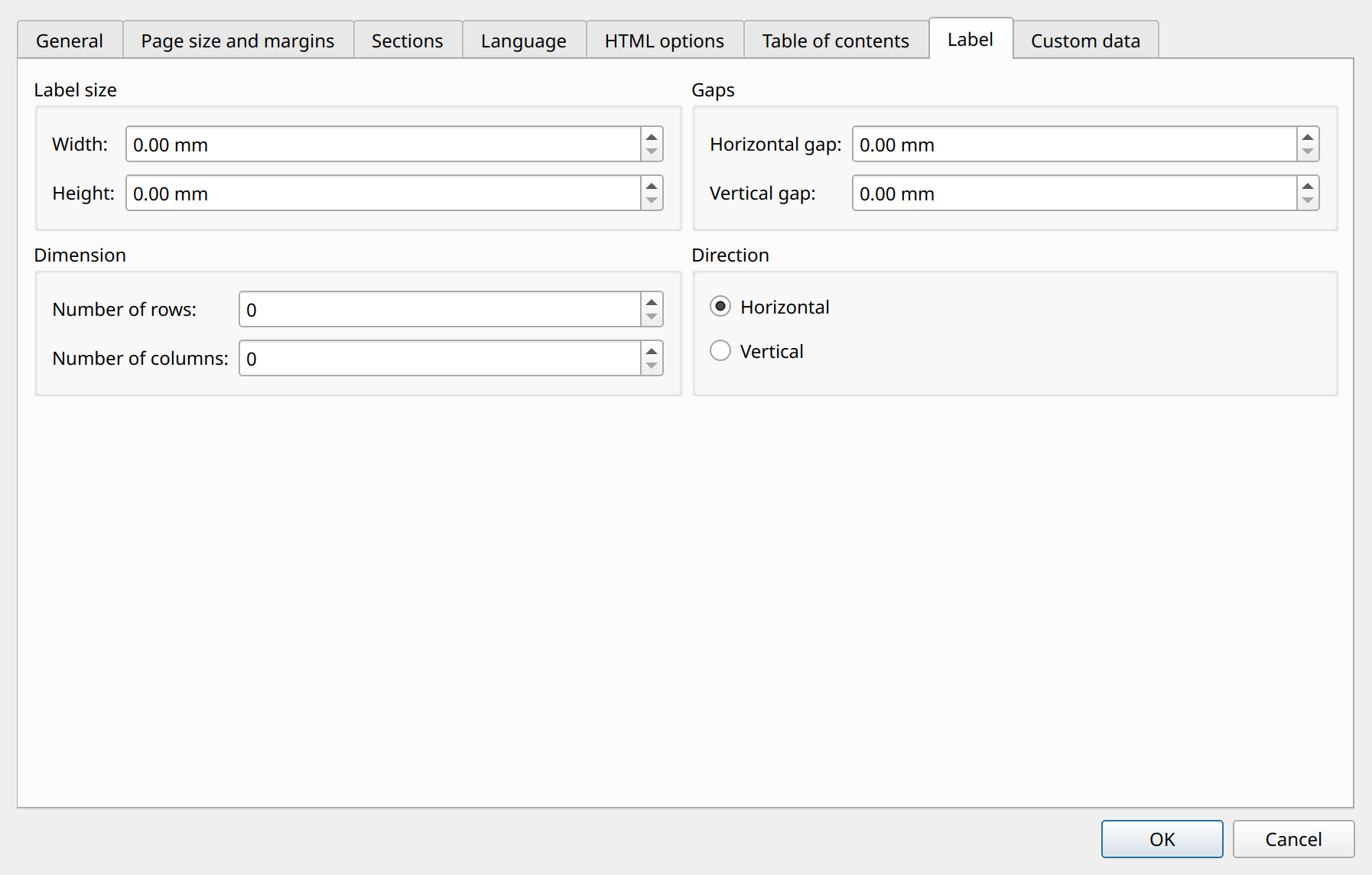
The label grid is defined on the Label tab of the Report and page settings dialog. The settings are stored in the <options> element of the report definition:
| Setting (Designer) | XML element | Description |
|---|---|---|
Direction |
|
The order in which labels are filled: |
Label size: Width |
|
Width of one label in millimeters. |
Label size: Height |
|
Height of one label in millimeters. |
Gaps: Horizontal gap |
|
Space between two adjacent labels in a row, in millimeters. |
Gaps: Vertical gap |
|
Space between two rows of labels, in millimeters. |
Dimension: Number of rows |
|
Number of label rows on one page. |
Dimension: Number of columns |
|
Number of label columns on one page. |
The position of the first label is determined by the top and left page margins (Page size and margins tab), so the margins must match the top and left edges of the label sheet.
When you close the dialog with Label report type selected, the Designer checks the settings:
-
The label width and height must be greater than zero.
-
The number of label rows and columns must be set.
-
Header and footer sections (page header, page footer, report header, report footer) are not allowed in label mode.
Designing the Label
A label report uses a single detail section, which represents one label. In label mode, the Designer displays the detail section with the size of one label (label width x label height), so you can design the label exactly as it will appear on the sheet. Assign a data source to the detail section as in any other report: each data source record produces one label. Any report items can be placed on the label, such as fields, text, images and barcodes.
How Labels Are Generated
In label mode the report engine works differently from normal report processing:
-
Only the first detail section is processed, and it must have a data source assigned.
-
Rendering starts at the top-left corner of the printable area (left margin, top margin).
-
For each data source record, the detail section is rendered once at the current label position, then the position moves to the next label of the grid.
-
When all labels of the page (rows x columns) have been used and there are more records, a new page is started and the grid is filled again from the first label.
-
Processing stops after the last record.
Fill direction
- Horizontal
-
Labels are filled row by row: from left to right across all columns, then the next row starts at the left margin. The horizontal step is label width + horizontal gap, the vertical step is label height + vertical gap.
- Vertical
-
Labels are filled column by column: from top to bottom down all rows, then the next column starts at the top margin.
Planning a Label Sheet
The label settings can usually be taken directly from the specification of the label sheet. Make sure that the grid fits on the page:
left margin + columns x label width + (columns - 1) x horizontal gap  <=  page width
top margin  + rows x label height   + (rows - 1) x vertical gap      <=  page height
For example, an A4 sheet (210 x 297 mm) with 3 x 7 labels of 63.5 x 38.1 mm, 2.5 mm horizontal gap and no vertical gap needs a left margin of 7.25 mm and a top margin of 15.15 mm: 7.25 + 3 x 63.5 + 2 x 2.5 = 202.75 mm (leaving 7.25 mm on the right) and 15.15 + 7 x 38.1 = 281.85 mm (leaving 15.15 mm at the bottom).
The corresponding report options:
<NCReport version="2.32.1" name="Address labels" type="label">
    <options>
        <orientation>portrait</orientation>
        <pagesize width="210.000" height="297.000">A4</pagesize>
        <topmargin>15.15</topmargin>
        <bottommargin>15.15</bottommargin>
        <leftmargin>7.25</leftmargin>
        <rightmargin>7.25</rightmargin>
        ...
        <labelColumnCount>3</labelColumnCount>
        <labelRowCount>7</labelRowCount>
        <labelHGap>2.5</labelHGap>
        <labelVGap>0</labelVGap>
        <labelWidth>63.5</labelWidth>
        <labelHeight>38.1</labelHeight>
        <labelDirection>horizontal</labelDirection>
    </options>
    ...
    <details>
        <detail id="Detail1" height="38.100" datasource="addresses">
            <items>
                ...
            </items>
        </detail>
    </details>
</NCReport>|
The demo report |
The label settings can also be set from code through the report definition’s page options, for example:
NCReportPageOption &opt = report->reportDef()->option();
opt.setReportType(NCReport::Label);
opt.setLabelSize(QSizeF(63.5, 38.1));
opt.setLabelColumnCount(3);
opt.setLabelRowCount(7);
opt.setLabelHorizontalGap(2.5);
opt.setLabelVerticalGap(0);
opt.setLabelDirection(NCReport::Horizontal);
Multi-Column Reports
The report options also contain two settings intended for multi-column reports:
columns-
Number of columns.
columnspace-
Space between columns in millimeters.
These values are read from and written to the report definition (NCReportPageOption::columnCount() and columnSpacing()), and they appear in every report file, usually as <columns>0</columns> and <columnspace>0</columnspace>.
|
In the current version of the report engine, the |
To print detail records side by side in several columns, use the label report type: define the "column" as a label with the desired width and height, set the number of label columns and rows, and choose the fill direction. Vertical direction fills each column from top to bottom before moving to the next column, which corresponds to the newspaper-style flow of a classic multi-column report; horizontal direction produces a card or catalog style layout. Keep in mind that label mode prints only the detail section: header and footer sections and groups are not processed.
|
The |