Cross-Tab Tables
Reports often contain tables or data presented in a tabular layout. Sometimes it is necessary to rotate the results so that the data source columns are displayed as rows and the data source records as columns. This is known as creating a pivot table, a cross-tab report, or rotating data. In cross-tab tables, the data source records are represented as horizontal columns, and the cross-tab rows are printed as data source columns. Tables often include horizontal and/or vertical summarization as well.
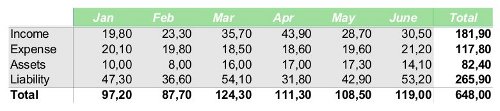
A cross-tab table has its own data source: a dedicated data source must be defined in the report for each table. When the report generator renders cross-tab tables, they behave as follows:
-
Horizontally expandable: Table columns represent data source records. If the table is wider than the available space, it continues in a new table below.
-
Vertically expandable: Each row represents a data column of the specified data source, and the table can break across multiple pages.
Table Structure
Cross-tab tables are composed of cells, each with its own function depending on its location. The primary elements of tables are the rows and columns. The following figures show the cross-tab row and column structure along with the names of their functions:
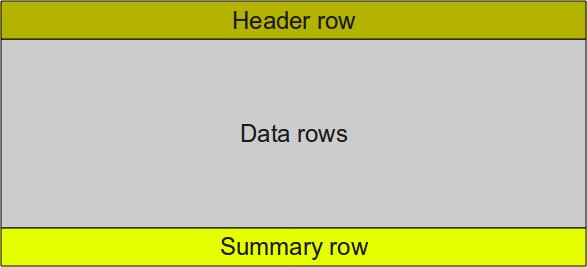
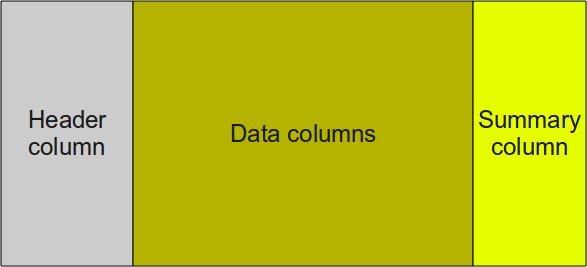
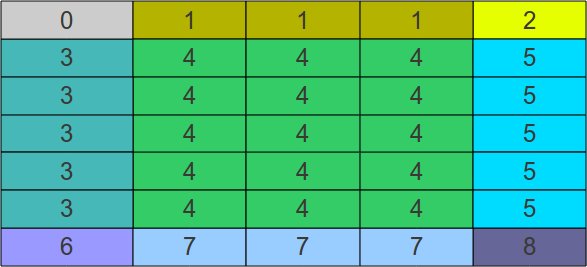
The cell structure of cross-tab tables is as follows:
| Cell Function | Description |
|---|---|
0 |
Corner header |
1 |
Column header |
2 |
Side summary header |
3 |
Row header |
4 |
Data |
5 |
Side summary data |
6 |
Bottom summary header |
7 |
Bottom summary data |
8 |
Cross summary data |
Using Cross-Tab Tables in the Designer
To add a cross-tab table to a report, select the Cross table item on the toolbar or in the Insert menu.
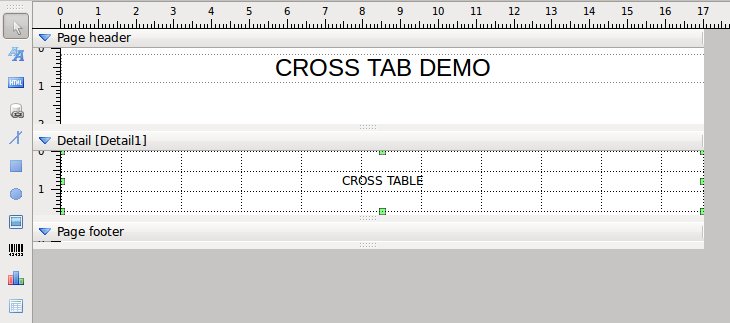
This creates a new cross-tab object in the selected section at the clicked position and opens the Cross tab settings dialog. In this dialog, you can set all of the table’s properties.
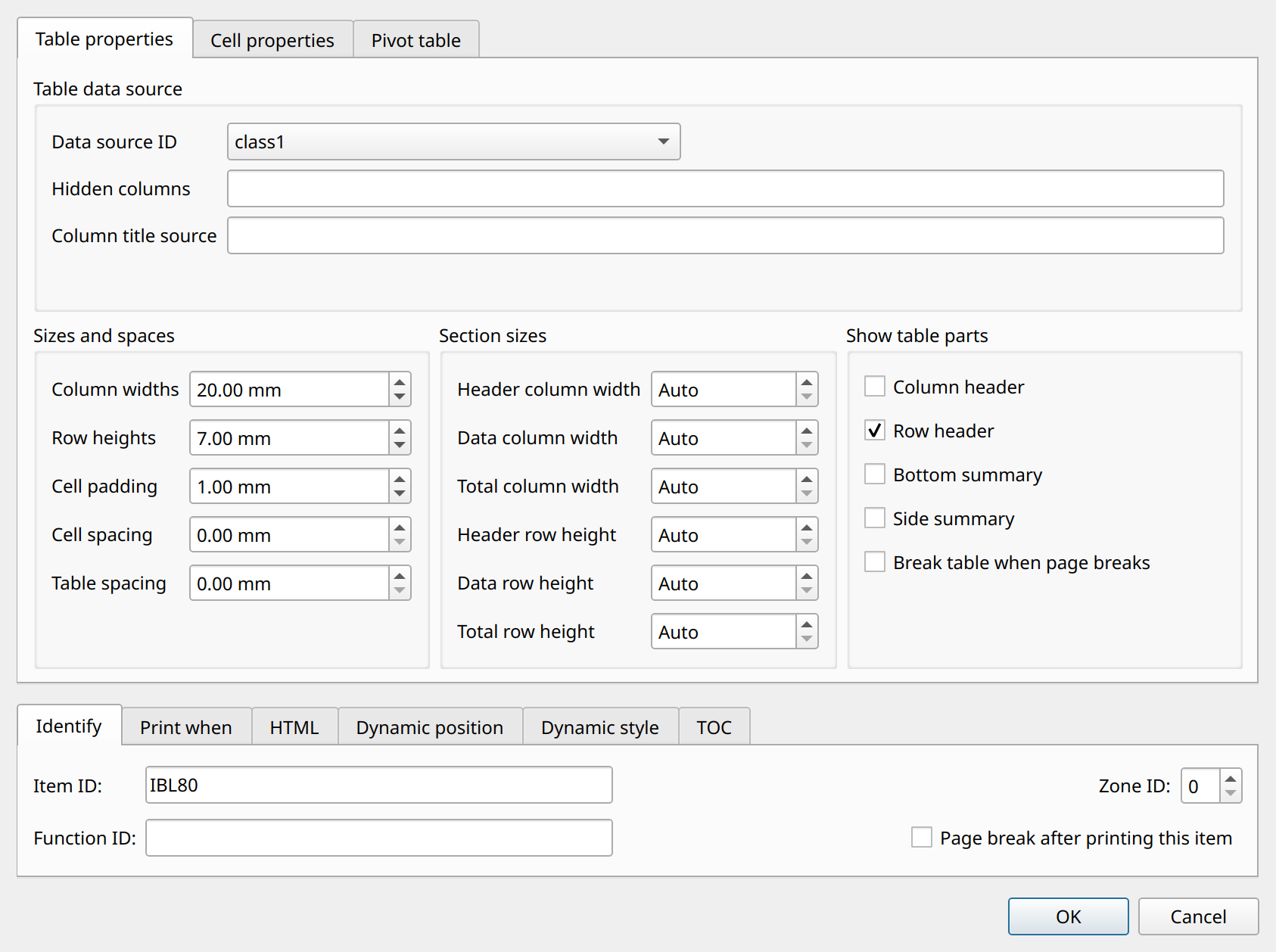
The dialog is divided into the following tabs: Table properties, Cell properties, and Pivot table. The Print only when expression is true option is at the bottom of the dialog. If a logical expression is defined, the table is shown or hidden based on the result of the expression.
Table Level Properties
-
Table data source:
-
Data source ID: ID of the data source of the table. The selected data source should be unique and independent of the data source of any detail, because cross-tab tables have their own data processing.
-
Hidden columns: Comma-separated list of data source columns that should not be shown in the table.
-
Column title source: The data column that contains the column header titles. If it is not specified, the column numbers appear.
-
-
Sizes and spaces: General sizes of cross-tab table elements.
-
Column widths: General width of the columns (or Auto)
-
Row heights: General height of the table rows (or Auto)
-
Cell padding: Gap inside the cells (internal cell margin)
-
Cell spacing: Spacing between the cells
-
Table spacing: Spacing between the tables when the table breaks into a new line
-
-
Section sizes: Sizes of cross-tab table sections.
-
Header column width: Width of the header (left, first) column
-
Data column width: Width of the data columns
-
Total column width: Width of the total (summary) column, usually the last, rightmost column
-
Header row height: Height of the header (first) row
-
Data row height: Height of the data rows
-
Total row height: Height of the total (bottom summary) row, usually the last row of the table
-
-
Show table parts: Switches to enable or disable specified table parts.
-
Column header: Shows or hides the column header
-
Row header: Shows or hides the row header
-
Bottom summary: Shows or hides the summary row
-
Side summary: Shows or hides the side summary column
-
Break table when page breaks: If enabled, the table can break between its rows at a page break
-
Cell Level Properties
The cell properties apply to the cells of the selected function (see the cell structure above).
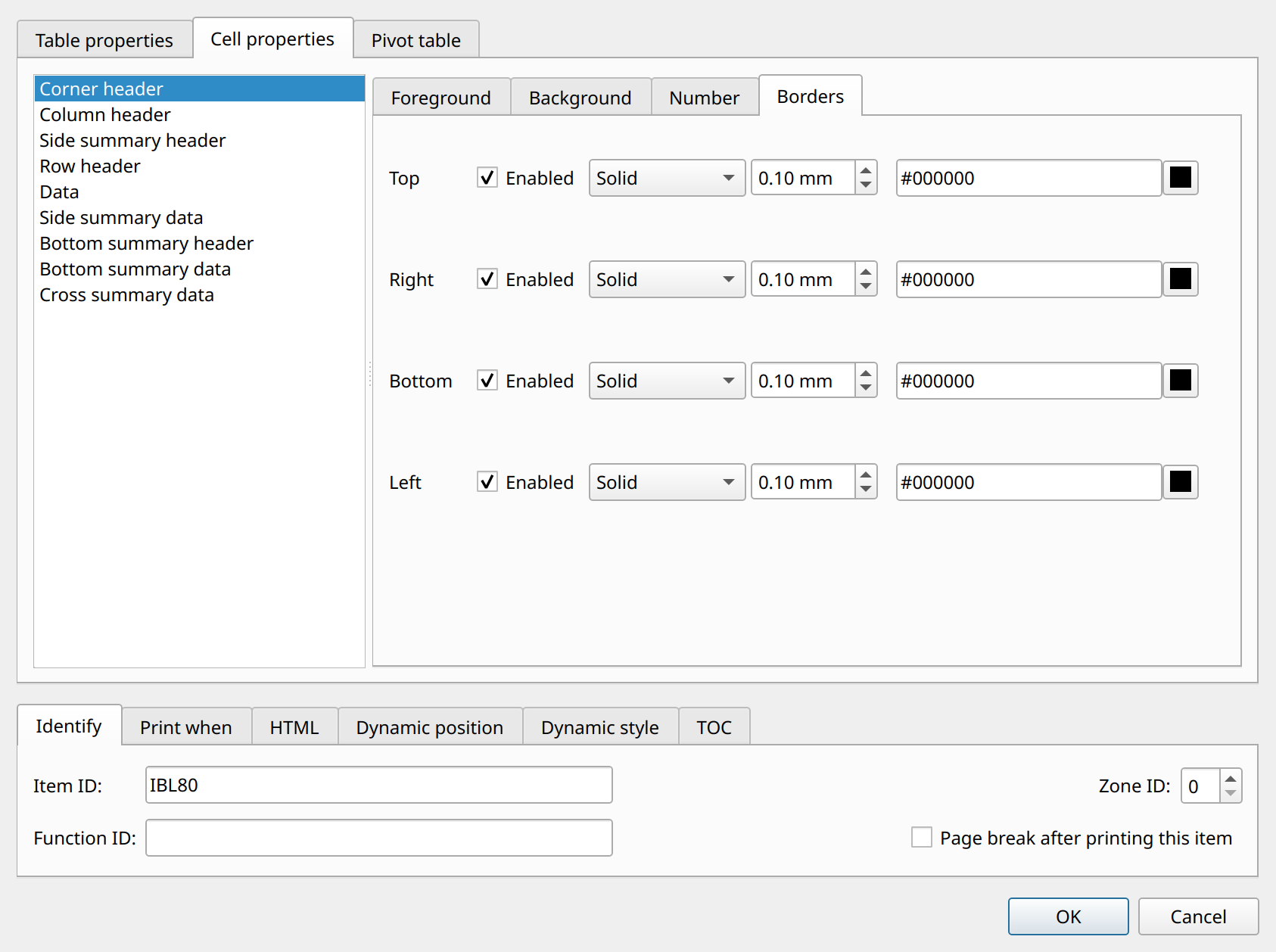
The following groups of settings are available for each cell function:
-
Data: The data type of the cell (Text, Numeric, Date, DateTime, or Boolean), a static cell text, and a format arg string.
-
Style: Font, font size, text color, rotation, and bold, italic, and underline switches.
-
Align: Horizontal and vertical alignment.
-
Background: Background mode (transparent or opaque), fill pattern, and background color.
-
Number format: Formatted number, localized formatting, blank if zero, format code, field width, fill character, and precision. These options work like the numeric format options of fields (see the "Data Formatting" chapter).
-
Borders: Top, right, bottom, and left borders of the cell.
Pivot Table Properties
On the Pivot table tab, the cross-tab item can be switched to pivot table mode with the Create Pivot table option. In this mode, the table is not a simple rotation of the data source: the values are aggregated by two data columns, one of which provides the rows and the other the columns of the table.
-
Row source: The data column whose distinct values form the rows of the pivot table.
-
Column source: The data column whose distinct values form the columns of the pivot table.
-
Value source: The data column that contains the values to be aggregated.
-
Aggregate function: Count, Summary, Average, Standard deviation, Minimum, or Maximum.
-
Auto sort header data: Sorts the row and column header values in ascending order (compared as text).
The PivotTableDemo.xml and PivotTableDemo2.xml demo reports show the pivot table mode in practice. For cross-tab examples, see the
crosstabtest*.xml and crosstab_school.xml demo reports.